
Review of the Canva AI Voice Generator Tool: I Tried It Out to Determine Its Worth for Content Creators (2026)
Introduction: The Voiceover That Altered My Video Editing Process
For many years, producing voiceovers was the step in video editing that I disliked the most. Creating graphics in Canva seemed fast and pleasant, whereas creating narrations felt quite different. Very often, I needed to find a quiet place, record the same line multiple times, remove background noise, and synchronise the voiceover with the visuals. Even a one-minute video took a lot of time to complete.
This process made me wonder how Canva AI Voice Generator would help me. Given that I use Canva for presentations, posts, and simple marketing videos, can it deliver fast results without making the narration sound artificial?
Instead of relying on the company’s marketing hype, I wanted to give Canva AI Voice Generator a test ride, just as real users would. In this process, I created an introductory video in the style of YouTube videos, an Instagram Reel, a business presentation, and an educational slideshow. This allowed me to see whether the application is good at handling real-life projects.
Some of the outcomes exceeded my expectations, while others reminded me that artificial intelligence still has its limitations, depending on the type of project. Instead of trying to persuade you that it is the ultimate solution, I will explain how it works, what can be improved, and who is the best candidate for it.
If you are not sure if Canva AI Voice Generator is a good choice for you in 2026, here is a guide that will provide you with the answer.
Quick Answer
Yes, Canva AI Voice Generator is worth using for most content creators in 2026. After testing it on YouTube videos, presentations, and social media content, I found it easy to use, fast, and capable of producing natural-sounding voiceovers for everyday projects. While it may not replace professional voice actors for advanced productions, it offers an excellent balance of quality, convenience, and value for creators who already use Canva.
Key Takeaways
Overall Rating: 4.7/5
- Canva AI Voice Generator is simple to learn and beginner-friendly.
- It creates clear AI voiceovers for videos, presentations, and tutorials.
- It integrates directly into Canva, saving time during editing.
- It is suitable for most content creators but has limited emotional expression.
Best For
- YouTube content creators
- Students
- Teachers
- Small businesses
- Social media content creators
- Freelancers
- Presentation voiceovers
- Videos for marketing
Not Recommended For
- Audiobooks
- Voice acting professionals
- Film dubbing
- Podcast content requiring emotion in narration
My initial reaction was straightforward. Canva AI Voice Generator is built for those looking to create high-quality voiceovers fast without having to master difficult audio editing programs. Canva is certainly not meant to replace a professional studio, yet it manages to do an unexpectedly good job.
You May Also Like: Canva Invoice Templates: 10 Invoice Design Mistakes That Can Cost You Clients (2026)
What Is Canva AI Voice Generator?
Canva AI Voice Generator is an AI feature that converts written text into spoken words using text-to-speech technology. You don’t need to record yourself; you only have to write out the script and then select one of the available AI voices and get your narration in seconds.
Another good thing I noticed while testing is that everything is done in the same workspace. There was no need to leave Canva and move to another website or any other program – you can generate a voiceover and immediately drag it into your timeline in Canva.
For those who regularly use Canva, this integrated approach allows them to save even more time than they might expect.
This tool supports several languages and various voices, so that it can be used for many purposes, such as educational lessons, product demos, video ads, social media posts, etc. The procedure of doing all these things is quite similar.
The main advantage of Canva AI Voice Generator is its simplicity—anyone who has never worked with audio before can make a decent voiceover in minutes.
Reasons to Test Canva AI Voice Generator
I test design tools because I am more interested in their performance in practice than in just reading features.
As Canva released more AI-based tools, I became curious whether they actually increased productivity or were just another marketing gimmick.
Voice generation seemed like an ideal candidate for testing.
Almost every creator these days produces a video weekly. They can create tutorial videos, product reviews, customer presentations, training videos, or short clips for social media. Making a new recording for each project is time-consuming, particularly when you’re working solo.
One question needed answering.
Could Canva AI Voice Generator really save me time in production without reducing voice quality to an unacceptable level for the viewer?
For that purpose, I did not limit my testing to a single type of content.
This allowed me not only to determine the pros but also to identify cases in which this AI voice is still less natural-sounding than a human voice recording.
How I Tested Canva AI Voice Generator
Instead of making just one example and claiming it is the review, I tested Canva AI Voice Generator in several realistic scenarios that most people encounter.
Project Number One
YouTube-style introduction that takes about forty-five seconds.
It helped me test the voice’s pronunciation, speed, and engagement.
Project Number Two
Vertical Instagram Reel to advertise a digital product.
Because of the short format, I concentrated on clarity and the correct delivery time.
Project Number Three
Business presentation to explain a straightforward marketing strategy.
In this case, the narrated video should sound clear and professional.
Project Number Four
Slideshow for beginners to learn something new.
Educational projects usually contain some technical terms.
In addition, I tried out various scripts of varying lengths in the testing phase.
Some of them were just a few sentences long.
Others included multiple paragraphs.
It helped me figure out how the AI voice could narrate longer pieces without repeating itself.
Speaking styles were varied whenever possible, the speed was also adjusted, and I tested the voice versions on both headphones and laptop speakers.
I gained a more thorough understanding of what it’s capable of by testing it under various conditions rather than creating a single voice sample.
Features That I Actually Used Instead of Simply Reading About Them
Many reviews list the same set of features as those on the official product website. This usually doesn’t help the reader understand how practical they can be.
Here is the list of features I actually used while working on projects.
Text-to-Speech Generation
The first feature enables you to create a voiceover from written text in just a couple of seconds.
This process seemed fast enough for short videos.
No need to record my voice multiple times – I had to edit the text to adjust the narration.
Various Voices
The presence of various voice options was an advantage, since not all projects require the same speaking style.
For instance, a business presentation would require a professional voice, whereas a social media video can be narrated by someone more animated.
Selecting the correct voice option helped make the video more enjoyable.
Multi-Languages
Multilingual support is another feature that creators working with international audiences will like.
Although I have mostly tested English voice options, the language selection gives more freedom to educators, businesses, and content creators who cater to different areas.
Direct Canva Integration
It became one of my favourite things.
All processes remained within Canva.
I created a script, generated the narration, added it to animations, and published the video project without switching to any other app.
Such a workflow seemed much more convenient than using external text-to-speech programs.
Editing the Video Fast
Each time I identified an awkward sentence, there was no need for me to rerecord the whole narration from scratch.
It sufficed to edit the text, create a new one, and keep going with editing.
This can save a lot of time on edits for anyone who creates videos often.
First Impression of Canva AI Voice Generator
Before using Canva AI Voice Generator, I assumed that I would encounter something decent yet average.
Many other voice generators have no difficulty speaking aloud, but most cannot produce natural-sounding speech for longer texts.
After using this product, I formed a more impartial attitude towards it.
Everything about the creation of a voice generator was very easy, and making a voiceover itself demanded little effort.
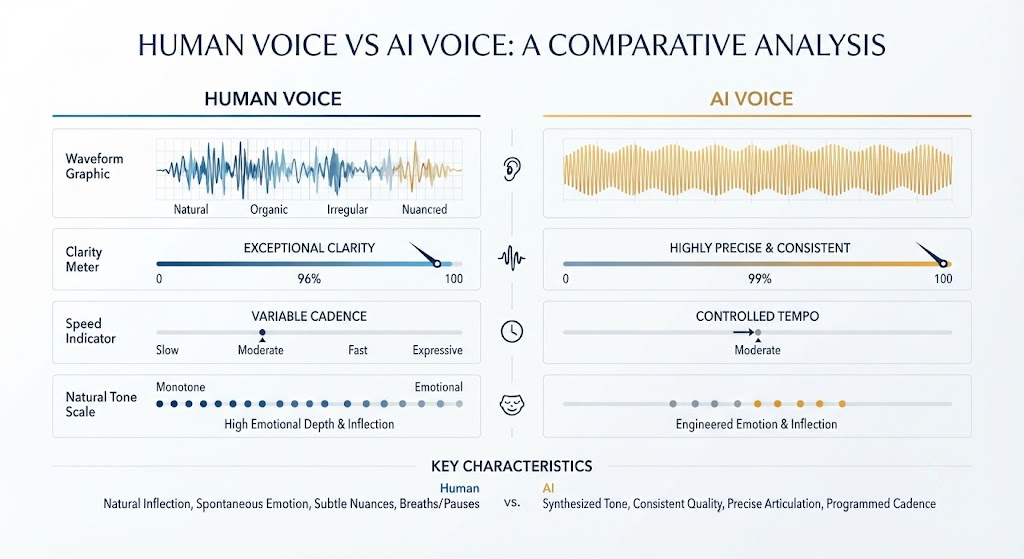
In cases where emotion or drama needed to be infused into the script, the tool became somewhat less useful, as variations in intonation, emphasis, and rhythm are things human speakers do instinctively, but that still elude AI.
Nevertheless, Canva AI Voice Generator turned out to be more useful to me than I expected for one very straightforward reason.
It saved me some tedious steps in my work and helped me concentrate on producing content rather than wasting time on narration.
You May Also Like: Canva AI Presentation: How I Create Professional Slides Faster (Complete 2026 Guide)
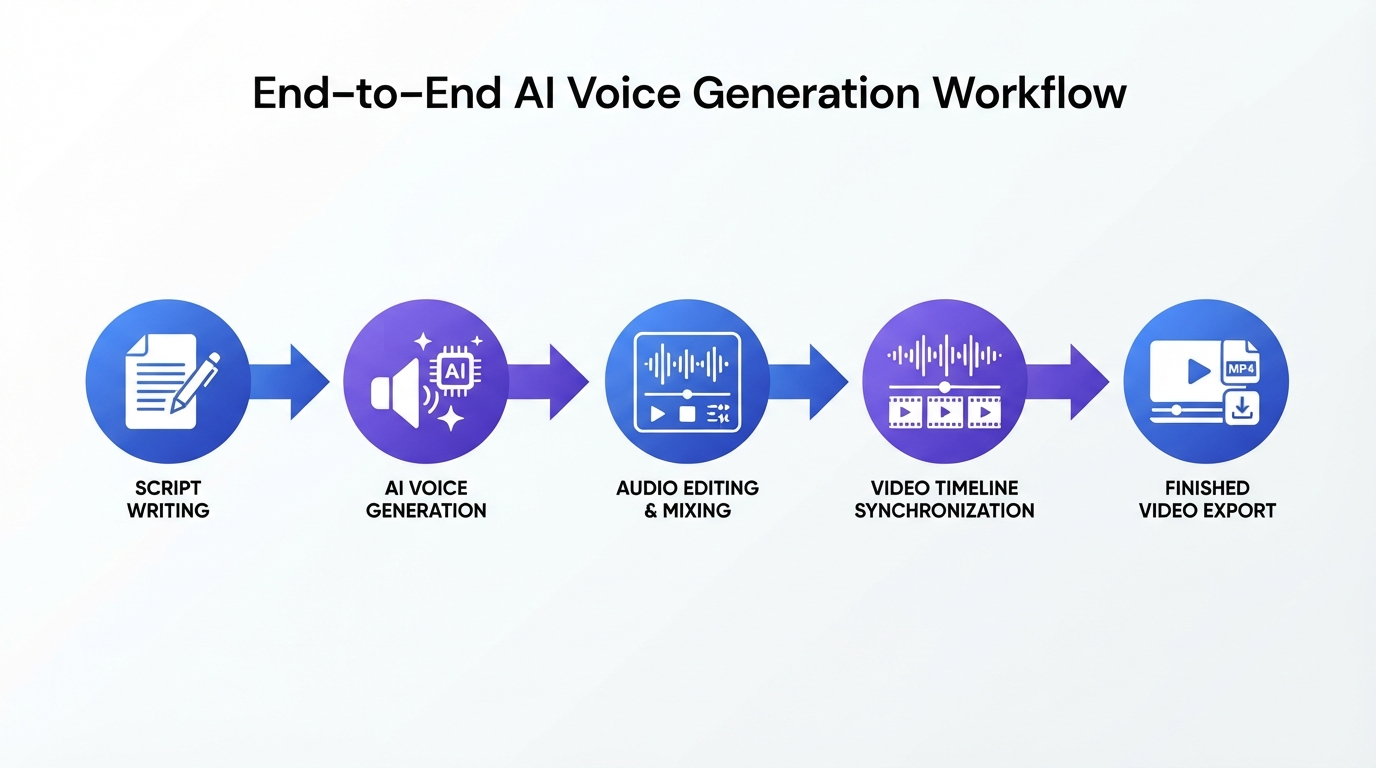
Using Canva AI Voice Generator
One of the factors that made me want to try the Canva AI Voice Generator was its lack of a steep learning curve. Regardless of your experience level with making voiceovers, you will be able to make one in a matter of minutes.
Here are the steps that I took:
Step 1: Opening a Presentation/Video or Creating a New Design
First, please open an existing presentation/video or create a new design. I tested the tool across projects, presentations, and videos, and it worked well in all.
Step 2: Accessing the AI Voice Feature
Next, you should use the AI voice feature in the available apps or AI tools in Canva. After doing so, a text box will appear where you should insert your script.
Step 3: Writing Your Script
Please avoid long paragraphs and divide your text into shorter sentences.
For instance,
“Hello and welcome to today’s tutorial. In this video, I will demonstrate how this feature works.”
As opposed to,
“Hello and welcome to today’s tutorial, where I will explain everything about this feature and why you need to use it, as it can save a lot of time.”
These small improvements considerably improve the voiceover quality.
Step 4: Select a Voice
Choose the voice that best fits your project.
For instance:
- A calm voice was the best choice for a business presentation.
- Friendly voice fits educational videos.
- Energetic voice matched short social media clips.
The selection of the proper voice can make a much greater difference than one might think.
Step 5: Create the Voiceover
Once the script is done, create the voiceover.
At least in my experience, it usually took just a few seconds.
Step 6: Synchronise the Audio
Drag and drop the produced narration into your Canva timeline.
This step is vital, as any good narration sounds unprofessional without synchronisation with the visuals.
Step 7: Preview Before Exporting
It’s always recommended to preview the entire video before exporting.
In some cases, there can be only one word that doesn’t sound completely natural. Sometimes, slight modifications of the script solve the problem.
My Practical Experience While Using This Tool for Various Projects
Instead of evaluating the Canva AI Voice Generator once, I used this tool across several projects.
Each of them gave me some practical experience.
Project 1: Video Introduction
First, I created a short YouTube-style introductory video.
The narration sounded clear, had a comfortable rhythm, and people most likely wouldn’t even think it was made by AI unless they listened very carefully to the video.
I believe that for educational and tutorial videos, it’s more than enough.
My Rating
★★★★★ 5/5
Project 2: Instagram Reel
Short clips require faster production.
The AI voice performed the scripts rather successfully since the narration was about thirty seconds long.
The combination of Canva animations and AI voices gave me a great result without any extra work.
My Rating
★★★★★ 5/5
Project 3: Business Presentation
It would benefit from a more serious and professional tone.
The chosen voice sounded confident and clear.
I appreciated that the narration could be edited simply by changing the script text rather than rerecording it.
It could save a lot of time in case you are making a presentation for your clients or for internal purposes.
My Rating
★★★★☆ 4.5/5
Project Four: Educational Slideshow
Educational content usually contains many technical words.
All the terms were pronounced correctly; there were just some words that needed some punctuation changes.
However, it wasn’t a big deal since it took me no more than one minute to change the text.
My Rating
★★★★☆ 4.5/5
My Favourites
During several hours of tests, I noticed several positive features.
Extremely User-Friendly
Anyone can start making their own voiceovers without any prior editing experience.
Increased Speed of Content Making
Replacing manual recording with AI made some content creation faster.
Everything Remains Within Canva
And it became one of the features that I like the most.
It was not necessary to visit multiple websites, download audio files, or use additional software for editing.
Clear Voices
The voices were clear enough for making presentations, tutorials, marketing videos, and social media content.
Easy Scripts Editing
Changing one sentence was as easy as changing text, not having to record the whole narration from scratch.
It saved a lot of time on its own.
Improvements Needed
No software is flawless, and there are areas where the Canva AI Voice Generator needs improvement.
Emotional Storytelling
AI technology still cannot do a good job at telling stories emotionally.
When your script demands elements like excitement, suspense, or dramatic delivery, the human voice is always preferable.
Length of Narration
Very long scripts can sometimes seem repetitive in their tone.
Dividing the narration into shorter parts will help improve the output.
Voice Modification
The voices in this software are good enough, but advanced users would probably need more control over emphasis, emotional colouring, and speaking style.
You May Also Like: 25+ Essential Canva Keyboard Shortcuts for Windows, Mac & Web to Work Faster (2026 Guide)
Canva AI Voice Generator vs Other AI Voice Tools
Many readers wonder whether Canva can replace dedicated AI voice software.
Here is how I see it after testing.
| Tool | Best For | My Opinion |
|---|---|---|
| Canva AI Voice Generator | Presentations, social media, tutorials | Best for Canva users who want an all-in-one workflow |
| ElevenLabs | Realistic narration | Better for professional voice quality |
| Murf AI | Business voiceovers | Excellent customisation options |
| Speechify | Reading text aloud | More focused on accessibility than video creation |
| CapCut AI Voice | Short videos | Convenient for quick social media editing |
If you already spend most of your time designing inside Canva, its built-in voice generator makes a lot of sense because everything stays in one place.
If your work depends on highly expressive narration or commercial voice acting, a specialised AI voice platform may offer more advanced controls.
Who Will Benefit from Using Canva AI Voice Generator?
Based on my own experience, I believe that the following users will find this software extremely helpful:
- YouTube creators
- Students
- Teachers
- Freelancers
- Business owners
- Marketers
- Social media managers
- E-Lesson creators
- Presentations designers
- Beginners in video editing
When Should You Consider Other Options?
Although Canva does its job effectively for common content creation purposes, there are cases when it won’t be suitable, including:
- Production of audiobooks
- Professional podcasts
- Dubbings of films
- Storytelling through characters
- High-end commercial advertising
In such situations, professional voice actors or even more sophisticated AI voices are preferred.
Advice That Helped Me Get Better Results
I learned some recommendations after trying out various scripts that led to more effective voiceover generation.
- Write as if you are addressing only one person.
- Make sentences short and clear.
- Create natural pauses with the help of punctuation.
- Read your script once before generating the voice.
- Choose the voice that matches your project.
- Listen to the narration before downloading.
- Divide large paragraphs into smaller ones.
These minor changes helped me to generate more natural-sounding voices.
Frequently Asked Questions
Is Canva AI Voice Generator free?
Certain capabilities are available on the Canva free plan, while others require Canva Pro. Some features of Canva AI Voice Generator rely on current AI capabilities.
Can beginners work with Canva AI Voice Generator?
Yes. In my view, it is one of the easiest AI voice generators for beginners, as all the processes are incorporated in Canva’s editing capabilities.
Can I use it for YouTube videos?
Yes. I have used it to make an introduction for a YouTube video, and the output is decent enough for tutorials and educational videos.
Is the AI voice realistic?
The voices of AI can be considered natural for most common purposes, but they are less natural for emotional narrations.
Is it good for presentations?
Yes. In fact, presentations are one of those places where I thought the AI voice generator works exceptionally well.
Final Verdict
Having used Canva AI Voice Generator in various projects, I have formed a positive opinion of it.
Canva AI Voice Generator is not intended to replace professionals who do voiceovers. This is something that it cannot do and does not need to do. The true power of Canva AI Voice Generator lies in its ability to help designers create voiceovers quickly, all within Canva.
Using the tool helped me save time and create presentations, social media videos, educational videos, and marketing clips without wasting time on recording and post-processing my voiceover.
Besides the quality of the voiceovers themselves, what really struck me was how easily the whole process could be incorporated into Canva’s workflow. Using this application, I could not only record voiceovers but also script and synchronise them with the visual parts of my video, and then download the project from a single platform.
Will I use Canva AI Voice Generator?
Yes, especially when making tutorials, presentations, product demos, and social media content.
I strongly advise Canva users to try this application.
Overall Rating
| Category | Score |
|---|---|
| Ease of Use | 5/5 |
| Voice Quality | 4.5/5 |
| Features | 4.5/5 |
| Workflow Integration | 5/5 |
| Value for Canva Users | 5/5 |
| Overall | 4.7/5 |
For creators who value convenience, consistent results, and an all-in-one editing experience, Canva AI Voice Generator is a reliable addition to the Canva ecosystem. It may not replace specialised AI voice platforms for every professional use case, but for most content creators, it offers a practical balance of quality, speed, and ease of use.
Note: The information above on using Canva AI Voice Generator for various content creation tasks, such as presentations, videos, and educational content, is based on my personal experience. Your experience will depend on the type of task you perform and which AI voice generator you use. I encourage you to explore all available options for yourself and choose what works best for you. All external sources used in the article are purely for educational and informational purposes. Swisspik is an independent platform and is not affiliated with Canva or any other company or trademark.
Well-structured and informative review about Canva AI Voice Generator. It sure is a handy feature