Quick Summary
If you want an easy-to-use way of creating and publishing simple websites, portfolios, landing pages, personal sites & other web projects – without having to code – then Canva Website Builder may be ideal.
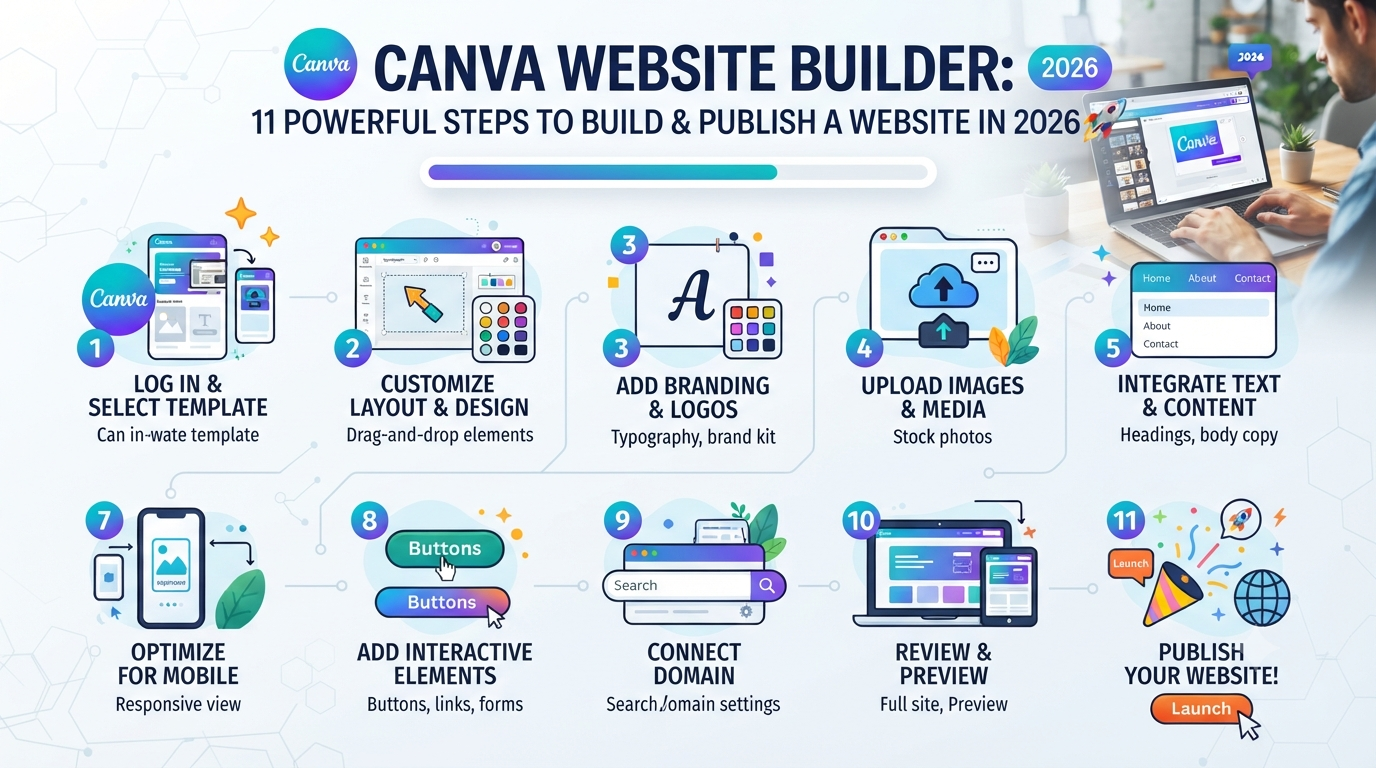
In this article, I’ll share 11 key steps that will walk you through how to build your own Canva website from start to finish.
We’ll cover everything from picking the best site structure and template through to designing your site, double-checking the mobile version, boosting basic SEO, and finally publishing your finished site!
Key Takeaways
- Canva takes care of the visual aspects of creating a website. Planning out the layout will require some planning on your part, however.
- There are plenty of great Canva website templates to choose from that you can customize with your own content.
- What’s required to build a great-looking website? A clearly defined goal, some readable content, and an obviously defined “next step” for anyone visiting your site. Mobile testing, SEO, and everything else shouldn’t wait until you’ve published.
- Finally, while Canva can work well for creating a basic portfolio or more visually-focused sites, it doesn’t always make the best choice for every kind of advanced website project.
Quick Answer: Can You Build a Website With Canva?
Yes, while Canva is best known as a graphic design tool, you can also use Canva to create a website.
Using its visual, drag-and-drop website builder, you’ll be able to easily build and publish your site without having any traditional coding knowledge.
The current suite of website-building tools offered by Canva offers everything needed to make great-looking, responsive designs using customizable templates while offering navigation and a variety of publishing options.
For those building their own personal portfolio sites, freelancers or creators looking to showcase work, small businesses, or anyone needing a basic landing page or event site — this makes Canva an excellent option.
However, if you have more complex needs such as creating an e-commerce store, a web app, or needing to include lots of custom functionality, then investing in a dedicated website platform could prove to be worth it in the long term.
Who Is This Guide For?
This Canva Website Builder guide is mainly for:
- Beginners Creating Their First Website
- Freelancers
- Graphic Designers
- Photographers
- Content Creators
- Students
- Personal Brands
- Small Businesses
- Professionals Who Need A Simple Portfolio
This isn’t as much of an ideal fit if you’re looking to build out something more complicated, like an advanced e-commerce site with lots of products, memberships with unique access levels, database-driven apps, or anything where your users are going to be interacting with custom functionality on your side.
Introduction
Creating a website can sound much more complicated than it actually is, especially when you hear terms such as hosting, coding, responsive design,n and search engine optimization.
Canva takes a different approach. Instead of beginning with code, you can work visually with layouts, text, images, buttons, and other design elements. That makes the initial design process much less intimidating for someone who already understands Canva.
I came to this topic from a personal portfolio perspective. My main goal was to create a personal portfolio website, and the actual design work felt surprisingly easy. Choosing visual elements, changing fonts, and adjusting the overall appearance did not take much effort.
What required more thought was the layout.
I had to decide what should appear first, which sections were actually necessary, how much information was enough,h and how a visitor should move through the page. My biggest challenge eventually became SEO optimization. Making the website look good was one thing; thinking about search visibility, page structure,e and useful content was another.
That experience shaped how I approach Canva websites today. A website is not just a design project. It is a combination of structure, content, visual communication, user experience,ce and search visibility.
This guide explains the complete process.
What Is Canva Website Builder?
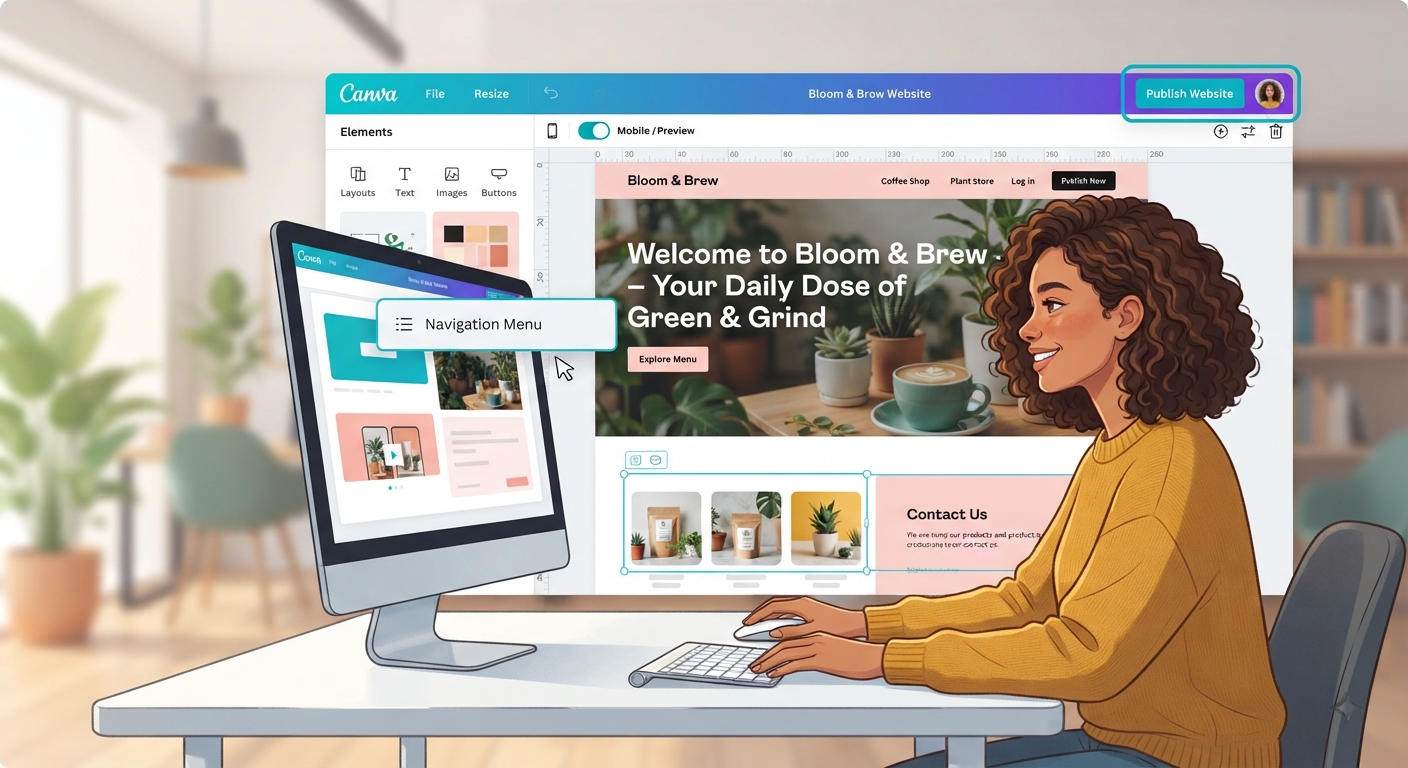
Canva’s Website Builder is a tool that enables you to build your own website using a drag-and-drop editor instead of writing code manually.
A site built on Canva will have a layout you can customize, but there are no codes involved here.
According to Canva, their Websites are responsive — which means they adapt well to mobile devices.
You don’t need coding experience to use Canva’s website builder.
So whether you want to build a portfolio or maybe even your whole website, all you need is a bit of creativity.
With Canva, you get many templates and layouts already designed for various purposes.
I think what I’m trying to say is Canva makes the whole design process much simpler – but that doesn’t necessarily make each individual website project easy.
You’ll still have choices about your content, your layout, your navigation, and the SEO you need to consider.
You May Also Like: Canva PDF Editor vs Sejda PDF Editor (2026): Honest Comparison, Key Differences & the Best Choice
How to Build a Website With Canva in 11 Steps
Step 1. Decide What Your Website Needs to Do
Before you settle on a Canva website template, figure out what your site needs to do.
Ask yourself:
Now think about the questions above and try answering them:
- Who will be visiting your website?
- What do you want those people to know/understand?
- What would you have them do?
- What info is key for that purpose?
- And finally, what’s unique about your site?
My objective for this site (my personal portfolio) was pretty basic — display some of my stuff, tell folks a little bit about me, and provide ways for them to find out more or get in touch with me.
A freelancer may have a similar objective:
Services → Portfolio → Trust → Contact
A small business might need:
Offer → Benefits → Proof → Contact
That’s all. It seems very trivial, and I feel that this is going too basic.
But I’m telling this because if you don’t know why you’re doing this website, then there are high chances that you’llstuffkeep on adding random stuff.
But once you have defined the goal and purpose, it makes it easier for you to make decisions about which section to put.
So, saving lots of your precious time. 😄
Step 2. Choose a Canva Website Template or Start From Scratch
Canva gives you two practical starting points: use a template or create your own design.
A Canva website template can be helpful if:
- You are new to website design
- You need layout inspiration
- You want to build faster
- You are unsure how to structure the page
Starting from scratch may be better if:
- You already know your layout
- You have established branding
- You want more control
- Your content does not fit standard templates
Canva currently offers professionally designed and editable portfolio website templates as well as blank starting points.
My recommendation is simple: use a template for structure, not as a finished website.
A template can save time, but your content, branding, and visitor journey should determine the final design.
Step 3. Choose the Right Website Layout
One of these areas that required me to think through quite thoroughly was part of the experience with my portfolio project.
I’ve come across designs that looked great but had a confusing structure.
For a simple personal website, you could use:
My Hero → My About → My Work → My Skills & Services → My Proof → My Contact
For a freelancer:
Hero | Services | Portfolio | About | Testimonials | Contact
For a small business:
You can start with Hero, then go on to Services, then Benefits, Reviews, and finally Contact.
But please don’t add every single one of these sections that you see in this template – we’d rather you create your own unique design!
Ask:
Does this section contribute to helping your visitor learn what you want them to know or move forward with their journey? If not, cut it out.
Our existing Canva website provides some helpful layout, template, and navigation options for you to adapt based on your website’s purpose.
You May Also Like: Canva LinkedIn Banner Templates: 12 Smart Tips for a Professional Profile (2026)
Step 4. Create a Strong Hero Section
The hero section is often the first thing visitors notice.
Keep it focused on four elements:
Headline + supporting text + visual + call to action
Avoid vague headlines such as:
Welcome to My Website
A more useful headline could be:
Freelance Graphic Designer Helping Small Businesses Build Better Brands
The second example immediately tells the visitor what the person does and who they help.
Your headline does not need to be clever. It needs to be understandable.
For a portfolio, the hero section should answer one basic question quickly:
Why should I continue exploring this website?
Step 5. Build a Clear Canva Webpage Layout
The layout determines how visitors move through the information.
A useful starting framework is:
Hero → About → Services → Portfolio → Proof → CTA → Contact
You can modify this depending on the purpose.
For example, a portfolio may put the work section immediately after the hero because the projects are the most important evidence.
A consultant may introduce services and experience earlier.
This is why I would not recommend blindly copying the structure of a Canva webpage template.
My practical rule
Structure first. Decoration second.
When I was working on my portfolio, this became one of the most important lessons. It was easy to make individual sections attractive. It was harder to make the entire page feel logical from top to bottom.
A good Canva webpage layout should feel like a conversation:
Who are you? → What do you do? → Why should I trust you? → What should I do next?
Step 6. Customize Your Canva Website Design
Now move into the visual design.
Focus on:
- Fonts
- Colors
- Images
- Spacing
- Buttons
- Backgrounds
- Branding
- Visual hierarchy
Do not change everything just because Canva gives you hundreds of design possibilities.
A website can become less professional when every section uses a different font, color, and visual style.
Instead, create a simple visual system.
For example:
- One primary heading style
- One body-text style
- One button style
- A controlled color palette
- Consistent spacing
- Similar image treatment
Canva’s visual editor makes customization straightforward, but the ease of changing elements can also tempt you to overdesign.
My Personal Review
For me personally, this was an easier task.
As I’m very familiar with using Canva’s interface to edit visually, changing different colors,h as images, fonts, colors, and other elements wasn’t too technical.
Deciding what should go on the page, though, proved much trickier for me!
It’s worth mentioning that while this might sound too easy, especially to someone just starting out, making great choices about your website requires some skill (though we’re here to help).
Step 7. Make Your Canva Website Look Professional
But there are no rules about that — you don’t have to put dozens of visual effects into your site if you’re planning on making a professional-looking one.
Instead, something sticking to some design consistency is great-looking and needed for a great-looking website.
Use these practical rules:
- Use Consistent Typography – Use the same font across your whole site.
- Try to Limit Your Color Palette – It’s easy to go overboard with colors on a Canva template.
- You want Enough White Space – Don’t stuff too much into each section!
- Create Visual Hierarchy & Avoid Overcrowding Sections – You don’t want people confused by what they’re looking at.
- Choose Readable Text – This seems basic, but you’d be surprised how many websites have bad fonts.
- Make Important Buttons Noticeable
Something I’ve learned from creating my own templates is that I wouldn’t design all the sections separately, for example, as I do here when using Canva to make mock-ups, because this way everything looks like an entire experience instead of separate Canva designs.
Once you’ve decided on one VLang for your hero section, make sure all other sections — Like About, Services & Portfolio — are also consistent with this visual style.
Step 8. Build a Canva Portfolio Website
A portfolio is one of the strongest use cases for Canva Website Builder.
Canva currently provides portfolio-specific templates and describes its portfolio website builder as a way to showcase skills, qualifications,s and selected work.
A simple portfolio can use:
Introduction → About → Selected Work → Skills/Services → Proof → Contact
Do not feel that you have to display every project you have ever completed.
For example, a graphic designer could select five to seven strong projects and explain:
- What the project was
- What the goal was
- What their role was
- What they created
- What the final result was
This gives visitors context instead of showing a gallery with no explanation.
Canva Portfolio Website Template: How Should You Choose One?
If you search for a Canva portfolio website template, don’t choose purely based on appearance.
Ask:
- Does the layout give my work enough space?
- Is the introduction clear?
- Can visitors find my best projects quickly?
- Is there a strong contact section?
- Can I customize the branding?
- Does the layout make sense on mobile?
Canva’s own portfolio guidance recommends selecting and customizing templates around the type of work and audience you want to reach.
Step 9. Add Navigation, Links and Calls to Action
A website should tell visitors where they can go next.
Depending on your project, you may need:
- Navigation links
- CTA buttons
- Email links
- Social links
- Portfolio links
- External resources
- Contact options
For example:
View My Work → Contact Me
or:
Explore Services → Request a Quote
Do not give every button the same importance.
If contacting you is the main goal, the contact CTA should be easy to find.
Canva’s current portfolio guidance explains that navigation can be added by giving pages titles and enabling navigation in the website preview.
Before Publishing
Click your important links yourself.
Check:
- Contact button
- Social links
- Portfolio links
- External resources
- Navigation
A beautiful website with a broken button is still a poor website.
Step 10. Check Your Website on Mobile
Never judge your website only from the desktop editor.
Check:
- Text size
- Image cropping
- Spacing
- Button placement
- Navigation
- Section order
- CTA visibility
- Overall readability
Canva says its Websites are responsive and designed to work across devices. Its portfolio guidance also highlights mobile-ready layouts.
Even when the platform handles responsive behavior, your content still needs human review.
A heading might wrap differently. An image may become too dominant. A button that looked obvious on desktop might become less noticeable on mobile.
So preview the website before publishing.
Step 11. Improve the SEO and Publish Your Canva Website
This was the biggest challenge in my own experience.
Creating the portfolio visually was straightforward. Thinking about how the website should be structured for search required much more attention.
Before publishing, review:
- Page title
- Site description or meta description where available
- Main headings
- Relevant content
- Search aret
- Image descriptions are supported
- Mobile presentation
- Navigation
- Links
- URL
- Overall page quality
Canva’s current portfolio documentation says users can edit site settings, including the URL slug, site description, and SEO settings, and it describes its portfolio templates as optimized for search engines.
But there is an important distinction:
Using Canva does not automatically make a website rank in Google.
SEO still depends on the quality and usefulness of the actual content, relevance to searches, website accessibility, and other search factors.
You May Also Like: Canva Brand Kit (2026): The Complete Guide to Better Brand Consistency
My Personal SEO Review
This is the part I would pay more attention to if I were building another Canva portfolio.
The visual side can be handled relatively quickly. SEO requires more deliberate thinking:
What does this page answer?
Who is it for?
What should Google understand about it?
Does the content actually provide useful information?
That is why I would treat SEO as part of website creation rather than something to think about after publishing.
Publish Your Website
Once the content and design are ready:
Preview → Proofread → Test Links → Check Mobile → Publish
Canva currently provides free publishing through a Canva site domain, with custom-domain options depending on the available plan and setup. Its current website builder documentation says users can publish with a my.canva.site domain until they are ready to purchase a domain.
Because Canva’s features and plan limits can change, check the current Canva documentation before publishing specific claims a,bout domains, subscriptions, or publishing limits.
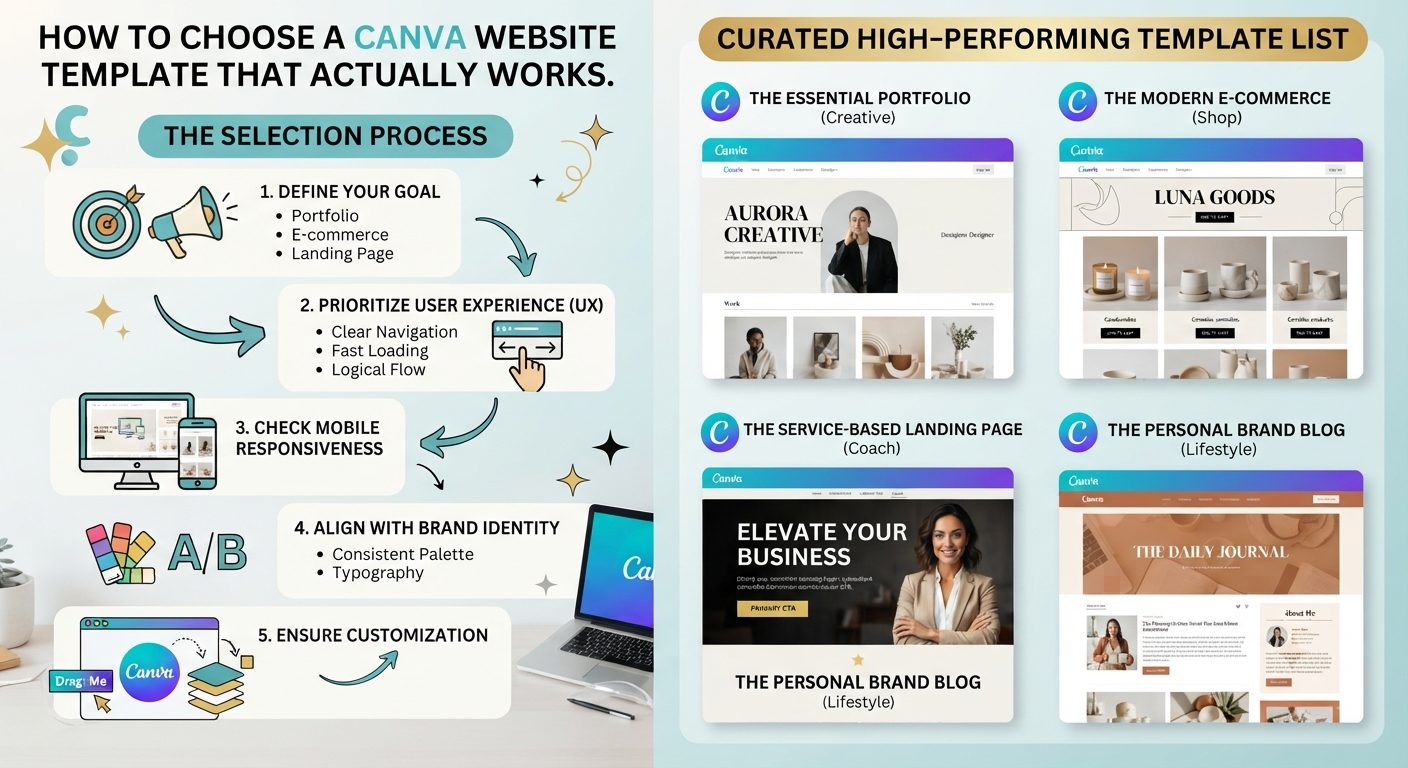
How to Choose a Canva Website Template That Actually Works
The best Canva website template is not necessarily the most attractive one.
It is the one that makes your content easier to understand.
Before choosing a template, ask:
- Does the structure fit my goal?
- Is there enough room for my content?
- Is the text readable?
- Is the CTA obvious?
- Can I customize the branding?
- Does it work for my audience?
- Does it make sense on mobile?
This also applies to Canva free website templates and Canva website design templates.
My recommendation
Use templates for structure and inspiration, then make the website your own.
That gives you the speed of a template without making the final website feel generic.
Canva Website Examples for Different Goals
Freelancer Website
Goal: Generate inquiries.
A simple structure could be:
Hero → Services → Portfolio → About → Contact
Graphic Designer Portfolio
Goal: Showcase selected work.
Focus on strong project visuals, short explanations, services,s and a clear contact option.
Small Business Website
Goal: Explain the business and generate leads.
Consider:
Hero → Services → Benefits → Reviews/Proof → Contact
Personal Website
Goal: Build a personal brand.
Include an introduction, background, work, skills, selected projects, and contact information.
Event Website
Goal: Provide essential information.
Focus on the event date, location, schedule, registration, or contact details.
These examples show why there is no single perfect Canva website design. The right layout depends on what the visitor needs.
Is Canva Website Builder Good for SEO?
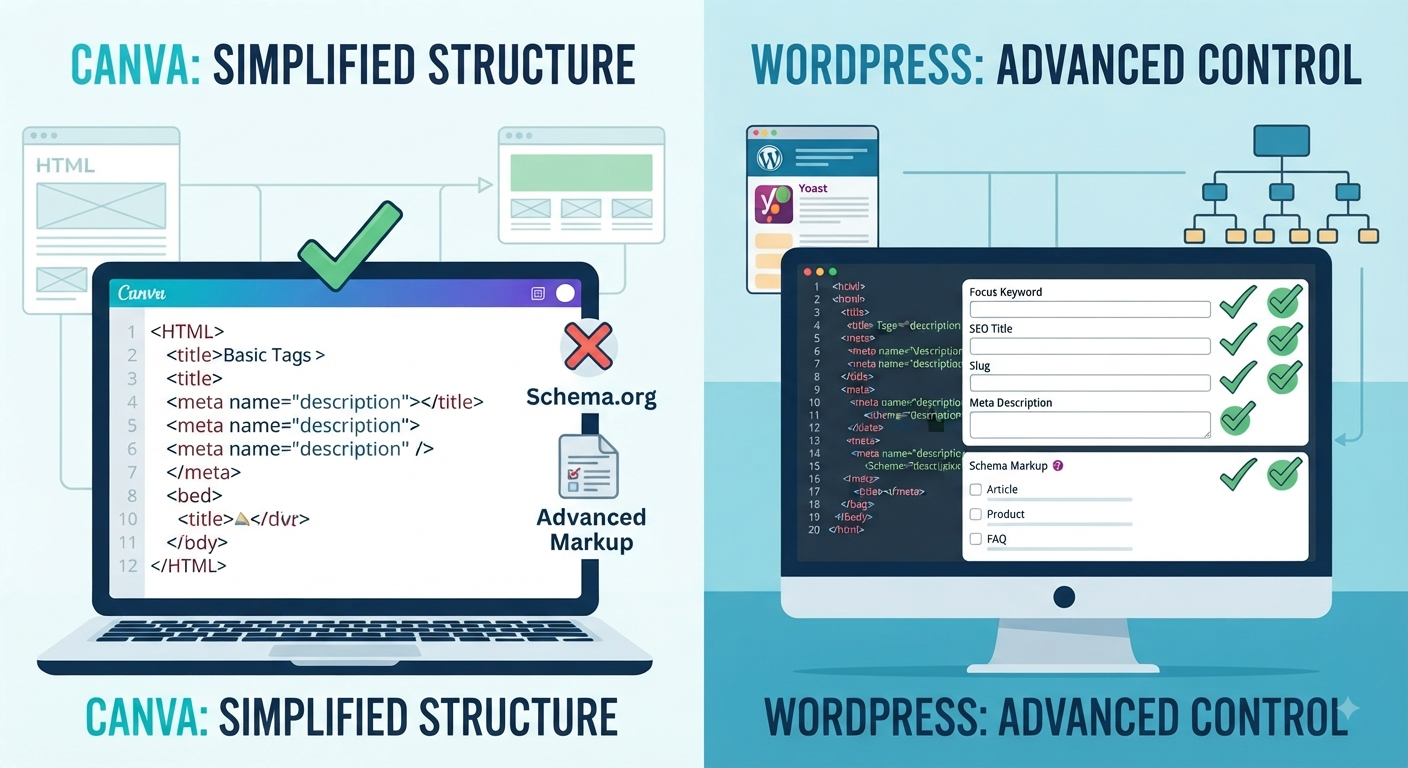
Canva can be used for basic website SEO, but creating a website in Canva does not guarantee Google rankings.
Canva currently provides SEO-related website settings and describes its portfolio sites as optimized for search engines.
However, SEO is not simply a platform setting.
Your website should have:
- Useful original content
- Clear headings
- A specific search intent
- Descriptive page information
- Good mobile presentation
- Relevant images
- Clear navigation
- Helpful links
- A clear topic
Google needs to understand what your page is about, while visitors need a reason to stay and use it.
That is why I would focus less on adding keywords everywhere and more on making the website genuinely useful.
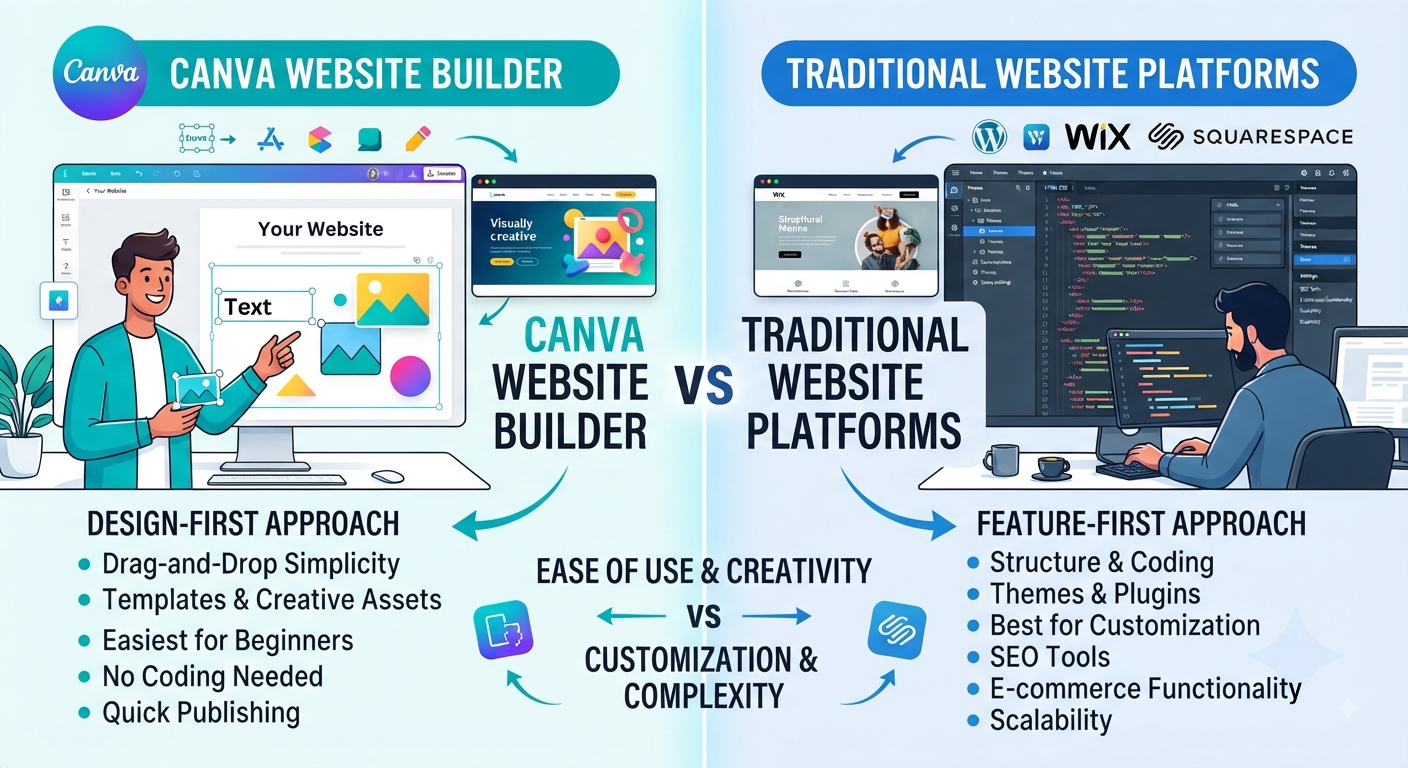
Canva Website Builder vs Traditional Website Platforms
| Feature | Canva Website Builder | Traditional Website Platform |
|---|---|---|
| Beginner friendly | High | Varies |
| Visual design | Strong | Varies |
| Coding requirement | Low | Varies |
| Simple portfolio | Excellent use case | Excellent |
| Landing pages | Strong use case | Strong |
| Advanced functionality | More limited | Usually broader |
| Complex ecommerce | Less suitable | Usually better |
| Deep customization | More limited | Usually broader |
Which One Should You Choose?
Pick Canva Website Builder if you’re looking for an aesthetically beautiful site with minimal requirements to be built using standard coding processes.
A more specialized platform will give you access to higher-level features such as advanced e-commerce, complex databases, membership systems, lots of integration options, or custom functionality.
7 Common Canva Website Design Mistakes
1. Choosing a template before defining the goal
The website should determine the template, not the other way around.
2. Adding too much text
Keep important information clear and easy to scan.
3. Using too many fonts
A consistent typography system usually looks more professional.
4. Creating a weak hero section
Visitors should understand the website quickly.
5. Hiding the main CTA
Make the next step obvious.
6. Ignoring mobile presentation
Always preview the website on smaller screens.
7. Publishing without testing
Check links, spelling, contact information, and page structure first.
My Personal Review of Canva Website Builder
After using Canva with the goal of creating a personal portfolio, my overall experience was positive, but not because everything was effortless.
The design process was the easiest part for me. Canva makes visual editing comfortable, so changing fonts, images, colors, and other elements does not feel technically difficult.
The part that required more thinking was the layout.
I had to decide which sections were important, what should appear first, and how much information visitors actually needed. That taught me that website design is not simply about making individual sections look good. The sections have to work together.
My biggest challenge was SEO optimization.
That was the area where I had to think beyond the Canva editor. Creating an attractive portfolio is one task; making the content useful, clearly structured, and search-friendly is another.
So my personal verdict is:
Canva is very easy for visual website creation, but creating a genuinely effective website requires more thought than simply choosing a template and publishing it.
Frequently Asked Questions About Canva Website Builder
Can I Create A Website With Canva?
Yes. You can create and publish your websites using Canva’s visual workflow of building without traditional coding. Canva makes creating portfolio sites, simple business websites, landing pages, personal sites, and more easy and accessible.
Is Canva Website Builder Free?
You can publish your own website for free using Canva’s ‘site domain’ feature (see below). But note that the available features, domains, and plan-specific limits may vary from time to time – always be sure to review Canva’s terms & website docs before publishing anything.
Is it possible to build a professional website with Canva?
It certainly depends on what you put into your sites and how well-designed they appear, boverallral,l the short answer is yes. With great attention to typography, layout, branding, and overall UX/UI aspects, you will create truly professional-looking websites using this platform.
Can I use Canva website templates?
Yes! There are many different customizable website templates on Canva available for you to choose from, depending on what your goal is (portfolio-focused, etc.) So you could start off using one of these templates, but customize the look and feel according to your needs!
Can I create a portfolio website with Canva?
Portfolio website templates help you to show off your work as well.
Yes! We’ve got portfolio site designs ready for you if that’s what you’re going for.
You can either go with one of our portfolio templates or make a portfolio web page from scratch using Canva. Then share your chosen projects along with other relevant details like skills, experiences, and contacts on your new portfolio site.
Are Canva websites mobile-friendly?
Canva states that its Websites are responsive and designed to work across devices. You should still review the finished design on mobile because content, spacing, image proportions,s and text wrapping can affect the final experience.
Can Canva websites rank on Google?
They can be optimized for search, but using Canva does not guarantee rankings. Canva provides SEO-related settings, while the actual usefulness, relevance, and quality of your website content remain important.
Can I use my own domain with Canva?
Canva supports custom-domain options, although the exact availability depends on the current plan and publishing setup. Check Canva’s current documentation before making a plan-specific decision.
Can I publish a Canva website for free?
Yes. Canva currently documents re-publishing through a domain. Specific plan features and limits may change over time.
Can Canva websites have multiple pages?
Canva supports website navigation and page-based structures. Its current portfolio documentation explains how to add page titles and enable navigation when creating a multi-page website experience.
Can I edit a Canva website after publishing?
Canva’s website workflow allows you to return to the design and make changes. Always preview the updated version before sharing it again.
What are Canva websites best used for?
They are particularly useful for portfolios, personal websites, simple business sites, landing pages, events,ts and other visually focused projects. Canva itself highlights a range of uses, including portfoli,os, small-business websites, and other responsive web experiences.
Is Canva good for a small business website?
It can be a practical option for a small business that needs a simple online presence focused on services, information, branding, and contact. More advanced businesses may use a commerce platform with deeper e-commerce or application functionality. Canva currently offers dedicated business website designs for small businesses.
What are the limitations of Canva Website Builder?
The main limitation is advanced functionality. Canva is particularly strong for visual communication and straightforward e-commerce, while complex e-commerce, advanced applications, database-driven systems, and highly customized functionality may require a specialized platform.
Final Thoughts
I hope this helped you understand better what you can expect from a Canva Website builder. And maybe even convinced you to try out creating your site.
The tool itself is great if you’re a beginner wanting to translate your designs into an actual website without having to learn all about traditional web development concepts.
What worked best when using the platform was planning my site’s overall layout — especially thinking through how visitors will interact with each page of my portfolio.
One thing that took some getting used to was managing SEO settings on the tool. It also meant writing up lots of interesting (and informative) blog posts!
The most valuable takeaway, though? Don’t view designing a site through Canva as simply putting together another beautiful design! You have to plan carefully and consider how someone visiting your site will travel between pages, what kind of structure best helps achieve your goals, and much more…
A great website isn’t necessarily the one with the most design elements—it’s the one that clearly tells visitors what they should do next.