
Canva AI Photo Enhancer Review: The Old Photo I Almost Deleted
Introduction
Like anyone, I have hundreds of pictures on my laptop and smartphone that I never use again. While going through some old folders, I suddenly came across a family photo that reminded me of something very significant about my family. However, the picture was very blurry and low-quality, unlike what I had in mind. At first, I was about to delete the photo since editing it via professional editing programs would require too much time.
Then I decided to use Canva.
As I already use this program quite frequently to create graphics for my blogs, presentations, and social media accounts, I became interested in its AI Photo Enhancer capabilities. Instead of testing only one photo, I gathered five of various kinds: an old family photo, a blurred smartphone photo, a photo taken in a messaging app, a product photo, and a landscape photo.
The Canva AI Photo Enhancer Review is based on those actual tests. Here are the areas where I have seen actual improvement, the places where the app has reached the limits of its capabilities, and, finally, whether it is still worth using in 2026 for photo enhancement.
Quick Answer
Canva AI Photo Enhancer is one of the best tools for improving blurry or low-quality photos without using complex editing programs. After trying this tool on old family photos, low-quality mobile photos, and other images, I could see that the effects are obvious after several clicks. This tool is designed to make minor corrections to your photos without fixing severely damaged images; however, it allows you to create clean-looking photos for social networks, business, and presentation purposes.
My First Impression: The Old Photo I Was About to Give Up on
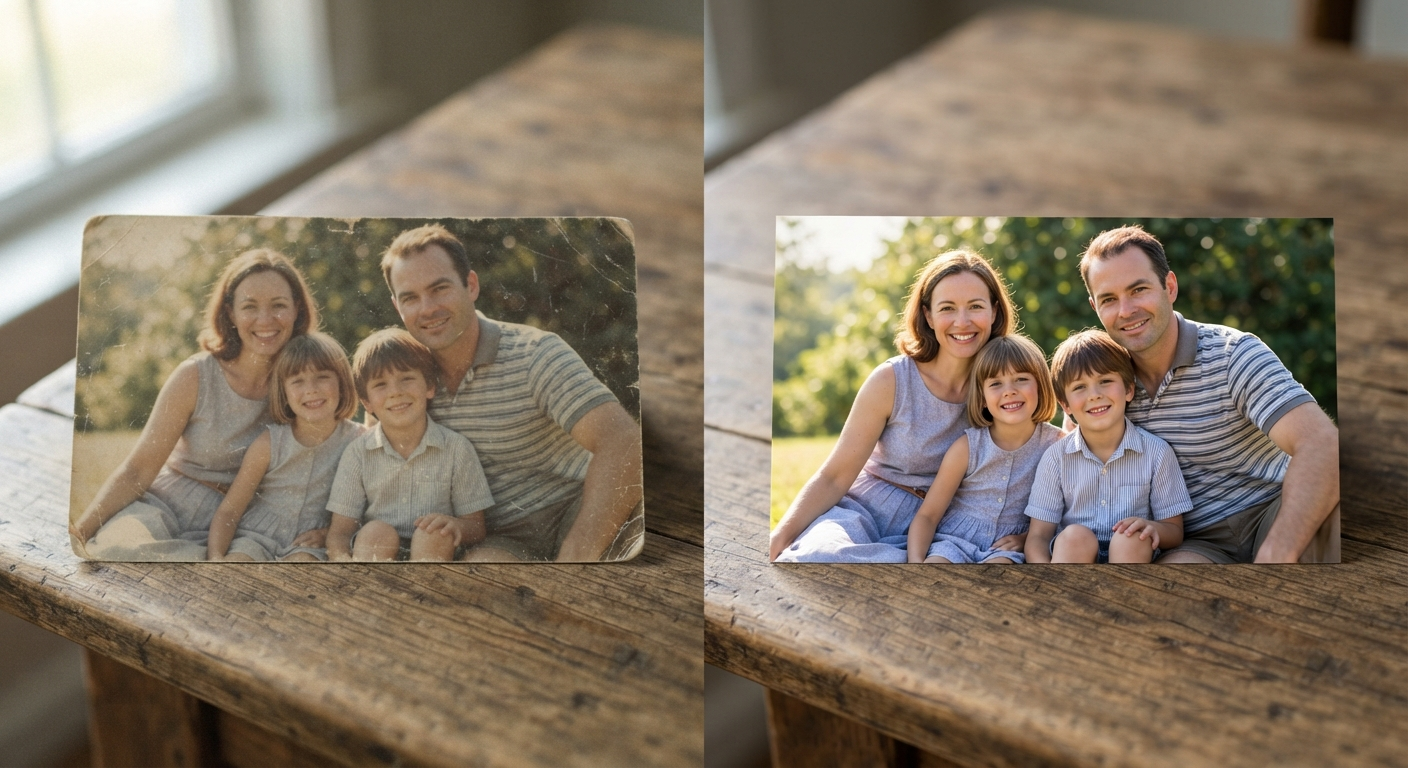
Several weeks ago, I was sorting some files on my computer when I accidentally stumbled upon a family photo that I didn’t even remember I had. This photo was scanned a long time ago and wasn’t of high quality.
This was my initial idea.
I would start by running it through a program for professional editors, increasing sharpness, adjusting colours, and spending about 20 to 30 minutes improving it. However, this time I needed something much faster. Since I already use Canva to design presentations, create blog graphics, and post on social media, I decided to try Canva AI Photo Enhancer to do it for me.
I did not expect miracles; I just wanted to know one thing.
Can Canva improve, or is it just another AI tool with flashy advertising?
The photo above turned out to be only the starting point of a bigger experiment.
During the following several days, I collected various pictures that people usually have on their phones and computers. Some of them were blurred from shooting while walking, and others were compressed after being sent via messengers. In addition, I took an old photo from a print, a low-quality photo of the product, and a landscape photo shot on a cloudy day.
I did not bother with checking how perfect images can look when enhanced with this technology. Instead, I tried to analyse works on the images people try to enhance in real life.
The outcomes of my experiment impressed me more than I could imagine.
Some images became visibly sharper and more detailed, with their colours appearing more natural, and even some of the finest details that were hardly noticed before became more visible. Nevertheless, there were cases when the technology had limitations, with extremely blurred images lacking fine detail – something I expected from such photo-enhancing technology.
That is why I decided to write this review.
Instead of just listing the features of Canva AI Photo Enhancer as they appear on their official website, I decided to share my practical experience with this tool.
Is Canva AI Photo Enhancer worth your attention in 2026? This review will help you answer this question.
You May Also Like: Canva AI Voice Generator Review: I Tested It to See If It’s Worth Using for Content Creators (2026)
Canva AI Photo Enhancer Definition
Canva AI Photo Enhancer is an automated editing tool built into Canva. This AI technology analyses the uploaded picture and improves its elements like sharpness, lighting, colour balance, and clarity automatically without any manual effort from the user’s side.
Unlike conventional editing tools that require manual edits, Canva automates the entire process. Usually, you have to upload an image to the system and enable photo enhancement.
This is what makes Canva extremely popular among novices, students, content creators, teachers, freelancers, and small business owners.
In my experience, Canva Photo Enhancer works for routine editing, but not for professional photo restoration.
For instance, if the image only appears too dull due to low-quality lighting or some blur, then it is usually enhanced pretty well by Canva. If there are gaps in detail, motion blur, or damage in the image, it becomes harder to recognise changes made. AI technology helps to enhance an image, but it cannot provide information that is no longer available in the original file.
The point is significant because there is a common misconception that AI can fully restore images. In fact, AI photo enhancers have their limits, no matter how good they are.
According to my experience, Canva works better when there is enough information about the image in the original file.
Who Should Consider Using Canva AI Photo Enhancer?
There is one feature I like about using Canva – it does not seem like a tool for only designers.
I believe that most people who will use it will not be professional editors.
Students
Images are often used by students in assignments, reports, presentations, and college projects. Rather than spending more time finding a better version of the image, one can use Canva’s enhancement tools to save time.
Blogs & Website Owners
Images are a very important part of the user experience. With sharper and cleaner images, articles will seem more professional and engaging. It was especially handy for updating the old graphics of my blog.
Social Media Creators
Photos we take on our smartphones sometimes do not turn out very sharp when shared or uploaded to social media. This tool would be very helpful to quickly enhance these photos before sharing them on Instagram, Facebook, LinkedIn, or Pinterest.
Small Business Owners
If you use your smartphone to capture images of your products, AI enhancement will make them look clean and appealing.
Freelancers
Whether you create presentations, marketing materials, or business proposals, having an easy-to-use photo-editing tool in a single workspace will save time.
Teachers and Educators
Slides for educational purposes may contain low-quality screenshots, diagrams, and historical images. Enhancing these visual elements will make classroom materials more understandable for students.
The Features I Actually Used During the Tests
Rather than testing all the functions Canva provides, I decided to test only those I would really need in practice.
AI Sharpening Tool
It was one of the first features that I tested because blurring is one of the most frequent issues.
For slightly blurred images, I could see a difference in clarity. The edges were defined better. Texts, objects, and facial features were easier to see without being overly sharpened.
For very blurry pictures, nothing much could be done. They still looked blurry, although they had improved a little bit.
Color Enhancement
Old photographs tend to lose their original brightness after some time.
Canva’s colour enhancement produced deeper colours without sacrificing the picture’s natural look. This enhancement avoided the oversaturation effect present in many other artificial enhancements.
It was very clear during my experiment on old photographs that were already printed.
Adjustment of Brightness and Contrast
Several photos in my set were shot inside buildings with insufficient light.
Canva did not just make everything brighter; it also adjusted both the bright and the shadowed parts to achieve results close to what I saw with my own eyes.
Removal of Noise
All photos taken in low light contain noise.
The noise was mostly removed while retaining all necessary textures.
One Click Editing
While this could be considered a minor function, I came to appreciate it very much.
- No need for any difficult settings.
- Upload your picture.
- Edit the photo.
- See the results.
If you do photo editing frequently and wish to save time tweaking sliders, then this option is worth considering.
You May Also Like: Canva Invoice Templates: 10 Invoice Design Mistakes That Can Cost You Clients (2026)
What I Was Going to Test Before This Review
However, before beginning my review, I realised that relying on a single image would not be a good way to conclude.
That is why I created my own little gallery of pictures depicting various scenes from our daily lives.
They were:
- Blurry photo from a smartphone made while moving
- Old scanned family picture
- Compressed image sent through a messaging application
- Product image made in average indoor light
- Landscape picture with even colours and low contrast
It was not my task to select the ideal image for Canva enhancement.
I aimed to see how it works with typical photos that all users usually have on their devices.
Real-life Performance: Canva AI Photo Enhancer Tested on Five Different Image Types
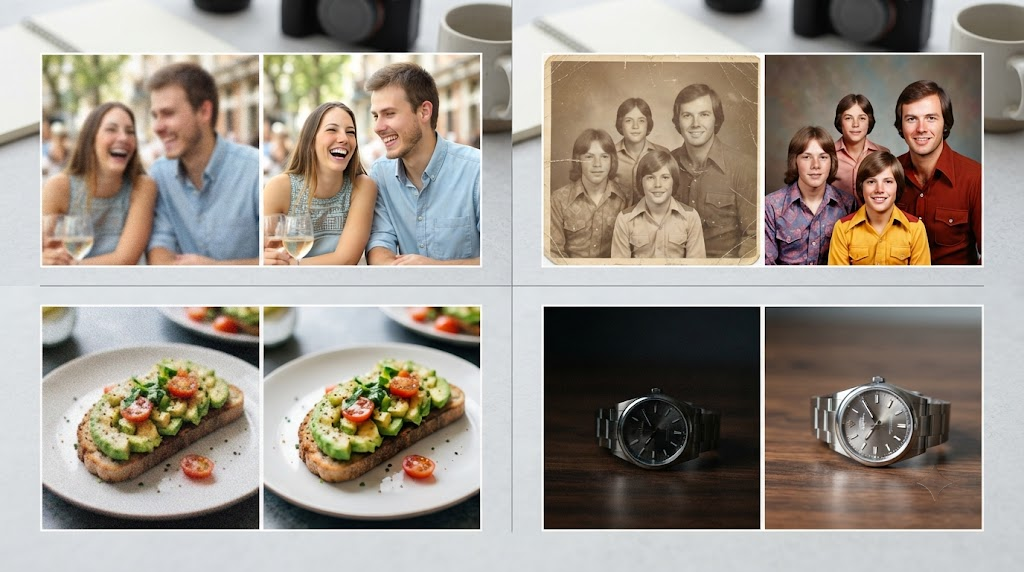
It soon became apparent to me, after working with the tool, that basing my assessment on just one image would be completely unjust. Each picture presents its own problems. While some of them have blur issues, other images are shot in low light or become pixelated after being shared multiple times.
To get a clear idea of the performance of Canva AI Photo Enhancer, I put it to the test using five different image types that users have on their smartphones or computers.
Here are the results of my tests.
Test 1: Blurred Image Captured Using Smartphones
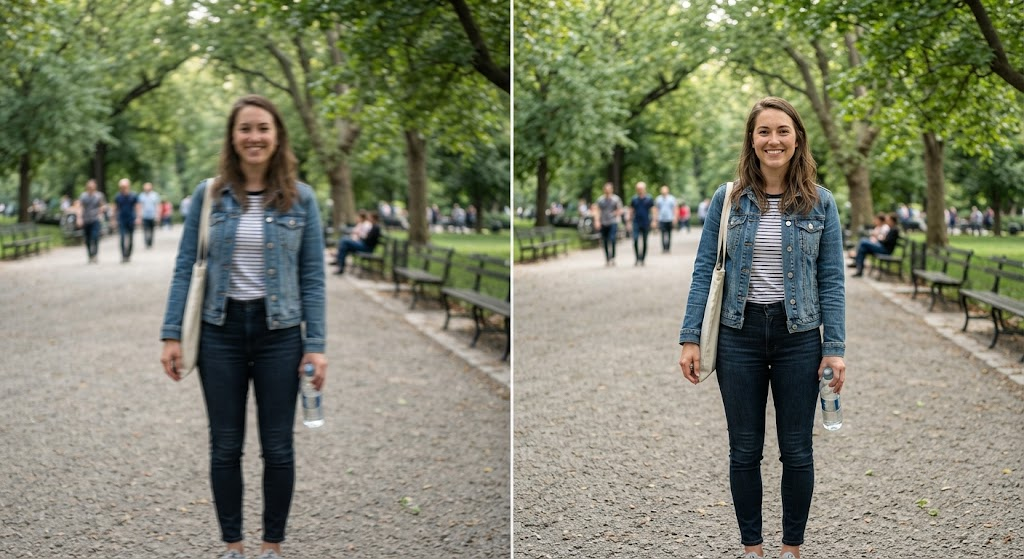
The first image was a casual snapshot taken on my phone while I was walking. It is somewhat blurry and soft due to the rapid shutter press.
When using Canva to improve the image, I realised the edges were sharper and cleaner. The small elements were more detailed than before, and the picture seemed improved.
However, there were no traces of excessive editing of the picture.
Still, the sharpening process did not eliminate the motion blur in the image. If the image was shot while the camera moved excessively, nothing will help the AI recover the lost data.
My rating: 8.5 out of 10
Best for: selfies, travel photos, and daily photos captured with smartphones.
Test 2: A Vintage Family Photo
This was the photo that inspired the whole review.
The scanned photo was slightly faded, with low contrast and blurry faces. Could Canva improve the image’s quality without changing its natural look?
The outcome exceeded my expectations.
Colours grew warmer, facial features became clearer, and the image became more vivid without sacrificing authenticity.
There was nothing magical about it; it did not bring back any details lost from the photo. Still, it definitely made the image more pleasant to look at.
When you want to revive family memories rather than professionally repair damaged photos, Canva does a decent job.
My rating: 9 out of 10
Recommended For: Family albums, vintage photographs, and scanned images.
Test 3: A Picture from an Image Compression Messaging App
Most of us get pictures via messaging apps with reduced picture quality due to compression.
To run the test, I enhanced a picture that had already been compressed during its many shares via messaging.
Canva sharpened and balanced the colours in the picture, making it clearer than the previous one. Nonetheless, there were compression effects even upon zooming in.
It is totally natural since the image information has been irreversibly compressed.
The AI made the picture clearer, but not all the missing data could be recovered.
My Rating: 8 out of 10
Good For: Social media photos.
Test 4: A Product Image
I also wanted to find out whether Canva could help people sell their products online.
The original image was shot via smartphone in regular indoor lighting. The product itself did not look bad, though the photo was low in clarity and brightness.
Following the enhancement, the colours seemed truer to life, the product outlines were more defined, and the image became more professional-looking.
For small businesses creating product listings online, this can be an effective way to save time compared with handcrafting images.
Though professional photos will always do the best job, Canva can help you get good images for everyday business use.
My Rating: 9 out of 10
Best Used for: Online shops, handicrafts, and marketplaces.
Test 5: Landscape Picture
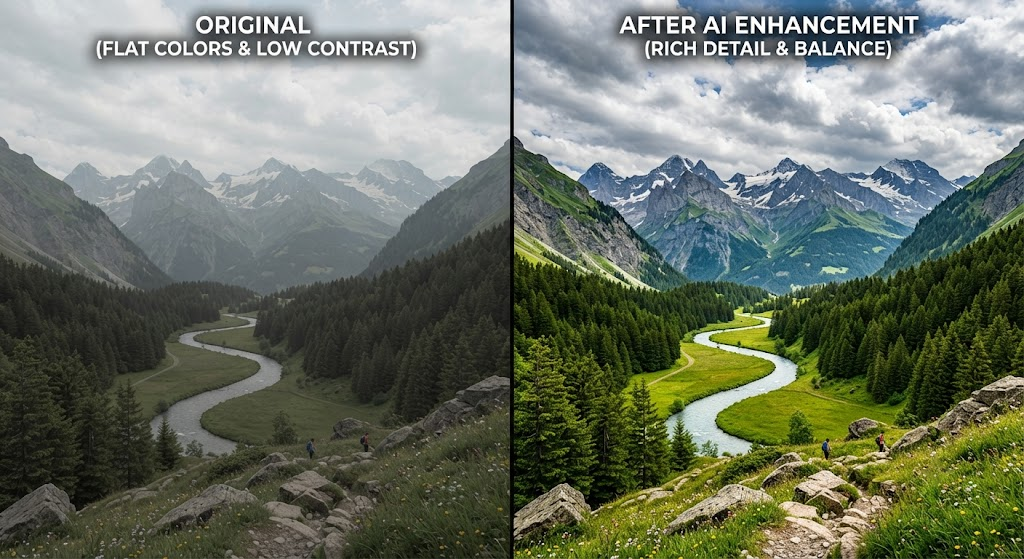
The last test was about enhancing a picture from a cloudy afternoon.
In the original picture, the colours were bland and dull.
But after the enhancement process, the sky deepened, the greenery seemed healthier, and the overall picture had more contrast without becoming unrealistic.
It was good that Canva didn’t over-enhance the colours, because most AI applications create overly saturated pictures.
Rating: 8.8 out of 10
Useful For: Travelling, nature photos, and personal photo collections.
Before and After: Is It True That Canva Improved My Photos?
Having completed five tests, I compared each original photo to its improved version.
The best results were achieved for photos that were of good quality but lacked clarity.
Photos with minor blur, dull colours, or low contrast gained the most advantage.
However, the least improvement was reached for damaged or very blurred photos. Artificial intelligence can only improve what exists; it cannot create what was not captured before.
Overall, I have to admit that there were no dramatic changes.
Actually, that is a good point, as the improved photos still look like real photographs rather than artificially created photos.
| Category | Before | After |
|---|
| Sharpness | Average | Noticeably Improved |
| Color Balance | Slightly Flat | More Natural |
| Brightness | Inconsistent | Better Balanced |
| Noise | Visible in Some Photos | Reduced |
| Overall Appearance | Good | Cleaner and More Professional |
Canva AI Photo Enhancer vs Other AI Photo Editors
Choosing an AI photo editor depends on what you need. During my research and testing, Canva stood out for its simplicity, but it is not the only option.
| Tool | Best For | My Opinion |
|---|---|---|
| Canva AI Photo Enhancer | Quick everyday editing | Best choice for beginners |
| Photoshop | Professional editing | Powerful but requires experience |
| Remini | Portrait enhancement | Excellent for faces but limited for general editing |
| Adobe Express | Quick graphic editing | Good alternative with Adobe integration |
| Fotor | AI image improvements | Offers more manual editing options |
If your main goal is to improve photos while already working in Canva, switching to another application often feels unnecessary.
However, professional photographers who require complete manual control will still find Photoshop more capable.
What I Liked
While working with Canva AI Photo Enhancer across various image types, several strengths were identified.
- Very user-friendly even for beginners.
- Rapid image improvement process without any complex settings.
- Good natural colouring adjustment.
- Visible sharpness improvement on slightly blurry images.
- Handy as everything happens within Canva.
- Beneficial for presentations, blogging, social media, and business graphic design.
- An easy-to-use interface that will not scare away beginners.
Improvements for Canva
Of course, no photo editing software is absolutely perfect, and Canva has its drawbacks too.
- It cannot fix extremely blurry pictures.
- Damaged images will still need special restoration software.
- More experienced users will lack the precision for adjustments.
- The quality of the result depends on the initial photo quality.
- Some improvements are rather subtle.
These drawbacks are common to all AI-powered photo-enhancing software.
You May Also Like: Canva AI Presentation: How I Create Professional Slides Faster (Complete 2026 Guide)
Canva AI Photo Enhancer – Is It Worth Buying?
I like how the photo editing feature is just a part of the whole Canva package of creativity.
By subscribing to Canva Pro, you will not only get photo editing software, but also the opportunity to work on presentations, templates, videos, graphics, and so on.
The free plan could be sufficient if you do not need to edit your photos too often.
On the other hand, regular content creators, people managing their social networks, small business owners, and blog publishers might find it more useful.
Thus, I would consider subscribing to Canva Pro as investing in the entire platform rather than just photo editing.
Who Is It Suitable For? Canva AI Photo Enhancer?
Given my experience, I would say this service is most helpful for individuals who want high-quality images without having to learn complicated editing programs.
The Canva AI Photo Enhancer works best for:
- People who are preparing presentations and assignments.
- Educators who wish to create educational materials.
- Blogging individuals.
- Creators who post content on social media.
- Freelancers dealing with clients.
- Small business owners.
- Online sellers.
- Marketers.
- Content creators.
- Those who wish to improve their personal image easily.
However, if you are editing dozens of professional photos per week, you will eventually need more advanced software.
Frequently Asked Questions
Is Canva AI Photo Enhancer free?
Some editing tools are available to free users, while others require a Canva Pro subscription. The offered tools might be updated as Canva develops its platform.
Can Canva fix blurry photos?
It can correct slightly blurred pictures and make them appear sharper. Very blurry pictures are limited by nature.
Can Canva restore old photographs?
It can colourise and enhance the clarity of old photos. It cannot perform a full photo restoration.
Does Canva improve image quality?
Yes, it can make an image sharper, brighter, increase its contrast, and improve its overall appearance if there is enough information in the original image.
Is Canva better than Photoshop?
As simple, user-friendly software for beginners, Canva wins, but Photoshop is still better for professional-level editing.
Can I use Canva AI Photo Enhancer on mobile?
Yes. There are many Canva photo-editing options available in the mobile app.
Conclusion: Is Canva AI Photo Enhancer Worth Utilising in 2026?
Having tried Canva AI Photo Enhancer on blurry smartphone photos, old family photos, low-quality images, product photos, and landscapes, I have generally had positive impressions.
Canva AI Photo Enhancer is precisely what you would expect from a photo-enhancement tool. It makes photos crisper, improves colours, adjusts lighting, and turns any photo into something nicer, even if you have no editing experience.
What has been especially interesting is not how much a picture could be transformed, but how consistently it improved without changing its initial look.
Of course, the tool is not perfect. If the image is heavily corrupted or some elements are missing, it cannot be restored to its original look, since that is impossible, so with AI technology. But in other cases, it will serve its purpose just fine.
For students, bloggers, freelancers, entrepreneurs, educators, and content creators using Canva, I recommend trying the AI Photo Enhancer tool.
Overall Ratings
| Category | Score |
|---|---|
| Ease of Use | 9.8/10 |
| Image Quality Improvement | 9.1/10 |
| Speed | 9.7/10 |
| Beginner Friendliness | 10/10 |
| Value for Money | 9.2/10 |
| Overall Rating | 9.4/10 |
Important Note
All the findings presented in this Canva AI Photo Enhancer Review are based on my personal tests and experience using Canva AI Photo Enhancer on various types of images, including blurry pictures, old family photos, low-quality mobile photos, and compressed images. Depending on factors such as the original picture resolution, lighting, etc., the output quality may vary.
This review aims to provide readers with practical information about the Canva AI Photo Enhancer’s performance in real-world environments. As the company can update or modify its AI functions, some of the features mentioned here may be different in actual use cases. To know more, visit Canva’s official websites and documentation.
Swisspik is an independent educational website and is not affiliated with, endorsed by, or sponsored by Canva or any other brand. All mentioned in this article brands, product names, and trademarks are the intellectual property of their respective owners.
Very informative article. Thanks for sharing an in-depth analysis of Canva.