Canva Brand Kit (2026) Guide: Build Better Brand Consistency
Introduction
Have you ever opened Canva to create a social media post, and then realised you’re using the wrong logo, with an outdated brand colour? And did this happen more times than you’d care to admit? I feel that’s pretty common — either because multiple people are creating designs or because our own brand has evolved.
Well, that’s what we’ve been working on solving at Canva with our new feature, Brand Kit. Instead of digging around folders to find your brand’s logo, or copying a hexadecimal colour code from somewhere, or trying to remember what font your company uses… all these things are right here, in one beautiful (well, maybe not) place!
Once you have your brand set up with us, you’ll start to see how fast everything gets done, as well as just how much better consistency will be across your designs!
If you’re a freelancer managing several clients at once, own a small business trying to build your brand’s recognizable identity, part of a marketing team working on campaigns together, or simply a content creator who publishes daily — whether you need a consistent visual language for your company’s work or want an organized space to save all your brand-related elements, Canva Brand Kit will help you keep your designs looking great every time.
This guide walks you through everything you need to know about creating and managing your brand kit workspace, uploading logos and fonts, organising your colour palette, using Brand Templates, collaborating with teams (and avoiding some common pitfalls), plus we’ve included real-world workflows that make things easier along the way.
We even have answers to the questions people ask more often than others — so you’ll be able to dive right into using Canva Brand Kit without worrying about what might come next!
Quick Answer
What Is Canva Brand Kit?
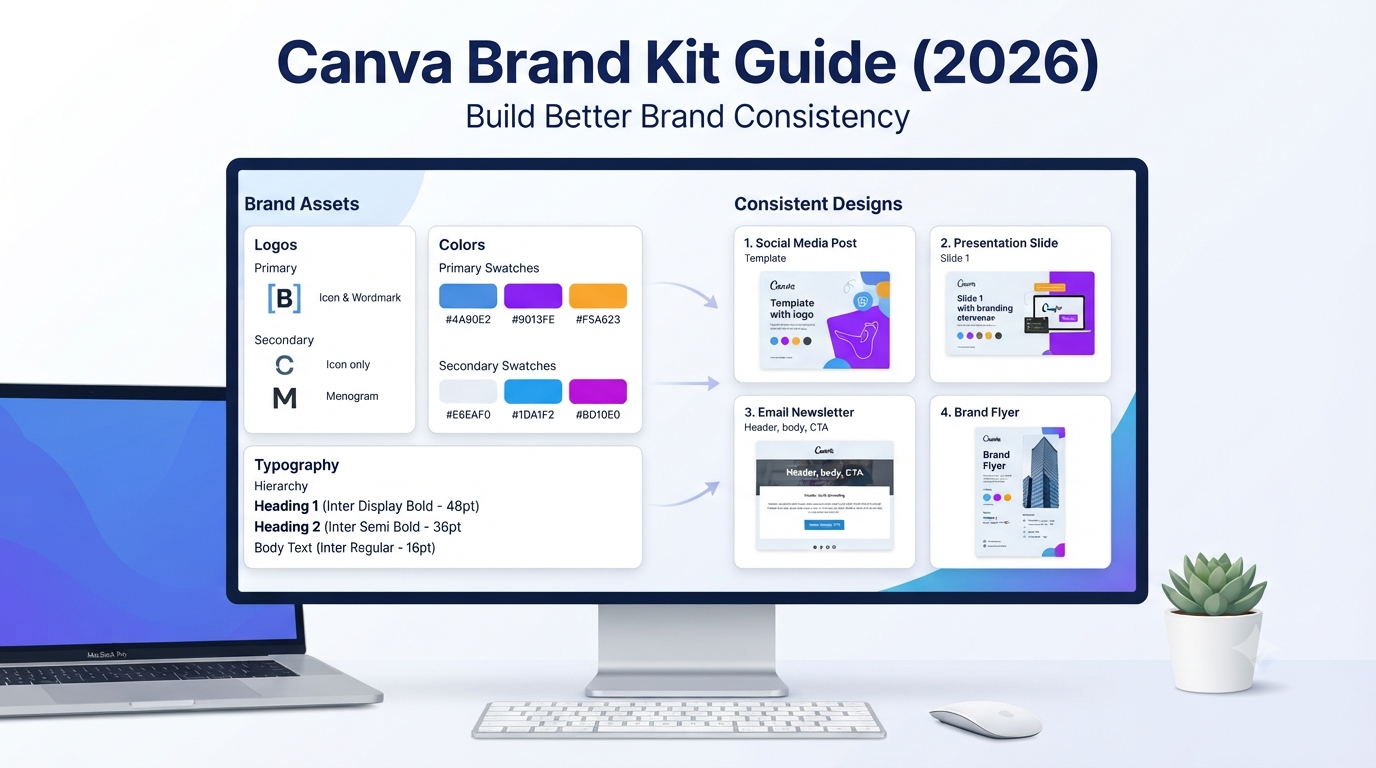
Canva Brand Kit is a centralised workspace where you store your company’s visual identity. Instead of adding your branding elements manually to every project, Canva automatically makes them available while you design.
Think of it as your digital branding toolbox.
Rather than searching through cloud storage, email attachments, or computer folders, everything you need stays inside Canva.
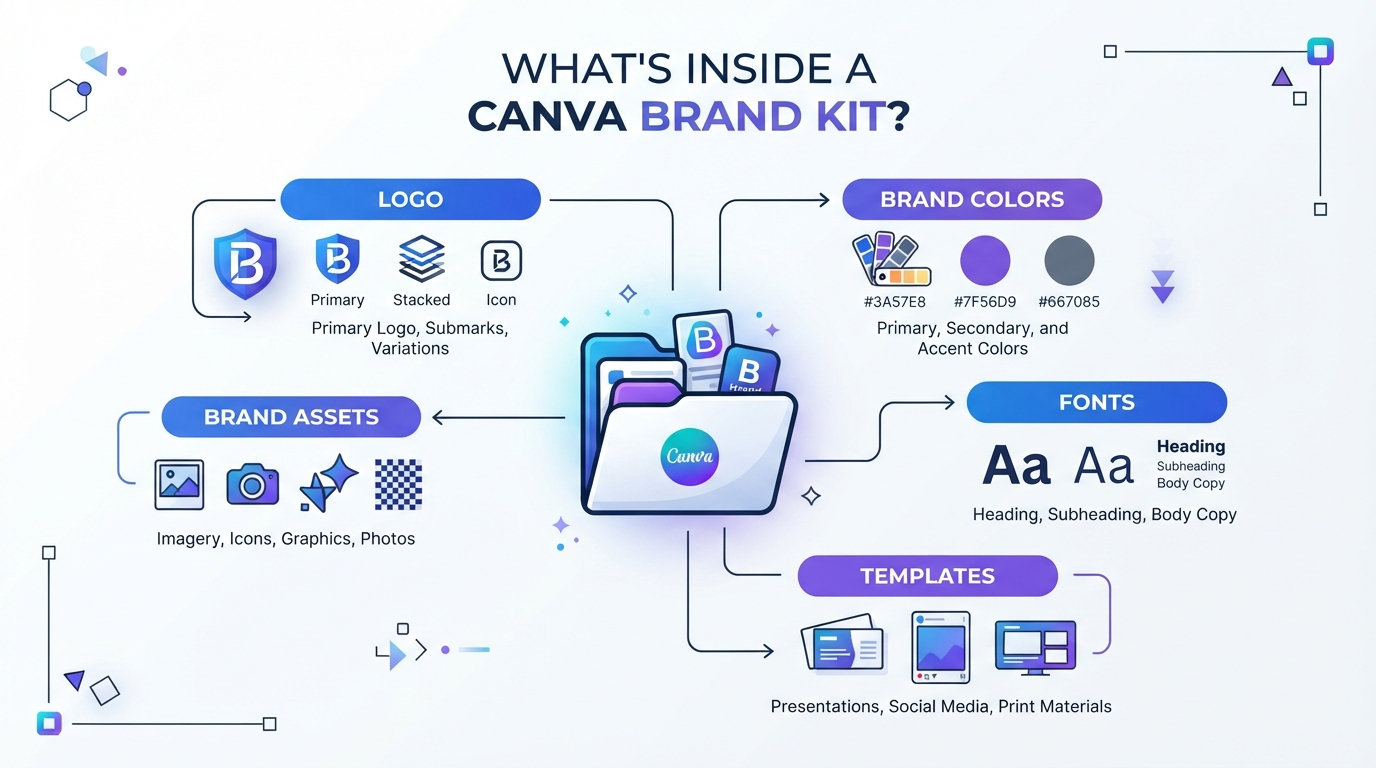
A typical Brand Kit includes:
- Company logos
- Brand colors
- Font combinations
- Brand templates
- Images and graphics
- Icons
- Team branding assets
When these elements are organised in one location, every design follows the same visual identity, regardless of who creates it.
You May Also Like: 15 Best Canva Alternatives (2026): Powerful AI & Design Tools Compared
Why Is Brand Consistency Important?
Audiences tend to recognise brands long before reading anything else.
Establishing consistent colours, font styles, and logo placements across all platforms ensures your target audience can easily associate with your brand—no matter whether it’s on Instagram, LinkedIn, YouTube, presentations, or even printed materials.
Without consistency, businesses often experience:
- Different logo versions are being used.
- Random fonts across projects.
- Inconsistent colors.
- Mixed design styles.
- Lower brand recognition.
Having a consistent brand helps you build trust, as people will know what to expect every time they interact with your business.
Quick Comparison
| Without Brand Kit | With Canva Brand Kit |
|---|---|
| Search for logos every time | Logos stored automatically |
| Copy brand colors manually | One-click color selection |
| Different fonts across projects | Brand fonts always available |
| Slow design process | Faster workflow |
| Inconsistent branding | Professional consistency |
Who Should Use Canva’s Brand Kit?
Brand kit might seem useful only for big companies, but almost everyone who makes repeatable designs can benefit from using this tool.
Small Business Owners
Make sure your invoice design, flyer design, menu design, advertisement design,n and social media posts have a visually consistent, mix-up-free look with each other.
Freelancers Branding of a
Branding of various clients, but no mix-upfonts/cologos, etc.
Marketing Teams
Make sure that every one of your employees sticks to these branding guidelines with all their campaigns.
Content Creators
Maintaining your style on all your marketing platforms – from YouTube thumbnails to Instagram posts to Pinterest graphics to your blogs and more – makes it easy for customers to find you.
Agencies
Branding management of multiple clients with reduction of repeated tasks
Schools and Educators
Develop educational materials consistent with institutional branding guidelines.
What Does Canva Brand Kit Include?
Although features vary by subscription, Canva Brand Kit typically lets you organise several key branding elements.
1. Brand Logos
Upload multiple versions of your logo, including:
- Primary logo
- Secondary logo
- White logo
- Dark logo
- Icon-only logo
Keeping different versions ready saves time whenever your design background changes.
2. Brand Colours
Instead of remembering HEX values every time, save your official colours inside Brand Kit.
Example:
- Primary Color
- Secondary Color
- Accent Color
- Neutral Background
- Text Color
This ensures every project uses the same approved palette.
3. Brand Fonts
Typography has an important role within visual identity — Brand Kit lets you save different font combinations for headings, subheadings, and body text as well. If your Canva plan supports it, you can also upload any licensed custom fonts there.
4. Brand Templates
Templates help teams reuse approved layouts without redesigning everything from scratch.
Examples include:
- Social media posts
- Presentations
- Business proposals
- Flyers
- Email headers
- YouTube thumbnails
- Posters
- Brochures
Templates improve both efficiency and consistency.
5. Brand Photos and Graphics
Many businesses repeatedly use:
- Product photos
- Team photos
- Icons
- Illustrations
- Marketing graphics
Keeping these assets together reduces duplicate uploads and keeps everyone using approved visuals.
Canva Brand Kit Features Explained
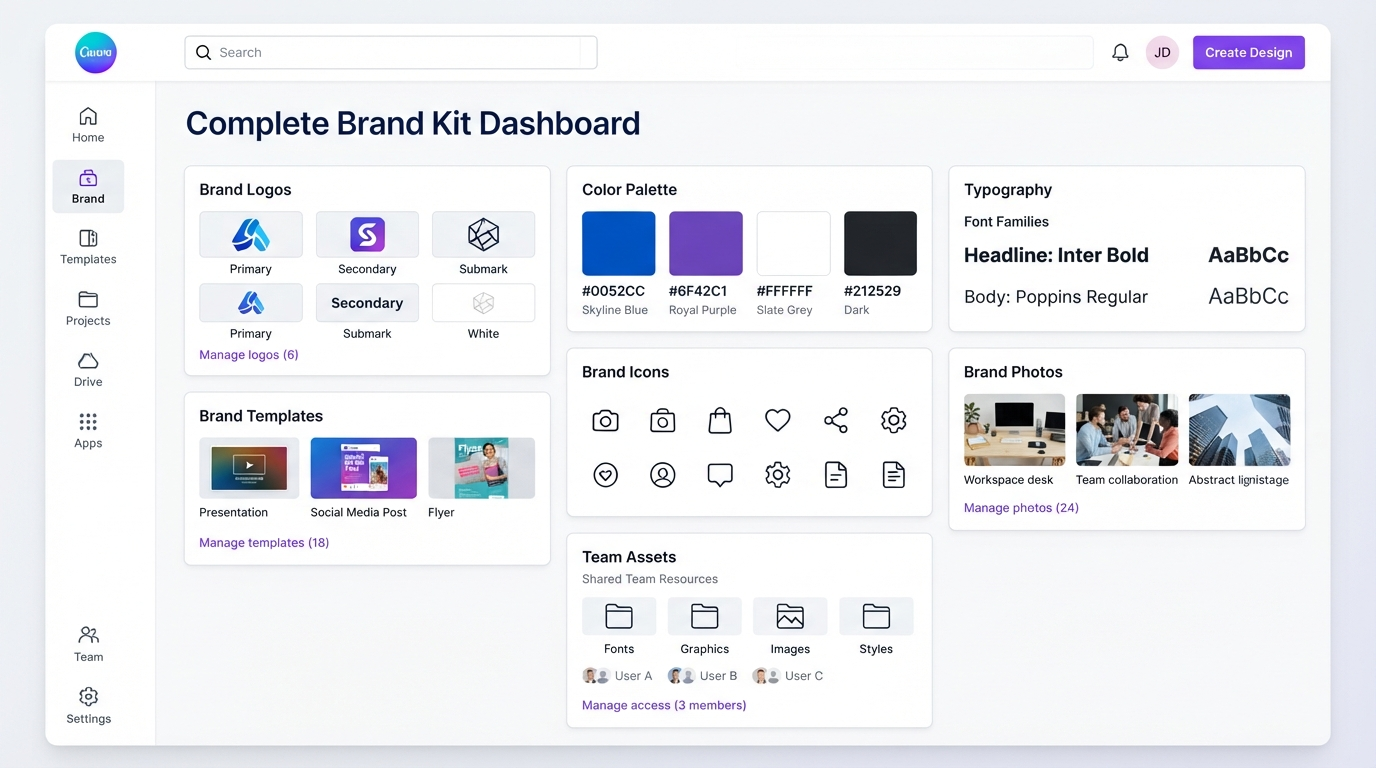
Besides storing your brand’s logos and colours, Canva Brand Kit also includes some nice productivity features to make your life easier when you’re working on designs.
Automatic Brand Suggestions
For example, Canva recommends your saved fonts and colours while you edit, helping you stick with what feels most authentic without having to pick every single element manually.
Shared Brand Assets
If you are working with a team, you’ll also be able to share approved assets with your team members so they can create designs aligned to your brand guidelines.
Brand Templates
Start from an approved template rather than scratch — Teams can duplicate templates that have already been approved for recurring types of content such as presentations, social posts, or marketing materials.
Centralised Asset Management
With Brand Kit,t you don’t need to maintain many folders on various devices — all of your branding resources are kept together inside one workspace and available when designing.
Canva Free vs Canva Pro Brand Kit
Many users ask whether Canva Brand Kit is free.
The answer depends on the feature you’re looking for and your Canva subscription.
| Feature | Free | Paid Plans* |
|---|---|---|
| Basic designing | ✅ | ✅ |
| Brand colors | Limited | More comprehensive options |
| Multiple Brand Kits | ❌ | Available on eligible plans |
| Custom font uploads | ❌ | Supported on eligible plans |
| Shared branding | Limited | More collaboration features |
| Brand Templates | Limited | More management options |
*Feature availability may change over time. Always check Canva’s current plan details before making a purchase decision.
How to Create a Brand Kit in Canva
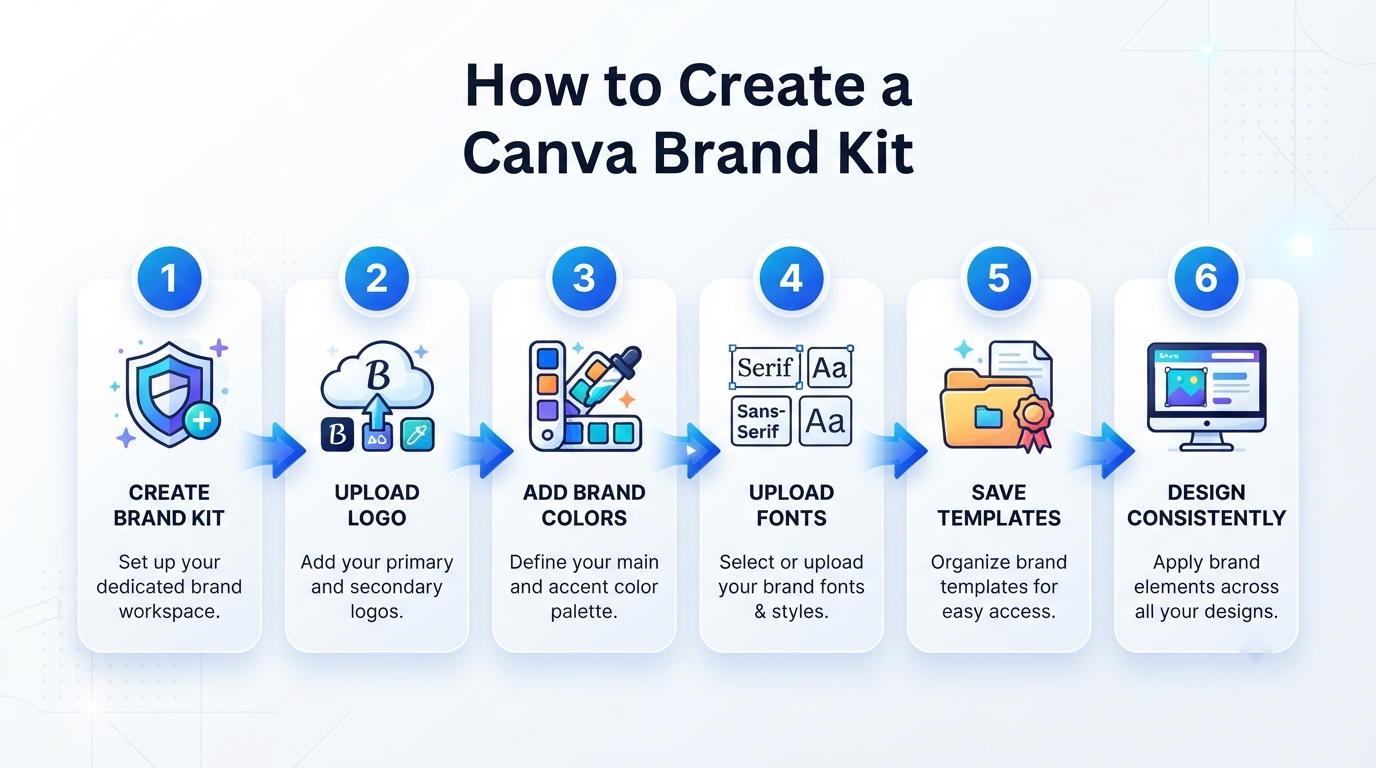
It will take you just a few minutes to set up your Brand Kit, but if you do this properly, it will save you countless hours down the line!
Step 1: Sign In
Once you’re ready to start designing, log in to your Canva account either via your preferred web bro .wser or the Canva app.
Step 2: Open Brand Section
Once you’re in your dashboard, click on the Branding section of your workspace (you’ll find it somewhere in Brand / Brand Hub depending on your account type and our interface updates).
Step 3: Create Your Brand Kit
Select this option to create a new Brand Kit if you’re on a plan that allows for multiple kits.
Give it a descriptive name, such as:
- Personal Brand
- Business Brand
- Client A
- Client B
- Marketing Team
Clear brand names help with managing more than one brand in the future.
Step 4: Upload Your Logo
Upload high-quality versions of your logo.
For best results:
- Use PNG files with a transparent background where applicable.
- Add an SVG version of the logo if possible (if supported).
- Please do not use low-resolution images that can become blurry after rendering.
Step 5: Enter your brand colours here; you can provide hex value if you have them.
Organise them into:
- Primary colors
- Secondary colors
- Accent colors
- Neutral shades
It’s always good to define your colours with certain roles – this will help you be consistent on each project!
Uploading Custom Fonts to Canva Brand Kit
Typography plays an essential role in consistency. Using various fonts on all of your designs could make your company appear inconsistent—even with the same colour scheme and logo used throughout.
If your Canva plan allows you to do this, then uploading your licensed custom fonts in your Brand Kit will ensure access to all of them from every new design you create on Canva!
Upload Your Fonts
To do this, open your Brand Kit (or Brand Hub), then go through the “Fonts” section, where you’ll find an option to “Upload Font”. Here, you can select the font file containing your license before being prompted with a confirmation by Canva asking whether you’ve got permission to use these fonts. Let’s see what happens next once I press confirm.
Your fonts will now be available every time you start a new design.
Important: only upload fonts that you either own or have been granted permission to use. Just because you purchased a font doesn’t mean you’re allowed to upload/distribute it into your team’s workspaces — always check the font license.
How to Create Better Brand Colours
Many businesses make the mistake of adding dozens of colours to their Brand Kit.
Instead, keep your palette simple.
Recommended Brand Colour Structure
| Color Type | Purpose |
|---|---|
| Primary | Main brand identity |
| Secondary | Supporting designs |
| Accent | Buttons, highlights, CTAs |
| Neutral Light | Backgrounds |
| Neutral Dark | Text and headings |
Expert Tip
If you’re unsure how many colours to use, start with five carefully chosen colours instead of ten or more. A smaller palette is easier to apply consistently across social media, presentations, websites, and printed materials.
You May Also Like: Canva Whiteboard Tutorial (2026): 12 Amazing Hidden Features Every Creator Should Know
Brand Templates: Save Time on Every Design
With Brand Templates, you can build a pre-approved layout for your posts without rebuilding from the beginning. So no more starting each one of your Instagram posts, presentations, flyers, etc. from a blank canvas — start using a brand template that’s already been built according to your brand’s guidelines.
Examples Of Good Brand Templates:
- 1. Instagram Posts & Stories
- 2. Facebook Covers
- 3.LinkedIn Posts
- YouTube Thumbnails
- 5. Presentation Slides
- 6. Business Proposal
- 7.Flyers
- 8.Posters
- 9.Brochures
- 10. Email Headers
Templates can provide you with consistency and reduce repetitive work.
Canva Brand Hub vs Canva Brand Kit
Many users confuse Brand Hub with Brand Kit, but they serve different purposes.
| Canva Brand Kit | Canva Brand Hub |
|---|---|
| Stores logos, colors, and fonts | Central place for all brand resources |
| Focuses on visual identity | Includes Brand Kit, templates, projects, and assets |
| Used while designing | Used to manage an entire brand workspace |
| Ideal for individuals | Better suited for teams and organizations |
Simple explanation:
- Brand Kit is where your branding assets live.
- Brand Hub is the broader workspace that organises those assets along with templates and other brand resources.
Can you create multiple brand kits?
Eligible Canva plans let you create multiple Brand Kits, which makes managing multiple businesses/clients easy!
Examples include:
- PersoKitsBrand
- Company Brand
- Client A
- Client B
- Podcast
- Online Store
Keeping separate Brand Kits ensures that you won’t mix up your brand’s logos, fonts, and colours across different projects!
Original Framework: The 5-Minute Brand Consistency Workflow
This is usually branding you created first without thinking about structuring your assets.
So instead, invest 5 minutes and prepare your Brand Kit before jumping into any project.
Step 1: Add Your Logo
Make sure you upload all your approved logos.
You can find them in your account’s Logo tab.
Step 2: Save Your Colours
To make things easy for you, we ask that you give us your official colour palette with HEX values.
Step 3: Choose Fonts
Set fonts used for reusable headings, subheadings,s and body text.
Step 4: Create One Master Template
Create a reusable template for your most common type of design
Step 5: Test Everything
Sample Design – To see if your logo works well with other elements such as fonts and colours, create a design mockup.
Tutorials often skip explaining how to test your Brand Kit. It’s important to check that you have all necessary logo files and that there are no mistakes in colour codes, etc. Creating everything right away can help you find possible issues beforehand.
Canva Brand Kit vs Manual Branding
| Feature | Manual Branding | Canva Brand Kit |
|---|---|---|
| Logo Management | Manual uploads | Stored centrally |
| Colors | Copy and paste | Saved permanently |
| Fonts | Search every project | Available instantly |
| Templates | Rebuild repeatedly | Reuse approved layouts |
| Team Consistency | Difficult | Easier to maintain |
| Workflow Speed | Slower | Faster |
Common Mistakes to Avoid
Even more surprisingly, many of those who should know better — that is, experienced designers — overlook a few basics when crafting their brand kits.
Using Low-Resolution Logos
When you’re uploading your logo file, remember that anything too blurry could ruin an otherwise professional-looking design. So, upload high-quality files when possible.
Saving Too Many Colours
Using too many colours without knowing exactly how to use them makes your brand look inconsistent.
Use only the colour scheme you’ve defined for yourself.
Ignoring Typography
Mixing different fonts across your project. Weaknesses
Define the role of each font for heading vs body text
Skipping Templates
Creating each design from scratch means there’s an increased chance for inconsistent layouts.
Not Updating the Brand Kit
Keep your brand kit updated when you change your business logo, colours,s or typography.
You May Also Like: Canva Letterhead Templates Review: The Professional Branding Upgrade I Wish I’d Made Earlier (2026)
Why am I unable to view my Brand Kit?
The availability of Brand Kit features depends on your Canva plan & workspace.
If you’re unable to see this option,n please verify your subscription and ensure that you’re in either a team / personal workspace.
Why can’t I upload fonts?
Custom font uploads are only available for our eligible plans. We also need you to confirm you’ve got permission to use this font on your Canva account.
Why isn’t my logo appearing?
Try these steps:
Refresh your Canva.
Check whether you have uploaded your file successfully. Check for file formats that are compatible with Canva.
Try uploading again if needed.
If you can’t see the colour, check that the colours have been added to the right Brand Kit, and ensure you’re in the same workspace as this brand kit.
Best Practices for Using Canva Brand Kit Organise
- Organise your logos with different versions.
- Use descriptive brand kit names.
Review your brand kit when you make any changes to your brand.
✔ Keep your colours hierarchical.
✔ Don’t overdo it with fonts.
✔ Apply templates for repetition.
✔ Store Only Approved Brand Assets
✔ Remove Outdated Logos And Graphics
Frequently Asked Questions
What is Canva Brand Kit?
Canva Brand Kit is a space where you can save all of your brand stuff (like logos, colours, fonts,s etc.) together in one place for easy access when creating consistent-looking designs.
Is Canva Brand Kit Free?
Canva also offers some of these brand kit features for free, while others are available in eligible Canva paid plans. And some of these tools can change from time to time, so make sure to visit Canva’s plan page before you get started.
To get started creating your own brand kit on Canva:
Head into the Brand area of your Canva workspace. Then create a new one (if supported) by your plan. From here, all that remains is uploading your logo, colours, fonts & more!
Can I upload my own custom fonts?
If your Canva plan allows you to upload custom fonts and you are legally allowed to do that, then yes.
Can I make multiple Brand Kits?
Yes! With eligible plans, you can manage multiple Brand Kits, which will be great if you are an agency, freelancer, or business with multiple brands under your belt.
The key differences between these two tools are simple — Brand Kit allows you to store all of your visual branding assets. At the same time, your Brand Hub provides you with a more comprehensive space where you organise your Brand Kits, Templates, and other brand-related content.
Does Brand Kit work with Canva Teams?
Team-branded, approved branding assets to help every team member create designs with consistent visuals.
Can you edit or delete your Brand Kit?
Canva Brand Kit allows users to update their logos, colours, fonts, and other assets, or even remove them altogether if they’re no longer required.
Canva’s Brand Kit feature offers value for anyone who regularly creates branded content or collaborates with others – saving them precious time while also reducing the risk of inconsistencies.
Is there an option to upload my logo?
You can upload your brand’s logo to Canva projects directly; however, using a Brand Kit allows you to store your logo along with colours and templates for better organisation.
Key Takeaways
- Introducing Canva Brand Kit, where all your brand assets meet in one place — from logos to fonts, colours to templates. Consistency builds recognition, while a structured Brand Kit ensures fewer mistakes. Streamline design workflows with our tool built just for you (and your team).
- Use templates to ensure consistent layouts when creating similar types of content.
- Brand Hub goes deeper than Brand Kit with more brand assets organised for easier access.
- Update your Brand Kit regularly as you develop your brand’s identity.
- Use licensed fonts & provide high-quality logo file types.
- Don’t make a huge messy brand kit – keep your brand kit small but organised!
Final Verdict
If you create branded content frequently on Canva, then this feature will save you lots of time. It keeps all your logos, colours, fonts, templates, and other assets together in an orderly workspace, making the design process simpler while ensuring that your designs reflect your company’s visual identity consistently.
You could be a freelancer working with several clients or running a business looking to establish your brand recognition. Whatever you’re doing, taking the time to build a well-structured Brand Kit can streamline repetitive tasks and increase design consistency over time.
To get the most from Canva’s Brand Kit, focus on organisation first — set up some great templates that are easily reusable, then revisit your Brand Kit when you want to make adjustments to your branding. That way, you’ll be creating a solid base for fast and professional-looking designs.