Canva AI Remove People Review: Beats Photoshop in 2026?
Quick Answer
The Canva AI Remove People tool (Magic Eraser) isn’t going to take over Photoshop in the professional retouching business.
But if you need to clean up ordinary pictures, it’s a much more suitable tool than Photoshop for most purposes because of its simplicity.
If you want to remove a stranger from a beach picture within minutes, go for Canva. If you have a job retouching a magazine cover or a wedding album, stick to Photoshop.
This was tested thoroughly: sixty-plus pictures, three weeks, side-by-side comparison with Photoshop and several other AI erasers. This review covers all the conclusions from that process.
Key Takeaway
- Canva AI Remove People (Magic Eraser) cleans up simple backgrounds — travel shots, social posts, plain walls — in under a minute, no design skill needed.
- It struggles with hair, glass, reflections, and crowded scenes, where Photoshop still wins on precision.
- Tested across 60+ photos over three weeks: Canva averaged 30–45 seconds per edit vs. 3–8 minutes in Photoshop.
- Use Canva for everyday, personal, and social content; use Photoshop for paid, professional, or client-facing retouching.
- Full access requires Canva Pro, though the free plan includes a small monthly allowance of AI edits.
The Reason I Was Searching for a Photoshop Replacement
There is a folder on my computer titled “trip photos, ruined.” You can guess what it is.
Twelve photos from a trip had people walking into the background of almost every shot, ruining everything. A man in an orange shirt walked directly behind my sister in three separate photos, like he was stalking us.
I opened Photoshop to fix it and ended up spending five and a half minutes on the first photo alone — using the lasso tool to make a selection, then running content-aware fill twice, since the first pass left a weird smudge behind his shoulder.
That’s the entire backstory in a nutshell. This isn’t a formal product review; I just wanted to save myself an evening.
Photoshop is great software, no doubt. But the amount of work it takes to do such a repetitive task manually feels wrong, like using a sledgehammer to hang a picture frame. That’s why I decided to give Canva AI a try.
What Is Canva AI Remove People, Really?
This is what trips people up when they go looking for it inside Canva. There is no button, no tool, nothing literally called “AI Remove People.” I looked for it too, before realizing the name doesn’t exist in the product.
What you actually want is Magic Eraser, which comes bundled inside Canva Magic Studio.
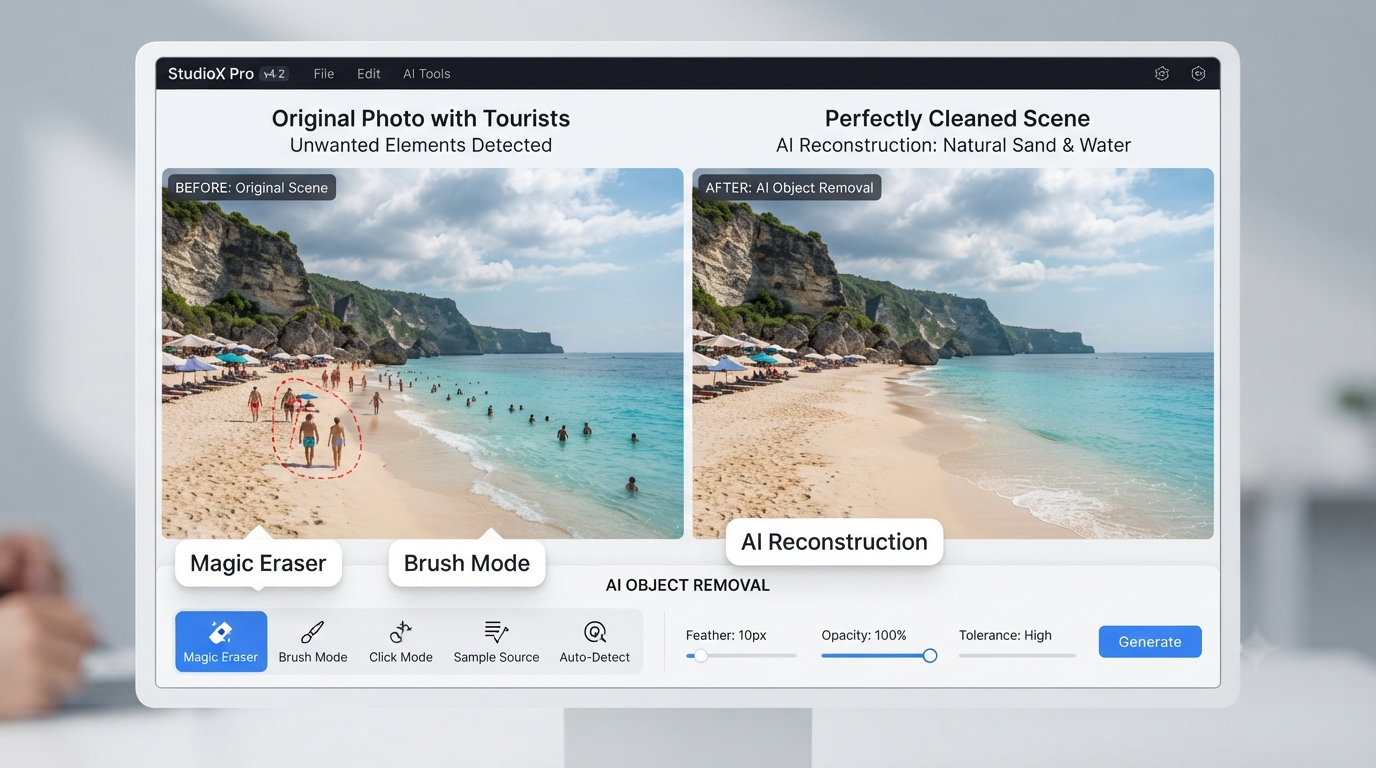
Magic Eraser works by letting you brush over or click on whatever you want gone — a person, a stray object, a shadow, even text sitting on top of a photo. Canva AI removes it and rebuilds the background underneath.
It runs on desktop, browser, and mobile. It supports standard formats like JPG and PNG. It sits mostly behind Canva Pro, though the free plan includes a small monthly allowance of AI edits.
You’ll find it tucked under the Edit Photo menu once an image is selected inside a design.
Naming of the Tool People Actually Search For
If “canva ai remove people” is the exact phrase that led you here, you’re part of a large group searching for something under the wrong name.
Canva never uses this term in the product itself, which is a little odd given how good the company usually is at naming things. People end up hunting through menus for a tool that, by that name, doesn’t exist.
Process I Followed During Testing
It had to be a fair test, so I set ground rules before starting.
Every tool was tested on the same images: Canva, Photoshop, Adobe Express, Cleanup Pictures, and Pixelcut. Manual editing wasn’t permitted on any of them — otherwise I’d have been tempted to fix each tool’s mistakes myself. The same starting resolution was used across the board.
The photo set spanned ten categories: travel, portraits, beach shots, street photography, product images, pet photos, food photography, indoor scenes, outdoor scenes, and group photos.
For each image, I timed the edit with a stopwatch, scored the result out of ten, and noted specific problem spots — hair, hands, shadows, reflections — the usual suspects that trip up every AI eraser I’ve tried.
Magic Eraser’s Actual Feature Set
The core feature gives you two ways to work.
Brush mode is exactly what it sounds like: you paint over the area by hand for full control. Click mode is the newer, faster option — tap once and Canva tries to detect the whole object automatically. It worked better than I expected on clean, simple subjects.
Next to that is Magic Edit, which lets you type a description of how to fill the gap instead of just getting a generic reconstruction. I used this more than expected, especially on product photos where a completely blank fill looked too stark.
Everything runs in the cloud, so there’s nothing to download, and progress saves automatically — useful the first time your browser crashes mid-edit. It exports in high resolution, though the largest files take a little longer to process.
Because it works on both mobile and desktop, I could start an edit on my phone over coffee and finish it later on my laptop.
Steps to Remove People From Pictures Using Canva
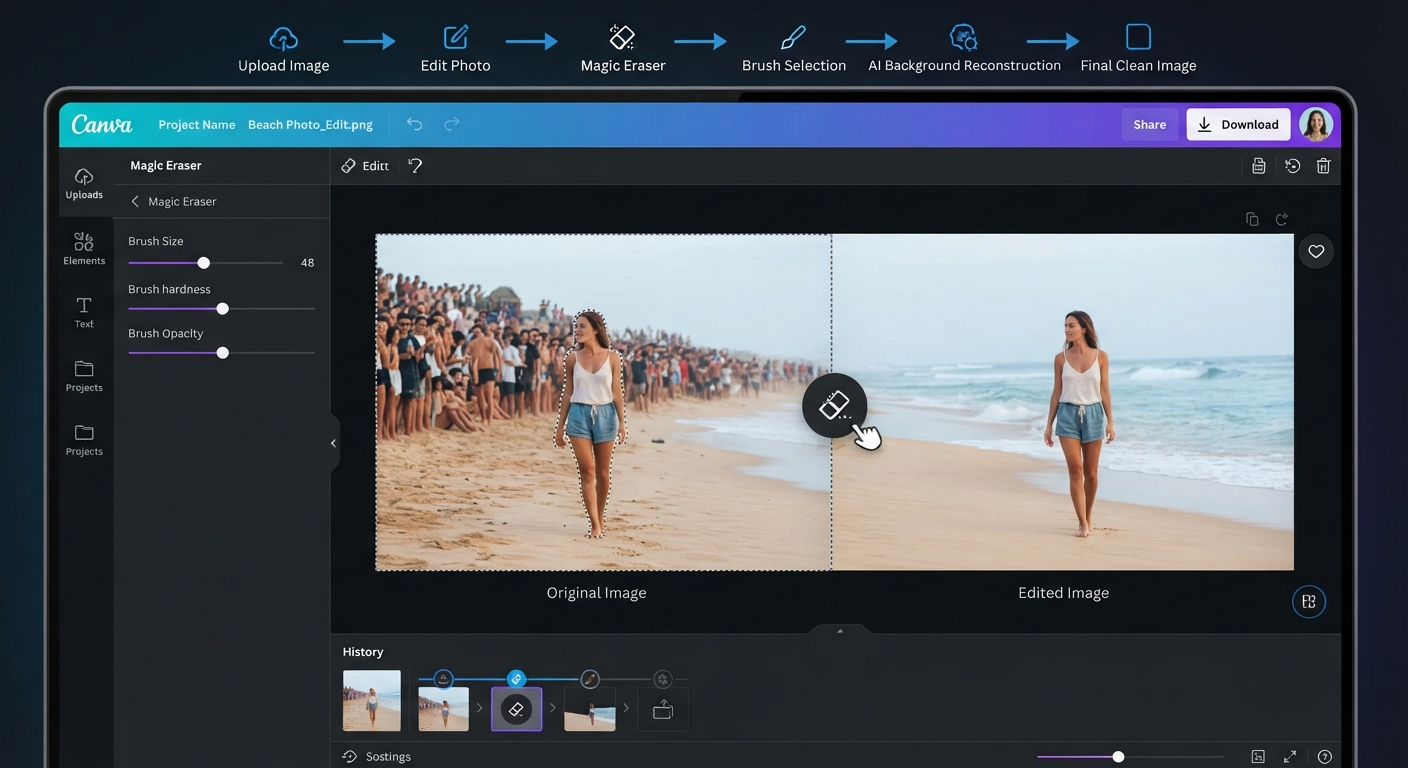
- Import the photo into a new or existing Canva design.
- Select the picture, then choose Edit Photo from the menu above.
- From the effects section, select Magic Eraser.
- Switch to Brush mode for more control, or Click mode if the person is clearly outlined without distractions.
- Brush over or click the person you want to erase — don’t forget the shadow, since that’s the most common mistake here.
- Let Canva analyze and rebuild the background behind the selection.
- Check the edges, then touch up anything that still looks off.
- Save the edited picture.
On a photo with a clear background, the whole process took under a minute. Figuring out the right brush size took a couple of tries at first.
Magic Eraser vs Magic Grab vs Background Remover
This confused me for a while, so let’s clear it up. Three Canva tools sound alike but do completely different things.
Magic Eraser erases part of the photo and replaces it with something else. This is the feature covered in this review — the one that removes people from a photo.
Magic Grab lets you grab the subject and reposition or resize it without changing the background. Use it when you’re rearranging a photo, not removing anything.
Background Remover strips out the entire background, leaving only the main subject. It’s used for product and portrait shoots that need a transparent or swappable background.
If you remember one thing from this section: Magic Eraser is the one that deletes things. The other two sit in the same menu and are easy to click by mistake when you’re moving fast.
What Happened When I Tested This on Real Photos
Travel photos were where this tool earned its keep. That orange-shirt guy? Gone in about forty seconds, with the beach behind him left untouched. This was consistently the strongest category, mostly because travel shots tend to have simple backgrounds — sky, sand, water, stone.
Family photos did well too, as long as the background behind the stranger wasn’t too busy. I pulled a random guy out of a birthday party photo, and you couldn’t tell he’d ever been there.
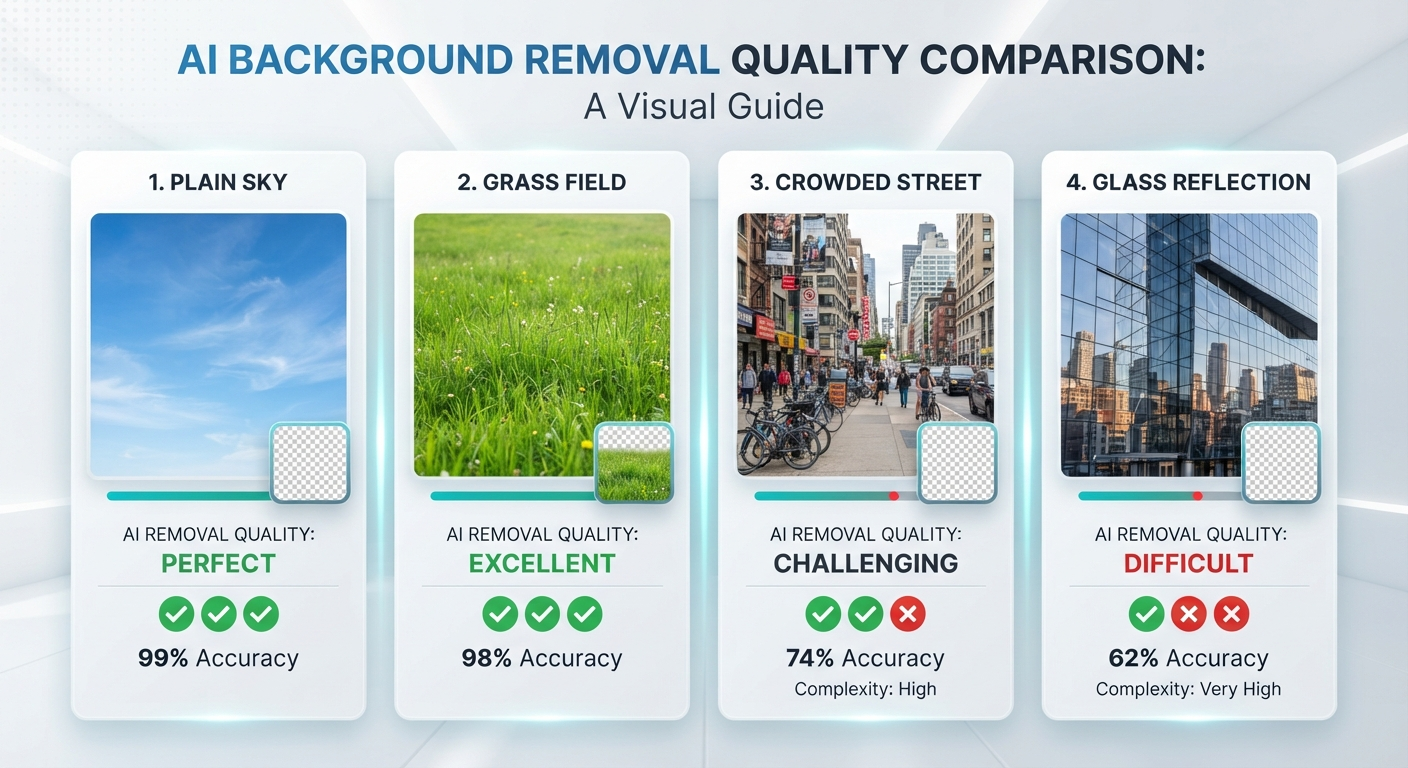
Street photography is where things fell apart. Crowded frames with overlapping people, signs, and reflections in shop windows led to faint ghosting or blurred patches. It wasn’t unusable, but it’s where I ran the brush tool two or three times on the same photo before I was satisfied.
Product photography landed in the middle. Removing a shopper’s hand from a shelf photo usually worked on the first try, though anything glossy — glass, chrome, polished countertops — needed a second pass.
Social media photos with simple, intentional backgrounds were basically solved: one attempt, clean result, every time.
Real estate images worked reasonably well for pulling a person out of a hallway or living room. Wall patterns and furniture edges occasionally needed a manual touch-up around the seams.
Speed Test: Stopwatch Numbers
Across the full sixty-plus photo sample, Canva averaged thirty to forty-five seconds per edit, including upload time.
Photoshop took anywhere from three to eight minutes depending on the method. Straight manual content-aware fill and cloning sat at the slow end. Photoshop’s Generative Fill closed the gap considerably and could rival Canva on simple removals, but it still requires a manual selection first — a step Canva’s Click mode skips entirely.
Adobe Express and Pixelcut landed close to Canva on speed. Cleanup Pictures was often the single fastest for a one-off removal, since there’s no design canvas to load first.
Accuracy Test: Where This Tool Wins and Where It Loses
I want to be specific here rather than just saying “good” or “bad” — that’s not actually useful for a decision.
Hair was the weak point across every AI tool tested, not just Canva. Fine strands against a busy background sometimes left a soft blur where crisp detail should be, and no amount of brush refinement fully fixed it.
Hands did fine in simple settings but struggled the moment they overlapped something else — another person, an object, a railing.
Shadows are a trap for beginners. Brush over the person but skip their shadow, and Canva will happily remove the person while leaving a ghost-shaped patch of darkness where they used to stand. I made this mistake myself on the second photo I tested.
Glass and reflections were consistently the hardest thing for every tool in this test. That’s not really a Canva-specific weakness — reflections require an AI to understand a completely different plane of the image, and most tools aren’t there yet.
Crowded backgrounds were the single biggest limitation. When two or more people overlapped closely, Canva sometimes blended their edges instead of cleanly separating one from the other.
Sky, grass, and plain buildings, on the other hand, were rebuilt with real accuracy almost every time.
Quality of the Output Images: Did the Edited Files Survive?
This isn’t just about eyeballing the result. In every completed file, I checked for visual artifacts, blur, texture inaccuracies, jagged edges, color distortion, noise, and signs of compression.
On simple backgrounds, texture generation was hardly perceptible — accurate enough that you might not notice editing happened at all. On complicated images, I noticed blurred edges from AI pixel blending, and this became especially obvious on low-quality, heavily compressed source photos.
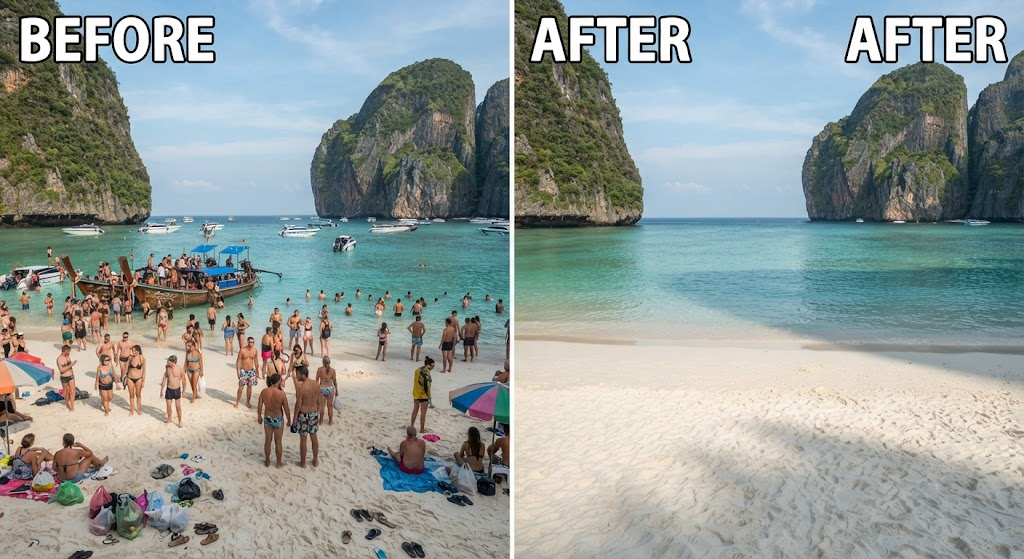
Canva vs Photoshop: The Truth Revealed
Learning curve: Not close. Anyone can learn Canva in minutes without knowing anything about design. Photoshop requires understanding layers, masks, and selection tools before you get a clean result.
Pricing: Canva wins here too — its Pro subscription costs much less than the full Creative Cloud package, though pricing varies by region and current promotions.
Speed: Canva handles basic removals in a couple of minutes; Photoshop takes several minutes even with Generative Fill’s help.
Precision: Photoshop wins. Layers, masks, and cloning let you work pixel by pixel — a level of control no AI tool, including Adobe’s own, fully replicates yet.
Photoshop is also better at complex images, and it remains the better choice for professional work where zero visible artifacts are the standard clients are paying for.
So who wins? It depends on the job. For personal use and social posting, Canva is fine — often faster than expected. For professional work, Photoshop remains the better choice.
Canva vs the Other AI Erasers
Canva vs Adobe Express: Adobe Express offers a very similar AI eraser with comparably accurate results. The real difference is ecosystem — if you’re already building social posts in Canva, it’s simply easier to stay there.
Canva vs Cleanup Pictures: Cleanup Pictures does one thing, and does it slightly faster than Canva for a single quick removal, since there’s no design canvas to load. What it lacks is anything beyond the eraser itself.
Canva vs Pixelcut: Pixelcut leans hard into product photography, with background generation built for ecommerce listings. Canva is the more general-purpose option, with removal as one feature inside a much bigger toolkit.
How Canva Surprised Me
It wasn’t any single perfect edit — it was the consistency across a series of similar images. Once I dialed in the right brush size for a certain background, I could repeat that quality across a dozen images without it ever degrading, which isn’t true of every AI editor I’ve tried.
Editing on mobile was just as good as on desktop, which mattered most on days when I needed a photo fixed immediately rather than waiting to get back to my laptop.
Areas Where It Can Improve Further
Beyond the specific accuracy issues above, the bigger limitation is that Canva has no fallback when automated editing fails.
Photoshop lets you switch to manual layer work at the pixel level if needed. Canva only lets you re-brush the same area and hope for a better result. That usually works, but not always — and when it doesn’t, you’re redoing the whole edit.
If your work regularly involves hair, glass, or busy compositions, expect some failures and plan time for them, or use Photoshop instead.
Mistakes I Made So You Don’t Have To
- Overselecting: My first edit painted out far more space than needed, and the AI overcompensated with extra blur across a larger area than necessary.
- Starting from low-quality images: A screenshot from someone’s Instagram story doesn’t give the AI enough to work with — don’t expect a perfect reconstruction.
- Rushed, inconsistent brush strokes: These leave tiny gaps along the edges of your target that are immediately noticeable.
- Erasing large objects in one stroke: Break big removals into smaller sections instead.
- Forgetting the shadow: This is the single most common beginner mistake, myself included.
- Working with compressed images: Low-quality source files put a hard ceiling on how clean your final output can look.
Improvements That Led to Better Output
- Always start with the highest-resolution image available.
- Zoom in before brushing, so your strokes match the subject’s exact outline.
- Clear smaller distractions first, before tackling your main subject — it’s a good warm-up for your brush control.
- Don’t expect one click to handle complicated subjects; plan for multiple passes.
- Duplicate your image before any large edit, so you always have the original to fall back on.
- Use PNG format whenever quality matters.
Who This Is Good For
Travel creators cleaning up landmark shots, teachers and students building presentation visuals, freelancers needing a fast client turnaround, small businesses and ecommerce sellers cleaning up product photos, bloggers and YouTubers prepping thumbnails, and anyone running an Instagram or Pinterest account who wants a more polished feed without learning new software.
This is the audience Canva clearly built this tool for, and it shows.
When You Should Still Reach for Photoshop
Commercial ad campaigns, fashion shoots, wedding photography a client paid for, magazine layouts, and any professional retouching job where the expectation is zero visible artifacts— these are still Photoshop’s territory, or a professional retoucher’s.
The stakes are higher than what an automated tool can reliably promise every time, and clients tend to notice the difference even when they can’t quite explain why.
What Canva’s Magic Eraser Costs
Magic Eraser and the rest of Magic Studio sit mostly behind Canva Pro. The free plan includes a limited pool of AI edits each month, adjusted periodically by Canva.
Pricing and promotions shift by region often enough that quoting a fixed number here would likely be outdated by the time you read this — check Canva’s official Magic Eraser page before committing.
If you only edit photos occasionally, the free tier’s AI credits might be enough. If you’re doing this weekly, Pro pays for itself quickly once you factor in the time it saves versus manual editing.
Pros
- Fast
- No design background required
- Handles simple backgrounds impressively well
- Fits naturally into an existing Canva workflow
- Works equally well on desktop and mobile
- Produces professional-looking results for everyday content, no separate software needed
Cons
- Struggles with hair, glass, reflections, and crowded scenes
- Full access sits behind a paid plan
- No manual fallback when an automatic edit misses, unlike Photoshop’s layer-based control
- Can’t match Photoshop’s precision for anything demanding professional-level accuracy
Other Tools to Consider
For professional retouching, Adobe Photoshop remains the best alternative if Canva isn’t the right fit. Adobe Express offers a similar AI eraser from the Adobe suite. Cleanup Pictures is a fast standalone eraser that does nothing else. Pixelcut is built for ecommerce and product photographers. Google Photos has a simple eraser that’s enough for fast, casual smartphone edits with no extra app needed.
Frequently Asked Questions
What is Canva AI Remove People?
It refers to Canva’s Magic Eraser, part of the Magic Studio feature set, which lets users remove unwanted people or objects and have the AI rebuild the background.
Is Canva AI Remove People free?
A limited number of free edits are available. Full, unrestricted access requires a Canva Pro subscription.
How do I remove people from a photo in Canva?
Upload the image, select Edit Photo, choose Magic Eraser, mark the person to remove, and let the AI rebuild the background.
Can Canva replace Photoshop?
For basic edits and touch-ups, yes. For professional retouching involving complex hair or reflections, Photoshop still performs better.
Does Canva have a mobile app?
Yes, Magic Eraser is available on Canva’s mobile app as well as on desktop and in the browser.
Can Canva erase tourists from travel pictures?
Yes — this is one of its strongest use cases, especially against simple backgrounds like sky, water, or open ground.
Is Canva AI Remove People precise?
Results are highly accurate on simple backgrounds. Complex scenes with hair, shadows, glass, or overlapping people perform less well.
Which is better, Canva or Photoshop?
Canva is better for quick, convenient edits. Photoshop is superior for high-stakes professional retouching.
Does Canva make photos blurry?
Quality generally holds up when the source image has good resolution. Low-resolution or heavily compressed images are more likely to blur after editing.
What is the best AI tool for erasing people from pictures?
For an all-around solution, Canva works best. For a fast, single-purpose eraser, try Cleanup Pictures or Pixelcut. Photoshop remains the standard for professional retouching.
What’s the difference between Magic Eraser and Magic Grab in Canva?
Magic Eraser deletes a person or object and fills the gap automatically. Magic Grab separates a subject from its background so it can be moved or resized without deleting anything.
Why is Canva’s Magic Eraser not working?
The most common causes are a locked image, a brush size set too small, or no AI edits left on a free account. Unlocking the image and increasing brush size usually fixes it.
Can I remove a person from a photo in Canva without Pro?
Yes, to a limited extent. The free plan includes a capped number of monthly AI edits, often enough for occasional use.
Can you undo a Magic Eraser edit in Canva?
Yes. Standard undo and redo are available while editing, and since your design autosaves in versions, you can also step back to an earlier point in your edit history.
Does Canva AI Remove People work on old or scanned photos?
It can, but results depend heavily on scan quality. Grainy or low-resolution scans give the AI less to work with, so a higher-quality scan produces a cleaner removal.
Is Canva AI Remove People better than Google Photos’ eraser?
For casual, single-tap removals, Google Photos is fine. But Canva AI Remove People generally handles more complex backgrounds better, since Magic Eraser gives you both brush and click modes instead of one automatic pass.
Can Canva AI Remove People handle multiple people in one photo?
Yes, but accuracy drops as people overlap. Canva AI Remove People works best when each person is brushed or clicked separately rather than trying to erase a crowd in one pass.
How accurate is Canva AI Remove People compared to Photoshop’s Generative Fill?
On simple backgrounds, Canva AI Remove People is close to Generative Fill in quality and noticeably faster, since it skips the manual selection step. On complex scenes with hair or reflections, Generative Fill still edges ahead.
Is Canva AI Remove People safe to use for client work?
For casual social content, yes. For paid professional work — weddings, ad campaigns, magazine covers — Canva AI Remove People isn’t precise enough yet, and Photoshop remains the safer choice.
Does Canva AI Remove People require an internet connection?
Yes. Since Magic Eraser processes everything in the cloud, Canva AI Remove People needs an active connection to analyze and rebuild the background.
What image formats does Canva AI Remove People support?
Standard formats like JPG and PNG. Canva AI Remove People works best with high-resolution source files, since compressed or low-quality images limit how clean the final result looks.
Is there a limit to how many times I can use Canva AI Remove People?
On the free plan, yes — Canva caps the number of monthly AI edits. Canva Pro removes that limit, which matters if you plan to use Canva AI Remove People regularly rather than occasionally.
The Quick Decisions Test
Still stuck? Ask yourself one question: are you posting this to a paying client, or to your own feed, presentation, or listing?
Your own feed or listing? Go with Canva — you’ll finish before Photoshop even loads your selection tools.
A paying client? Someone is paying you for perfection, and Photoshop makes that worth every minute.
Conclusion
After three weeks and many images, here’s where I landed. Canva’s Magic Eraser is now a regular part of my workflow — not as a Photoshop substitute, but as the tool I reach for whenever the job is informal.
The problem that sent me looking for it is fixed: the folder of ruined vacation photos is significantly smaller now. For the cases it struggles with — hair, glass, crowded shots — I hand those to Photoshop instead of forcing the app to do something it doesn’t do well. Using both together beats relying on either one alone.
For beginners and anyone who wants good results without the hassle, Canva is a genuinely great tool right now — no asterisk needed. If your livelihood depends on high-quality retouching, keep Photoshop on hand, but Canva earns its place as a serious sidekick.
Important Note
This review is based on my personal testing and experience using Canva Magic Eraser (AI Remove People) on different types of images and comparing the results with Adobe Photoshop and other AI editing tools. Results may vary depending on image quality, lighting, background complexity, and future software updates.
Swisspik is an independent educational website and is not affiliated with, endorsed by, or sponsored by Canva, Adobe Photoshop, Adobe Inc., or any other brand mentioned in this article. All trademarks and product names belong to their respective owners.