Canva LinkedIn Banner Templates: 12 Smart Tips (2026)
Introduction
The very first thing that recruiters, clients, or potential business partners see when visiting your LinkedIn profile is your LinkedIn banner. Most people invest several hours in crafting an amazing headline or polishing their experience, but tend to overlook this major visual element—the LinkedIn banner.
If designed right, your banner instantly conveys who you are, what you do, and more importantly, why someone needs to connect with you. Even better? You don’t have to pay for designer software to create a great-looking LinkedIn banner. With these free Canva LinkedIn banner templates, both beginners and pros will be able to design stunning-looking LinkedIn banners in just a few minutes. However, once you’ve selected a great Canva banner design, there’s still much room for improvement. Wrong color schemes, poor spacing choices, blurry export options, or crowded layouts can turn even the best premium templates into a disaster!
In this guide, we’ll walk through everything from using Canva LinkedIn to picking the best Canva LinkedIn banner templates to avoiding design blunders when creating your own banner. Whatever your role — be it as a student, freelancer, job seeker, creator, or business owner — our expert tips should make designing your own LinkedIn banner a breeze.
Let’s dive in! 🚀
Quick Answer
When designing Canva LinkedIn banner templates, we recommend sticking to the tips above to ensure the most professional-looking LinkedIn cover image.
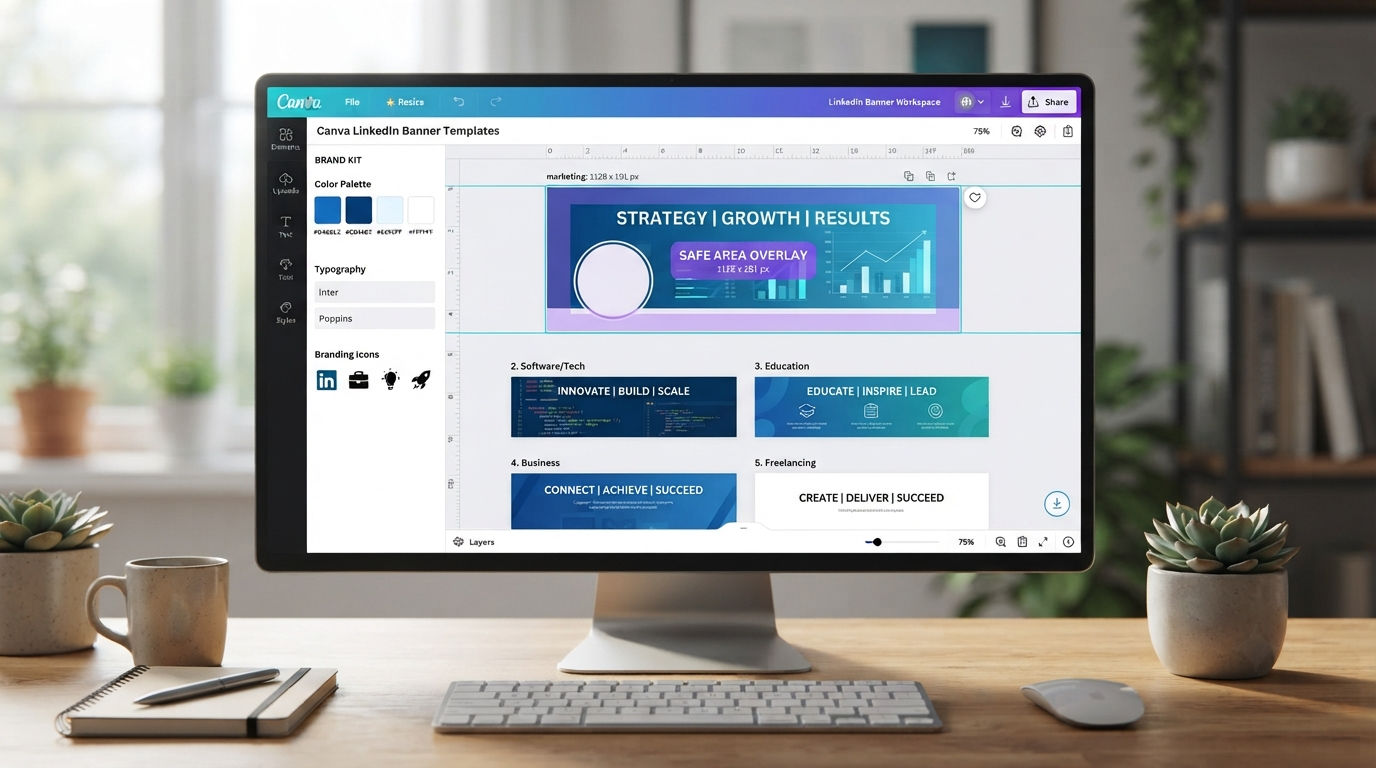
Start by choosing a clean Canva template, then select the right dimensions for your LinkedIn Banner. Next, use this safe area guide when adding key elements, ensure it aligns with your personal brand, and finally export your design in high quality before uploading it to LinkedIn.
What Is a Canva LinkedIn Banner?
Your LinkedIn banner (also called a LinkedIn cover) is a custom cover image you create in Canva that sits at the top of your LinkedIn profile. Like your profile photo, your banner can show off your expertise, industry, personality, or even your brand—but now there’s more room for those ideas!
A professional LinkedIn banner can include:
Here are some examples:
- Professional tagline.
- Brand colors.
- Business Logo.
- Website/portfolio.
- Industry-related graphics.
- Simple illustration.
- Achievement Highlights.
- Clean background Images.
Customized Banners instead of the default blue Backgrounds provided by LinkedIn make our Profile look more complete & memorable.
You May Also Like: Canva Brand Kit (2026): The Complete Guide to Better Brand Consistency
Quick definition:
Canva LinkedIn Banner – A professionally designed LinkedIn cover Image that can be created with Canva Templates or Custom Designs.
Why Your LinkedIn Banner Is More Important Than Most People Think
Many people see this space as one for some nice decorations… but the truth is that it’s a key element of your own personal branding.
Think about what happens to you every time someone comes to visit your profile!
They usually notice:
- Profile picture
- Banner
- Headline
The banner is one of the first visual elements that people notice when they land on your website and haven’t read anything yet.
A good banner can communicate:
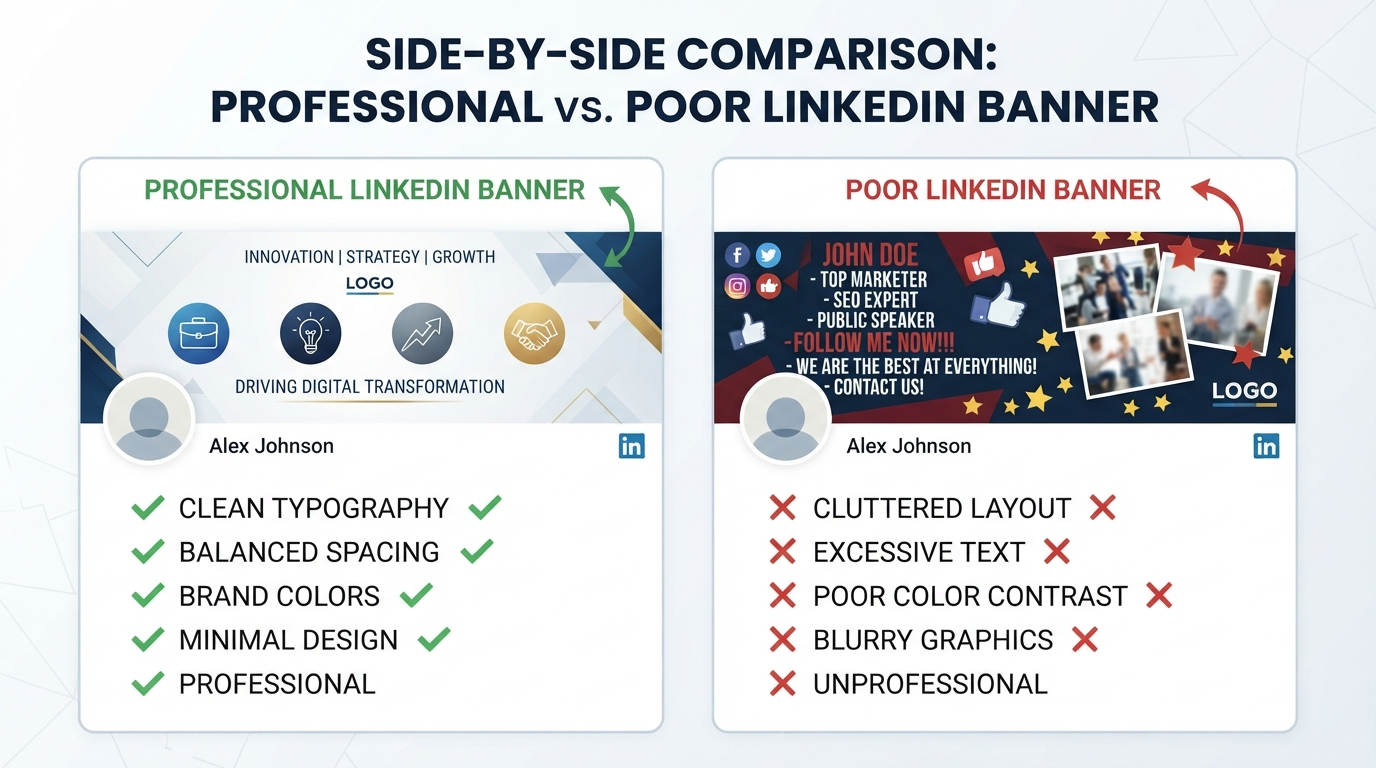
| Professional Banner | Weak Banner |
|---|---|
| Clear branding | Empty default background |
| Consistent colors | Random stock image |
| Simple message | Too much text |
| Professional appearance | Low-quality graphics |
| Trust and credibility | Cluttered design |
Author Tip
If you look at hundreds of LinkedIn profiles like I do, there’s always one thing missing: an awesome banner!
While many put effort into writing their profile, very few pay attention to designing the banner that comes above it all. This area gets overlooked, but with some design skills, you can turn your banner into a piece of art that really sets off your whole profile.
Canva Free vs Canva Pro for LinkedIn Banners
One of the most common questions is whetherCanva’se free version is enough.
Here’s a quick comparison.
| Feature | Canva Free | Canva Pro |
|---|---|---|
| LinkedIn banner templates | ✔ | ✔ |
| Premium templates | Limited | Full access |
| Brand Kit | ✘ | ✔ |
| Premium elements | Limited | ✔ |
| Magic Resize | ✘ | ✔ |
| Background Remover | ✘ | ✔ |
So long as you don’t have too many brands to work with, Canva Free will get your job done when creating a pro LinkedIn banner design. If you’re working on several different brands at once and would benefit from having access to some premium assets and branding tools, then Canva Pro might be more suitable for you.
12 Smart Tips for Creating Better Canva LinkedIn Banner Templates
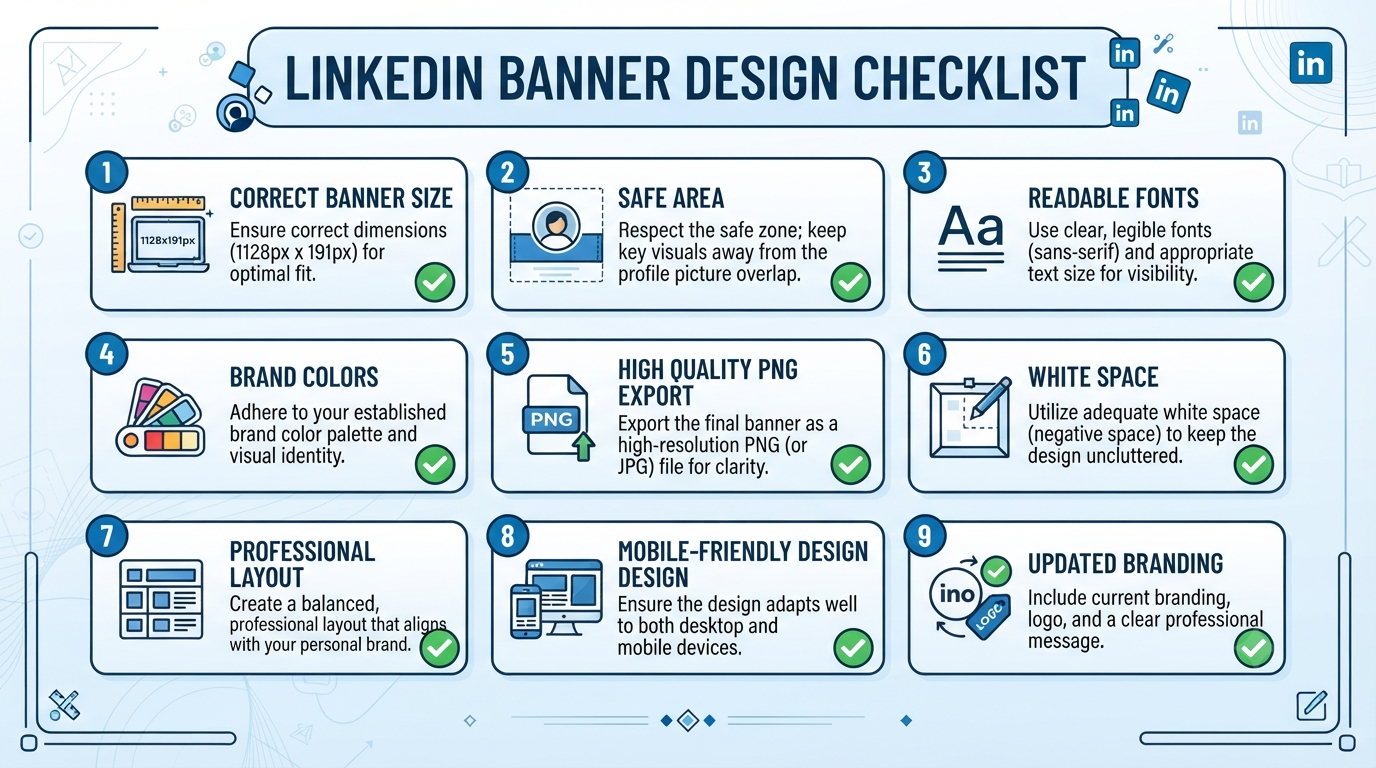
Tip 1: Start With the Correct LinkedIn Banner Size
One of the biggest mistakes people make here is designing the banner at an incorrect canvas size.
If you use incorrect dimensions, your image will be cropped, stretched, or become blurry upon upload.
To avoid all of those things, start using Canva’s dedicated LinkedIn Banner Templates, which already include recommended Dimensions.
These LinkedIn Banner templates are provided only for Personal LinkedIn Profiles. So if you are creating your company profile,e then better don’t use this Template.
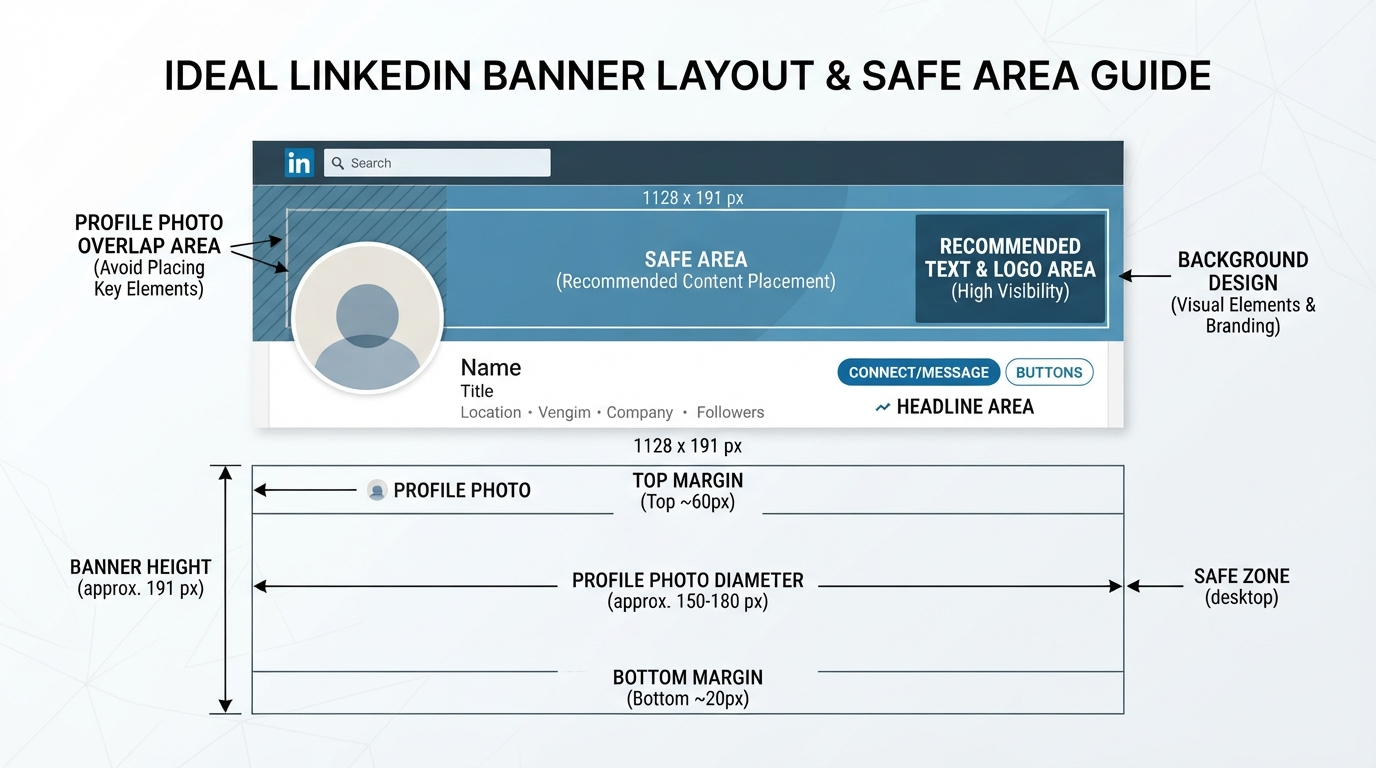
Tip 2: Always Design for the Safe Area
A common reason banners look broken is that the profile picture covers important text.
Never place your:
- Name
- Logo
- Website
- Call to action
- Important graphics
Near the area occupied by the LinkedIn profile photo.
Smart Workflow
Instead of designing edge-to-edge:
- Add the background first.
- Leave generous space on the left.
- Place text toward the center-right.
- Preview before exporting.
This simple habit dramatically improves banner readability.
Tip 3: Choose Templates That Match Your Profession
Not every Canva LinkedIn banner template suits every career.
A software developer, lawyer, photographer, and marketing consultant should not all use identical banner styles.
Choose visuals that support your industry.
| Profession | Recommended Banner Style |
|---|---|
| Designer | Creative portfolio |
| Teacher | Clean educational layout |
| Freelancer | Personal branding |
| Recruiter | Professional minimal |
| Business Owner | Brand-focused |
| Developer | Modern technology theme |
| Student | Clean academic style |
A relevant design tells visitors what you do before they even read your headline.
Tip 4: Keep Text Short and Readable
Many banners fail because they contain too much information.
Your banner is not a resume.
Instead of writing multiple paragraphs, focus on one clear message.
Better Example
✔ UI/UX Designer
✔ Helping SaaS Startups Create Better User Experiences
Instead of
✘ Welcome to my profile, where I offer a range of services in digital marketing, branding, web design, SEO, social media, consulting, and more.
Less text creates a stronger visual impact.
You May Also Like: 15 Best Canva Alternatives (2026): Powerful AI & Design Tools Compared
Tip 5: Build a Consistent Personal Brand
Your LinkedIn profile should feel connected from top to bottom.
Your banner, profile photo, headline, and featured section should all support the same professional identity.
The 4B Branding Framework
A simple framework that many articles overlook:
Background
Use clean backgrounds that don’t compete with your text.
Brand Colors
Limit yourself to two or three consistent colors.
Balance
Leave enough white space for readability.
Benefit
Your banner should quickly answer:
“Why should someone connect with you?”
This approach creates a banner that feels intentional instead of decorative.
Tip 6: Use High-Quality Icons and Graphics
Avoid filling your banner with random icons simply because they look attractive.
Every graphic should support your message.
For example:
- Marketing professionals can include subtle analytics or campaign visuals.
- Developers can use modern coding-inspired graphics.
- Educators may prefer books, learning symbols, or classroom-inspired illustrations.
- Business consultants often benefit from simple geometric elements rather than busy illustrations.
When in doubt, remember this rule:
Simple banners usually look more professional than crowded banners.
Tip 7: Choose Fonts That Stay Readable on Every Device
For example, your LinkedIn banner might look good on the desktop screen. But chances are that the same will be hard to read on other devices such as phones or tablets. So font choice should matter as much as color and layout do.
Here are some best practices when picking out the right font:
Limit yourself to only 2 font families.
Go with clean sans-serif fonts like Poppins, Inter, Open Sans, Montserrat, or Lato.
Ensure there’s enough contrast between the font/text and the background.
Avoid using any decorative fonts or script fonts if you’re writing a professional profile.
Quick Font Guide
| Goal | Recommended Style |
|---|---|
| Corporate Profile | Inter, Lato |
| Creative Portfolio | Poppins, Montserrat |
| Personal Brand | Open Sans + Poppins |
| Consultant | Minimal Sans Serif |
Smart Tip: If someone cannot read your banner within three seconds, simplify it.
Tip 8: Use Colors That Reflect Your Personal Brand
Color psychology can influence how your LinkedIn profile is perceived. While there is no universally perfect color palette, consistency helps build recognition.
| Color | Common Impression |
|---|---|
| Blue | Trust and professionalism |
| Green | Growth and learning |
| Orange | Creativity and energy |
| Black | Premium and authority |
| White | Simplicity and clarity |
Instead of using many colors, stick to two or three complementary shades. If you already have a logo or website, use similar colors to maintain a consistent visual identity.
Tip 9: Customize Every Canva LinkedIn Banner Template
The first thing I’m sure you’re going to do when you start working on your own designs is download one of these Canva templates and run with it as-is — but that’s also probably the biggest mistake you can make.
Thousands of other people will have downloaded this same template too.
Make it your own by changing:
Create Your Banner:
- Start by selecting one of our customizable Canva LinkedIn banner templates.
- Make sure to update all the placeholder text to include your own headline.
- Change any of the color palettes if you’d like to make this banner more consistent with your branding.
- If there are any elements in the design you don’t need, remove them from your template!
- Once everything looks good, export and preview your work before uploading!
Even tiny changes will help you create an original-looking banner that’s more consistent with your personal professional identity!
Tip 10: Export in High Quality to Avoid Blurry LinkedIn Banners
A common question is:
Why does my Canva LinkedIn banner look blurry?
In most cases, the issue is not Canva itself. It usually happens because:
- The image was exported at low quality.
- Important details were placed too close to the edges.
- The design contained very small text.
- LinkedIn compressed the uploaded image.
How to Fix It
✔ Download as PNG instead of JPG when possible.
✔ Use Canva’s recommended LinkedIn banner dimensions.
✔ Avoid tiny text.
✔ Preview the uploaded banner on both desktop and mobile.
✔ Re-export if necessary after checking image quality.
Quick Tip: Large, bold text generally stays sharper after LinkedIn compresses images.
Tip 11: Test Your Banner Before Publishing
Professional designers rarely publish the first version of a design without reviewing it.
Before uploading your banner, ask yourself:
Banner Review Checklist
- Is the text easy to read?
- Does the profile photo cover anything important?
- Are colors consistent?
- Is the spacing balanced?
- Does the banner reflect your profession?
- Is the background clean?
- Is the image sharp?
- Would a recruiter immediately understand what you do?
Spending just a few extra minutes reviewing your banner can make a significant difference.
Tip 12: Keep Your LinkedIn Banner Updated
Your career evolves, and your banner should evolve with it.
Update your banner when you:
- Change jobs
- Launch a business
- Complete a certification
- Build a portfolio
- Shift your niche
- Start freelancing
- Rebrand your business
- Promote a new service
A fresh banner signals that your profile is active and up to date.
Common Canva LinkedIn Banner Mistakes
Avoid these common issues that can reduce your profile’s effectiveness.
| Mistake | Better Approach |
|---|---|
| Too much text | Keep the message concise |
| Random stock photos | Use relevant visuals |
| Poor color contrast | Ensure text is easy to read |
| Tiny fonts | Use readable font sizes |
| Cluttered layouts | Add white space |
| Default Canva template without edits | Customize the design |
| Low-quality export | Download in high quality |
| Ignoring the safe area | Keep important content visible |
Troubleshooting Canva LinkedIn Banner Problems
Banner Looks Blurry
Possible Causes
- Low-quality download
- Image compression by LinkedIn
- Small text
- Incorrect dimensions
Solution
Export in PNG, keep text larger, and use Canva’s LinkedIn banner template.
Banner Is Cropped
Possible Causes
- Incorrect canvas size
- Important elements near the edges
Solution
Leave sufficient margins and preview the banner after uploading.
Banner Looks Different on Mobile
This is normal because LinkedIn displays banners differently across devices.
Design with flexibility in mind by keeping key content away from the edges and avoiding unnecessary details.
Canva LinkedIn Banner Design Checklist
Before publishing, confirm that your banner meets these points:
- Correct LinkedIn banner dimensions
- High-quality PNG export
- Readable typography
- Consistent brand colors
- Clean layout
- Safe spacing around important elements
- Customized template
- Mobile-friendly appearance
- Professional visual style
- Updated information
You May Also Like: Canva Whiteboard Tutorial (2026): 12 Amazing Hidden Features Every Creator Should Know
Frequently Asked Questions
What is a LinkedIn banner in Canva? The A A
LinkedIn Banner on Canva refers to the cover image created using Canva’s templates/custom layouts that appears at the top of your LinkedIn Profile.
This can help you display your professional identity/Expertise / Personal Brand.
Can You Create a LinkedIn Banner For Free In Canva?
Yes! Canva has lots of free templates you can use as a starting point for LinkedIn banners. Plus, Canva Pro gives access to additional premium templates and other design assets.
What’s the recommended LinkedIn banner size?
LinkedIn frequently updates its guidelines, so the best bet is to start from scratch with Canva’s dedicated LinkedIn Banner design type. It will be optimized for current profile banner dimensions.
Why is my Canva LinkedIn banner blurry?
Your Canva LinkedIn banner looks blurry for a few reasons: a low–quality export, excessive compression, small fonts, or not following the recommended size.
Do you want to use Canva for your LinkedIn profile photo?
Absolutely! It offers several options, such as cropping, resizing, background adjustment, and photo enhancement for the profile.
It’s important that you recently took a beautiful picture in good light, then enhance it in Canva to get an amazing, professional look for your LinkedIn Profile Photo.
Do you need to put a logo on a LinkedIn banner?
Of course!
Think about your goals for creating the image. If you’re representing a business or personal brand, adding a small logo to reinforce recognition makes sense. But when we think of individuals representing their own brands (as most professionals do), a small logo doesn’t necessarily help—your name, expertise, and great design are what count.
Should you update your LinkedIn banner regularly?
Try updating your LinkedIn Banner regularly every time there’s a shift in your professional identity — be it due to a new role, a certification, launching a business, hitting some major career milestones, etc.
Key Takeaways
- Designing a professional-looking LinkedIn banner doesn’t have to be difficult. With Canva, you can easily create stunning designs using its beautiful templates.
- Select templates that align with your industry and personal brand to keep your design simple yet readable.
- Make sure you have left enough space from your profile picture.
- Remember to export this banner at the highest possible resolution for the best results.
- Preview your banner across all devices before exporting. And finally, review & update your banner over time.
Final Verdict
Well-designed LinkedIn banners have much more going for them than you may think they do — and with some customization, your Canva LinkedIn banner templates will make sure that yours stands out as a unique representation of who you are professionally.
Use these 12 smart tips we’ve gathered together here today to build the perfect banner. You’ll be creating a great first impression of your expert-level knowledge, your own personal brand, and more to show off to recruiters, clients, colleagues, and other collaborators looking for talent! Let’s get started…
The good news? All you need to start building your LinkedIn banner is either the Free or Pro version of Canva. And while our guide includes all sorts of nifty details about what goes into designing a fantastic LinkedIn banner, don’t worry about overcomplicating things right now by adding too many complicated design pieces. Your banner should represent exactly who you are professionally and what you bring to the table — nothing else! So focus on making sure your banner reflects your personality while keeping everything clear and consistent, rather than trying to wow everyone with fancy design elements. This is already a lot to take in without also having to learn the finer points of graphic design… which would be awesome if there was ever time to really delve into it. In short, go ahead and let us handle those boring details so you can spend more time actually getting your message across through quality visuals alone!
Important Note: Every LinkedIn profile is unique, so there is no single banner design that works for everyone. The tips shared in this guide are based on practical experience, research, and real-world design practices using Canva. Always customize your LinkedIn banner to match your profession, personal brand, and career goals instead of relying on generic templates. Since Canva and LinkedIn regularly introduce new features and design updates, it’s a good idea to refer to their official documentation for the latest information. Any external resources mentioned in this article are provided solely for educational and informational purposes. Swisspik is an independent educational website and is not affiliated with Canva, LinkedIn, or any of their respective companies.