Canva PDF Editor vs Sejda PDF Editor (2026) | Features, Pricing & Best Choice
Introduction
Choosing the right PDF editor is one of the most critical tasks today because we have tons of documents that need our attention. For example, if you need to update your resume, edit your business proposal, modify your marketing brochure, or make some quick edits to your client’s document, having the perfect PDF editor will help you avoid spending hours doing manual editing.
But there are a lot of PDF editors out there. Two of the most commonly searched-for applications include the Canva PDF Editor and the Sejda PDF Editor. If you’re confused about which application to use for your document editing needs, here’s how these two differ from each other and what purpose they serve.
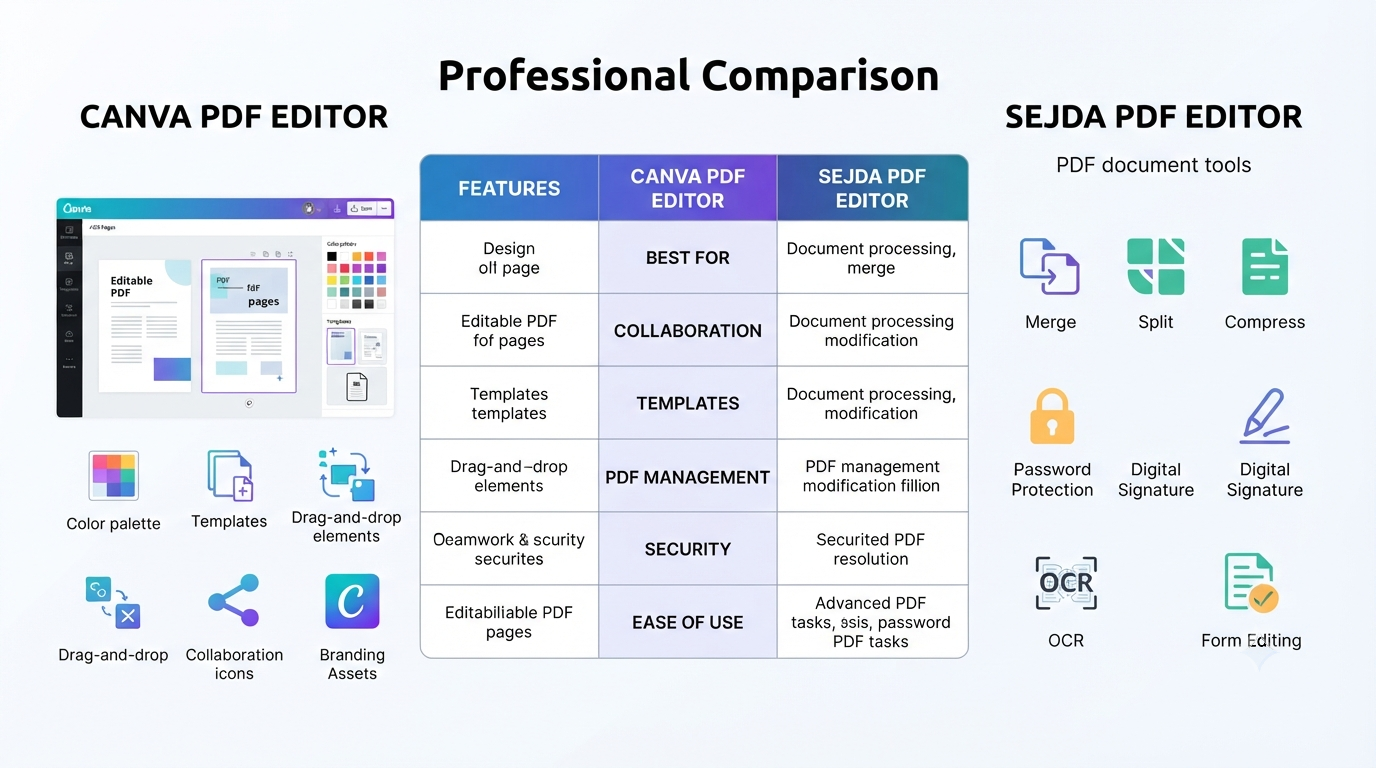
At its core, the Canva app offers an array of options for visual design, branding, collaboration, and creative editing. But the Sejda app comes packed with all sorts of advanced features and functions for managing standard PDF documents, including merging, splitting, compression, OCR Support, Password Protection, Form Editing, etc.
After putting these tools through their paces with various types of PDF edits, we’ve found that neither platform necessarily outperforms the other – which means you’ll need to decide based on what kind of PDF editing you want to tackle.
For creating eye-catching designs that include beautiful layouts for your PDFs, Canva wins hands down. But if you’re working extensively with contracts, legal documents, scanned PDFs, and document security, Sejda has you covered.
In this guide, we compare features of these two apps to see which one might work best for you. We also explain how each app can help with your workflow.
Let’s start by comparing the features offered by both to highlight the pros and cons of each app!
Quick Answer
So, when do you use Canva’s PDF editor? It will be your best bet if you are a creator, student, educator, marketer, freelancer, or business looking to edit PDF designs visually. If you’re looking for more advanced options with features like OCR, PDF compression, password protection, and digital signatures, Sejda PDF Editor might suit you better.
Now let’s take an example scenario where each user should go for their respective choices based on needs:
Select Canva PDF Editor if you need to:
- Edit PDF designs visually
- Change fonts, colors & layouts
- Add Canva templates
- Create marketing materials
- Collaborate with teams
- Convert PDFs into editable Canva projects
Select Sejda PDF Editor if you require these:
- Edit existing PDF text precisely
- Merge / Split PDFs
- Compress large PDF file sizes
- Add passwords & permissions
- Fill PDF forms
- OCR scanned docs
- Sign PDFs digitally
Bottom line: Canva for design-focused PDF editors & Sejda for document-focused PDF managers!
You May Also Like: Canva LinkedIn Banner Templates: 12 Smart Tips for a Professional Profile (2026)
Canva PDF Editor Overview
Canva PDF Editor is an online visual editing tool that lets you upload your PDF file and convert it into Canva design files.
When you use this tool, Canva will convert almost all the elements from a PDF into editable ones and let you modify those items by using their drag-and-drop editors. You can edit your layouts, images, icons, text blocks, branding elements, and other things with the help of Canva’s editor tools. But unlike traditional PDF software, Hanva places more emphasis on creative design
It works particularly well for:
- Presentation.
- Marketing brochure.
- Flyer.
- Poster.
- Infographic.
- Business proposal.
- Certificate.
- Social media PDFs.
- Workbook.
- Educational resource.
Thanks to integration with thousands of templates, fonts, stock images, icons, and other brand assets, you can completely redesign your PDF by uploading it to Canva.
Key Features of Canva PDF Editor
Upload and Edit PDFs
To get started, all you need to do is upload your PDF file onto Canva – and we’ll attempt to turn every single page into an editable element. So, depending on how the PDF was created, everything from the text to the images and even the layout will be turned into elements that can now be edited separately.
Drag-and-Drop Editing
In contrast to conventional PDF editors with toolbars and menus, Canva offers an intuitive drag-and-drop interface.
You can:
- Move objects.
- Resize graphics.
- Replace images.
- Change fonts.
- Modify colors.
- Add new design elements.
- without needing professional design software.
Thousands of Ready-Made Templates
This massive amount of templates has been one of our favorite things about Canva.
Now you don’t have to edit an old PDF – turn it into something beautiful with these professionally-designed templates!
This is especially useful for:
- Business documents
- School Assignments
- Event Flyers
- Restaurant Menus
- Product Catalogs
- Reports & Portfolios
Brand Kit Integration
Businesses using Canva Pro can maintain their brand’s consistency by applying:
- Brand fonts
- Company logos
- Color palettes
- Templates
And with just a few clicks,s you can do that. This feature makes all the difference when working as an agency or marketing team on various PDFs.
Team Collaboration
Unlike other traditional PDF editors, Canva allows you to collaborate with others on your project in real time.
Team members can:
- Canva allows you to leave comments on designs.
- You can suggest edits that other users make.
- You can share projects with others.
- You can work simultaneously on them.
- You can manage their permissions.
All of these features make Canva well-suited for collaborative design workflows.
Cloud-Based Editing
Canva runs entirely within your browser. There’s no need to install software, and all projects are automatically saved to the cloud, accessible across various devices.
You May Also Like: Canva Brand Kit (2026): The Complete Guide to Better Brand Consistency
What is Sejda PDF Editor?
Sejda PDF Editor focuses on document management rather than graphic design. Instead of rethinking how to redesign your documents, think about editing the PDF you already have and maintaining that document’s original structure.
Some features include:
- Text editing
- Page organization
- OCR support (if relevant to your workflow)
- PDF compression
- Merge and split tools
- Password protection
- Watermarks
- Digital signatures
- Form editing
- Hyperlink management
These are just some of the reasons why people use Sejda to edit their business documents. In fact, you can find this program used for contracts, invoices, tax forms, and more.
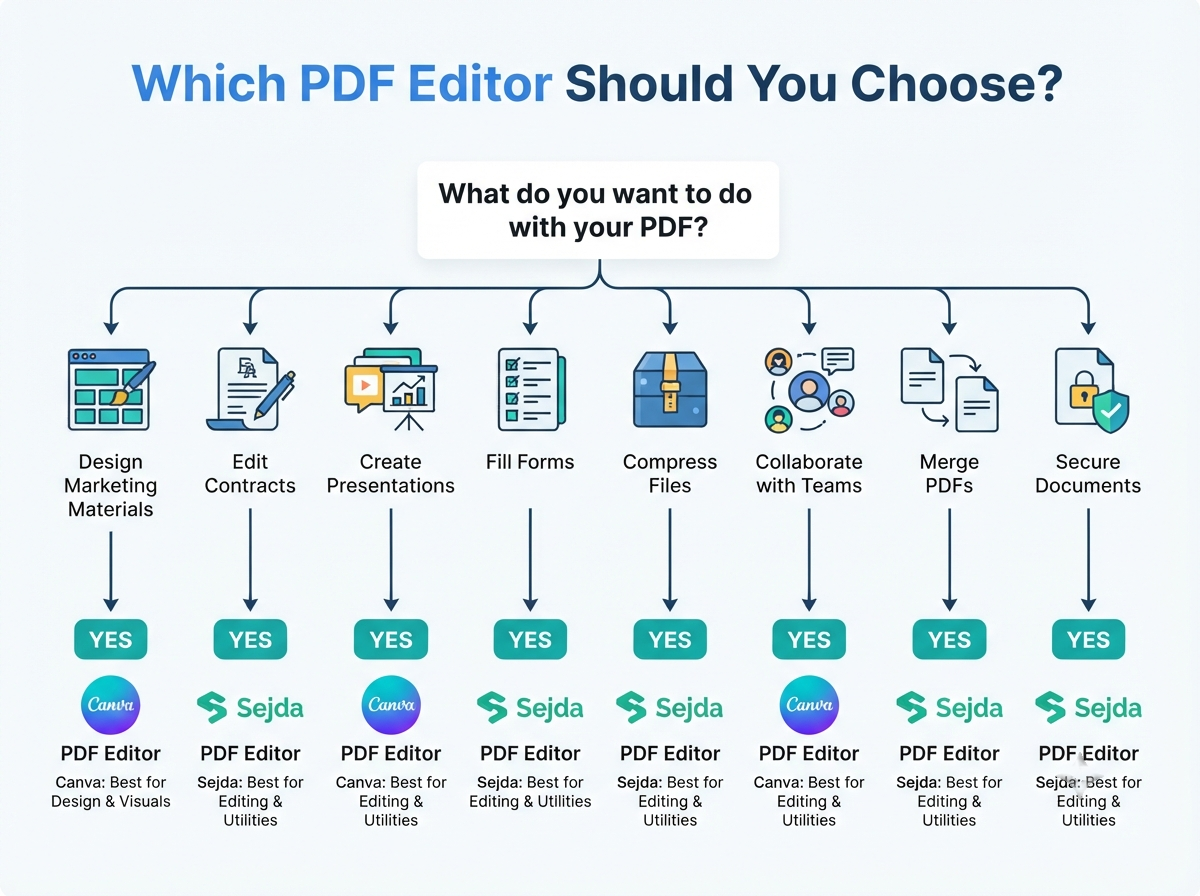
Canva PDF Editor vs Sejda PDF Editor: Quick Comparison
| Feature | Canva PDF Editor | Sejda PDF Editor |
|---|---|---|
| Best For | Creative PDF design | Traditional PDF editing |
| Online Editor | ✅ Yes | ✅ Yes |
| Desktop Version | Limited | ✅ Available |
| Visual Design | ⭐⭐⭐⭐⭐ | ⭐⭐ |
| Text Editing | Good for editable designs | Excellent for PDFs |
| OCR Features | Limited | Better suited for scanned document workflows |
| PDF Merge | No dedicated tool | ✅ Yes |
| PDF Split | No | ✅ Yes |
| Compress PDF | Basic export options | ✅ Advanced |
| Password Protection | No dedicated PDF security controls | ✅ Yes |
| Digital Signatures | Limited | ✅ Yes |
| Collaboration | Excellent | Basic |
| Templates | Thousands | Very limited |
| Brand Kit | Yes | No |
| Learning Curve | Very Easy | Easy |
Original Framework: The 3D PDF Decision Method
A common limitation with many of these articles is that they’re simply feature lists.
Instead, let me go deeper by evaluating each tool depending on how I personally use them.
Use this simple 3D PDF Decision Method:
- Design
Ask yourself:
Do you want your PDF to look better? Are you redesigning layouts, branding, or visuals?
If yes, then Canva is our stronger choice.
- Document
Ask:
Should I preserve my original PDF when editing text, pages, forms, or signatures? In that case, Sejda will likely be better for your needs.
- Distribution
Finally, consider how the PDF will be shared:
Collaborate with a team member on your branded content? Try Canva. Want to send out some signed contracts or secured docs? Check out Sejda’s dedicated doc management tools. The decision becomes much easier if we consider our workflow instead of comparing their features:
Which PDF Editor Is Easier To Learn?
If you’re just getting started with working on documents, Canva’s PDF Editor tool will be your best friend. It works similarly to presentation or graphic-design software and uses drag-and-drop for most edits, making the process accessible to those without prior PDF-editing experience. Sejda also boasts many useful, editing-specific tools, such as page organization, security features, form handling, and compression, but they aren’t always easy for someone inexperienced with PDF editing workflows.
Ease of Learning
| User Type | Recommended Tool |
|---|---|
| Students | Canva |
| Teachers | Canva |
| Freelancers | Canva |
| Designers | Canva |
| Marketing Teams | Canva |
| HR Teams | Sejda |
| Legal Professionals | Sejda |
| Accountants | Sejda |
| Office Administrators | Sejda |
Feature-by-Feature Comparison
Now let’s compare both tools in the areas that actually matter during day-to-day work.
| Feature | Canva PDF Editor | Sejda PDF Editor | Winner |
|---|---|---|---|
| Upload & Edit PDFs | ✅ | ✅ | Tie |
| Visual Design | ⭐⭐⭐⭐⭐ | ⭐⭐ | Canva |
| Edit Existing PDF Text | Good | Excellent | Sejda |
| Templates | Thousands | Very Few | Canva |
| Brand Kit | ✅ | ❌ | Canva |
| Team Collaboration | Excellent | Basic | Canva |
| Merge PDFs | ❌ | ✅ | Sejda |
| Split PDFs | ❌ | ✅ | Sejda |
| Compress PDFs | Basic | Advanced | Sejda |
| Password Protection | ❌ | ✅ | Sejda |
| Digital Signatures | Limited | ✅ | Sejda |
| Fill PDF Forms | Limited | ✅ | Sejda |
| Ease of Use | Excellent | Very Good | Canva |
| Best for Design | ⭐⭐⭐⭐⭐ | ⭐⭐ | Canva |
| Best for Office Documents | ⭐⭐⭐ | ⭐⭐⭐⭐⭐ | Sejda |
Canva PDF Editor: Pros & Cons
Advantages
✅ Extremely beginner-friendly
✅ Beautiful drag-and-drop editor
✅ Thousands of templates
✅ Huge image, icon, and font library
✅ Excellent collaboration features
✅ Brand Kit support
✅ Great for marketing documents
✅ Browser-based
Limitations
❌ Not built for legal or technical PDF editing
❌ Limited PDF security features
❌ No dedicated merge/split workflow
❌ Complex PDF formatting may not convert perfectly
❌ OCR capabilities are limited compared to dedicated PDF software
Sejda PDF Editor: Pros & Cons
Advantages
✅ Excellent PDF editing tools
✅ Merge, Split and Compress PDFs
✅ Password protection
✅ Digital signatures
✅ Form editing
✅ Better document preservation
✅ Useful for contracts and office documents
Limitations
❌ Limited design flexibility
❌ Very few templates
❌ Not intended for creative projects
❌ Collaboration features are minimal
❌ Interface feels more document-focused than design-focused
Pricing Comparison
Pricing can change over time, so always verify the latest plans on the official websites before making a purchase.
| Plan | Canva | Sejda |
|---|---|---|
| Free Plan | Yes | Yes |
| Paid Version | Canva Pro | Sejda Premium |
| Templates | Thousands | Very Limited |
| Brand Kit | Paid | No |
| Collaboration | Excellent | Basic |
| Business Features | Excellent | Good |
My Recommendation
If you routinely need to create presentations, brochures, social media assets, proposals, or other types of branded PDF documents, then Canva’s Pro subscription will likely offer you more long-term value than its free plan.
However, if your day-to-day work involves contracts, invoices, legal files, or office paperwork (e.g., scanned PDFs), Sejda’s premium features will likely be a better fit.
You May Also Like: 15 Best Canva Alternatives (2026): Powerful AI & Design Tools Compared
Real-World Use Cases
Students
Best Choice: Canva
Students often create:
- Assignments
- Presentations
- Portfolios
- Posters
- Certificates
Canva makes these projects look great, even if you have no design experience.
Teachers
Best Choice: Canva
Useful for creating:
- Worksheets
- Classroom activities
- Lesson plans
- Printable resources
- Educational presentations
Small Businesses
Best Choice: Canva
Perfect for:
- Flyers
- Menus
- Product catalogs
- Marketing brochures
- Company profiles
- HR Professionals
- Best Choice: Sejda
Useful for:
- Employment contracts
- Offer letters
- Official forms
- Internal documents
- Legal Teams
- Best Choice: Sejda
Better suited for:
- Contracts
- Agreements
- Protected PDFs
- Digital signatures
- Form-based workflows
- Marketing Agencies
- Best Choice: Canva
Because agencies frequently need:
- Brand consistency
- Client collaboration
- Visual editing
- Creative presentations
Common Mistakes to Avoid
Using Canva for Legal Documents
While Canva is excellent for design, it isn’t the ideal choice for editing highly structured legal or compliance documents.
Expecting Perfect PDF Conversion
Some PDFs contain embedded fonts, complex layouts, or layered elements that may not convert exactly the same after import.
Always review every page before exporting.
Ignoring Export Settings
Export quality matters.
Choose appropriate PDF settings depending on whether the document will be printed, shared online, or professionally published.
Editing the Wrong File
Always keep a backup copy of your original PDF before making major changes.
Troubleshooting Canva PDF Editor
PDF Doesn’t Import Correctly
Possible reasons:
- Unsupported fonts
- Flattened PDF
- Complex vector objects
- Locked elements
Solution
Try recreating only the affected sections instead of relying entirely on automatic conversion.
Missing Fonts
If Canva cannot identify a font, it replaces it with a similar one.
Always proofread headings and spacing before exporting.
Images Look Blurry
Use high-resolution images before exporting.
For print documents, select print-quality PDF export when available.
Layout Changed
After importing:
- Check alignment
- Review page spacing
- Inspect icons
- Verify margins
- Test hyperlinks if included
Expert Tips
Canva Tips
✔ Create a Brand Kit before editing multiple PDFs.
✔ Use guides and rulers for better alignment.
✔ Lock background elements to prevent accidental movement.
✔ Duplicate pages before making major edits.
✔ Keep design elements consistent across every page.
Sejda Tips
✔ Compress PDFs before emailing.
✔ Add passwords only when necessary.
✔ Merge related files into one document.
✔ Organize pages before exporting.
✔ Save a backup after every major revision.
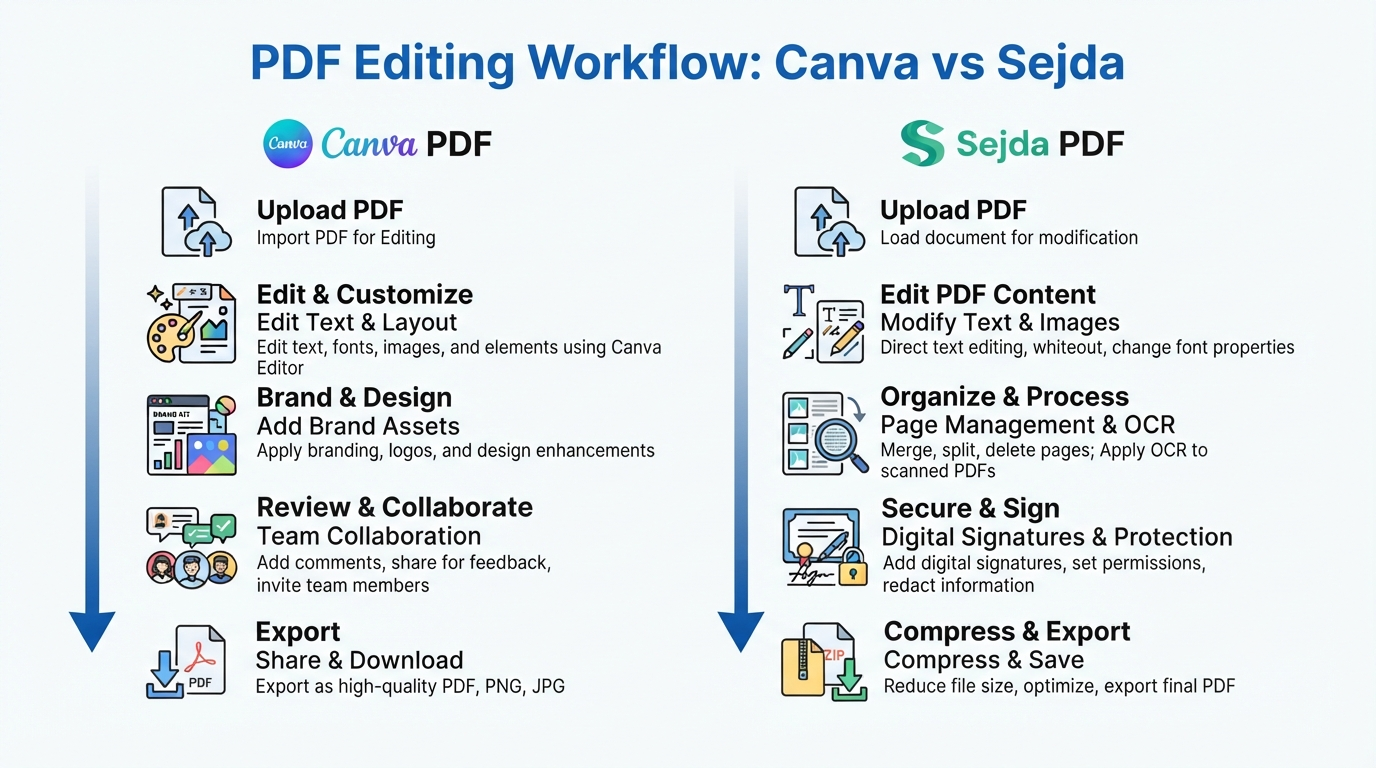
Canva PDF Editor vs Sejda PDF Editor: Decision Tree
Choose Canva if you answer “Yes” to most of these questions:
- Do you want attractive designs?
- Do you need templates?
- Will you collaborate with a team?
- Do branding and visuals matter?
- Are you creating marketing content?
Choose Sejda if you answer “Yes” to these:
- Do you edit contracts?
- Do you need digital signatures?
- Do you merge PDFs regularly?
- Do you split or compress PDFs?
- Do you work with forms or secured documents?
Frequently Asked Questions
Can Canva edit PDF files?
You can upload as many PDF files as you want on Canva to make an editable project. But it all depends on how your PDF file is made for editing.
Is Canva PDF Editor free?
Yes. Canva offers PDF editing through its free plan, although some templates, design assets, and advanced features require Canva Pro.
Is there a way to edit PDFs in Canva?
PDF editing is available in Canva’s free plan, but access to Canva Pro is required for certain templates, design assets, and advanced features.
Can you edit a PDF online for free with Canva?
You can upload and edit many PDFs right inside your web browser without having to install software.
Is Sejda PDF Editor Free?
Sejda offers a free version of its application along with some usage limits.
For advanced features and higher limits, you can upgrade to its premium plan.
Which PDF editor is better for a resume?
Canva is usually the best option for redesigning or enhancing your resume’s visual appearance.
Sejda is often better for minor text edits while maintaining the existing layout.
What about businesses?
Depending on your workflows, either can be a good option. If you focus primarily on marketing, branding, and presentations, Canva could be useful. On the other hand, if you manage your organization’s contracts, forms, and official documents, Sejda would work best for you.
Will Canva Replace Traditional PDF Editors?
Not completely.
While Canva’s visual editing and design capabilities are impressive, tools like Sejda offer specialized document management features, including page organization, security, compression, and more.
Key Takeaways
Our recommendation will depend on what you need from your PDF editor: – Canva PDF Editor excels at creative & visual aspects of editing PDFs – Sejda PDF Editor shines when working with traditional docs that require careful doc mgmt
- Neither one is better than the other overall – use the features which align most with your goals
Final Verdict – Our Take
Both Canva PDF Editor and Sejda PDF Editor offer fantastic capabilities, albeit tackling completely distinct challenges.
Want to craft visually impressive PDFs? Customize layouts? Add your brand’s look/feel? Collaborate easily with your team? Then go with Canva PDF Editor! With its incredibly simple UI, massive library of templates, and focus on making content stand out, Canva’s app offers an incredible solution for creators, educators, freelancers, marketers & more!
If you need contracts, forms, invoices, scanned documents, digital signatures, password protection, or any other kind of advanced PDF management as part of your daily job, we think Sejda PDF Editor will be the right one for you. In short, this software has powerful document tools tailored for administrative, legal, or office workflows.
Rather than asking “Which is better?” try to understand which one matches your needs – ‘Which works with my workflow?’ We have tested both editors and recommend using the Canva PDF Editor for those who want to edit and enhance their PDFs in creative ways, while if the task is about managing and preserving the integrity of documents, then go for Sejda PDF Editor.
Verdict at a glance:
🏆 Best For Design And Creativity – Canva PDF Editor
🏆 Best For Professional PDF Management – Sejda PDF Editor
🏆 Best Overall For Most Users – Canva PDF Editor
🏆 Best For Business Documents And Forms – Sejda PDF Editor
Important Note: Every PDF editing project has different requirements depending on its purpose. In this guide, I have shared practical insights based on my experience of testing and comparing Canva PDF Editor and Sejda PDF Editor across different editing tasks and workflows. Always choose the PDF editor that best suits your specific needs, and verify the latest features, pricing, and limitations on the official websites, as they may change over time. The external links included in this article are provided for educational and informational purposes only. Swisspik is an independent website and is not affiliated with Canva, Sejda, or any other brand or organization.