Canva HEIC to PNG Converter Review: Worth It in 2026?
Written by a hands-on reviewer of design and photo editing tools. Testing for this review was carried out and last checked in July 2026.
Quick Answer
The Canva HEIC to PNG converter is a solid free choice for one-off conversions during a design project. It is not necessarily the fastest or most secure way to convert your HEIC files in every situation.
Which HEIC to PNG converter is “better” depends on what kind of files you are converting and how much you care about their security. If you want to edit the photo immediately after conversion, the Canva HEIC to PNG converter will suit you best.
Key Takeaways
- The Canva HEIC to PNG converter preserves the original image quality and lets you edit the photo immediately after conversion.
- A dedicated batch HEIC to PNG converter works faster if you have a large folder of HEIC files and don’t need to edit the images.
- File size will double, or more, when you convert HEIC to PNG.
- Privacy policies vary across free online HEIC to PNG converter tools, so check the policy before uploading anything sensitive.
- You can avoid this issue entirely by setting your iPhone’s photo format to “Most Compatible” in Settings.
Introduction
If you shoot photos on an iPhone and try to upload one somewhere that doesn’t accept HEIC files, you already know the headache. This review breaks down how the Canva HEIC to PNG converter performs against dedicated online converters, based on real testing rather than guesswork.
By the end, you should be able to pick the right HEIC to PNG converter for your situation in under a minute.
I’ve been flipping back and forth between iPhone and Android for the past couple of years, and this problem keeps resurfacing every time I switch. Half my photos get saved as HEIC files and won’t open in older applications, or on websites that only support JPG or PNG.
The first time it hit me hard, I had to upload a headshot to a job portal for a client project at 11 PM. The site rejected the photo without any explanation or error code, which sent me looking for a reliable HEIC to PNG converter on the spot.
So a few weeks ago, I sat down with a coffee and tested the Canva built-in HEIC to PNG converter against three popular standalone online converters, using the same batch of twenty photos each time. For anyone unfamiliar with it, Canva is a browser-based design platform best known for social graphics and presentations.
It has quietly added a set of free file conversion tools alongside its design features, and that’s where its HEIC to PNG converter lives.
What Is a HEIC File and Why Does It Cause Issues
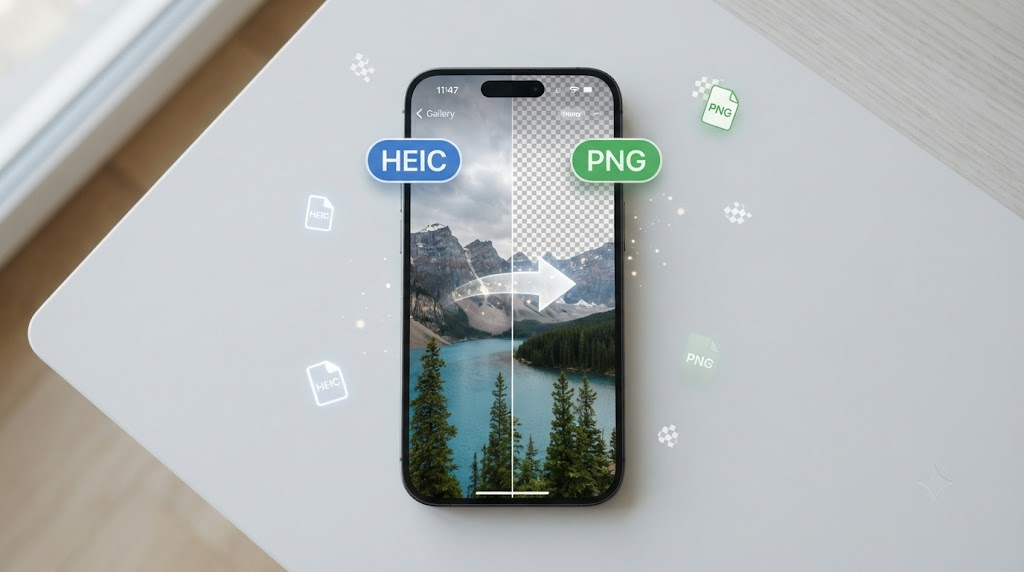
HEIC is short for High Efficiency Image Container. You may have also seen the term HEIF while researching a HEIC to PNG converter.
HEIF is the broader industry standard that HEIC belongs to, so an article or converter that mentions HEIF is usually talking about the same file type as HEIC. Apple made HEIC the default photo format starting with iOS 11, since it compresses images far better than JPG without sacrificing quality, as explained on Apple’s official support page on using HEIF and HEVC media.
In practice, a HEIC file takes up roughly half the storage space of a JPG at the same level of detail. That efficiency sounds great until your phone fills up anyway and you never clear anything away.
The storage savings are useful on your phone, but the format becomes a real problem the moment you step outside Apple’s ecosystem. Try uploading that same photo to an old CMS, a job application portal, a print shop’s site, or any tool built before HEIC existed, and you’ll typically get an error message, or nothing happens at all.
This is exactly why so many people go searching for a reliable HEIC to PNG converter the moment they hit a wall.
PNG, by contrast, is one of the oldest and most universally supported image formats, and it still holds up well today according to MDN’s image format guide, which notes that PNG uses lossless compression and full transparency support. It has been around since the mid-nineties.
Pretty much every browser, editing tool, and platform online knows exactly what to do with a PNG file, from ancient forum software to the newest AI design tools. PNG also supports transparency, which matters if you plan to use the converted image as a logo, sticker, or overlay later on.
You May Also Like: Canva AI Remove People Review: Can It Beat Photoshop for Faster and Better Photo Fixes? (2026)
How the Canva HEIC to PNG Converter Works
Canva released its HEIC to PNG converter as one of several file conversion tools available on its content hub. Here’s how the process looks in practice.
- Access Canva’s HEIC to PNG converter page on the Canva website.
- Choose your file to upload using the upload button, or drag and drop it onto the page.
- Wait several seconds while Canva processes the file in the background.
- Download the file, or choose to edit it further from the Canva editor.
- Repeat the same steps for other files if necessary.
In my opinion, that last step is the best part of the whole process. Because the Canva HEIC to PNG converter lives inside a full design platform, you can crop, resize, add text, or drop the image straight into a template right after uploading.
There’s no need to download the file and reopen it somewhere else.
Putting It to the Test: Canva vs Online HEIC to PNG Converters
I ran the same twenty photos through the Canva HEIC to PNG converter and through three well-known standalone HEIC to PNG converter tools. I reviewed each result on a laptop screen rather than a phone, since it’s easier to catch small differences that way.
Image Quality
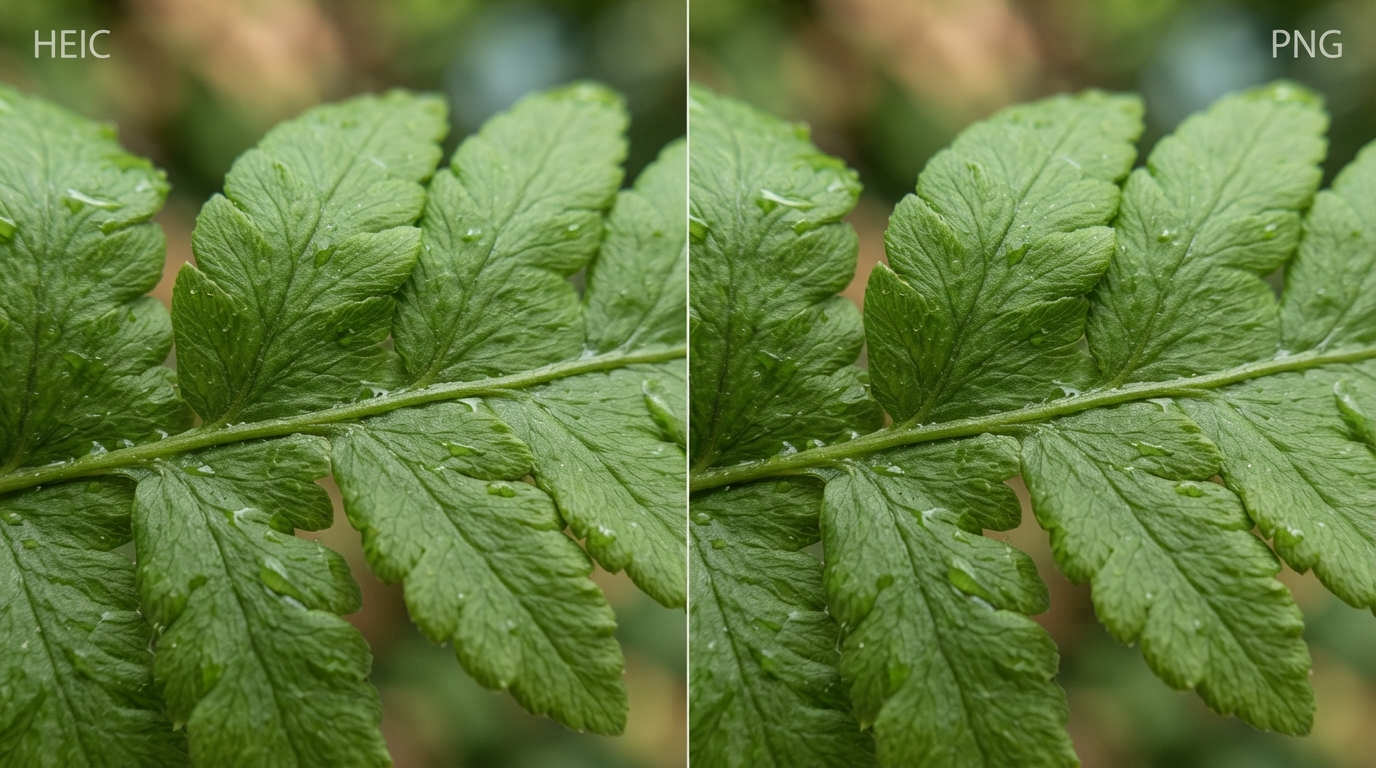
The Canva HEIC to PNG converter preserved detail nicely on most photos. Side by side with the originals, I genuinely couldn’t tell the difference in sharpness.
Two of the three standalone converters produced nearly identical results. The third one visibly softened fine detail in one of my desk plant close-ups; the tiny leaf veins turned slightly mushy, likely from more aggressive compression on their end.
On quality, the Canva HEIC to PNG converter sits comfortably in the same tier as the better online tools. It’s not clearly ahead, but it’s not behind either.
Conversion Speed
For a single file, every HEIC to PNG converter I tested was fast enough that the difference barely mattered, a few seconds either way, timed on my phone’s stopwatch while I waited.
Batch conversion is where the gap showed up. One standalone tool let me drop all twenty files at once and download a zipped folder in under a minute.
The Canva HEIC to PNG converter handled files one at a time in my testing. By photo number twelve, I was clicking upload, waiting, downloading, and repeating, which adds up quickly with dozens of photos.
File Size After Conversion
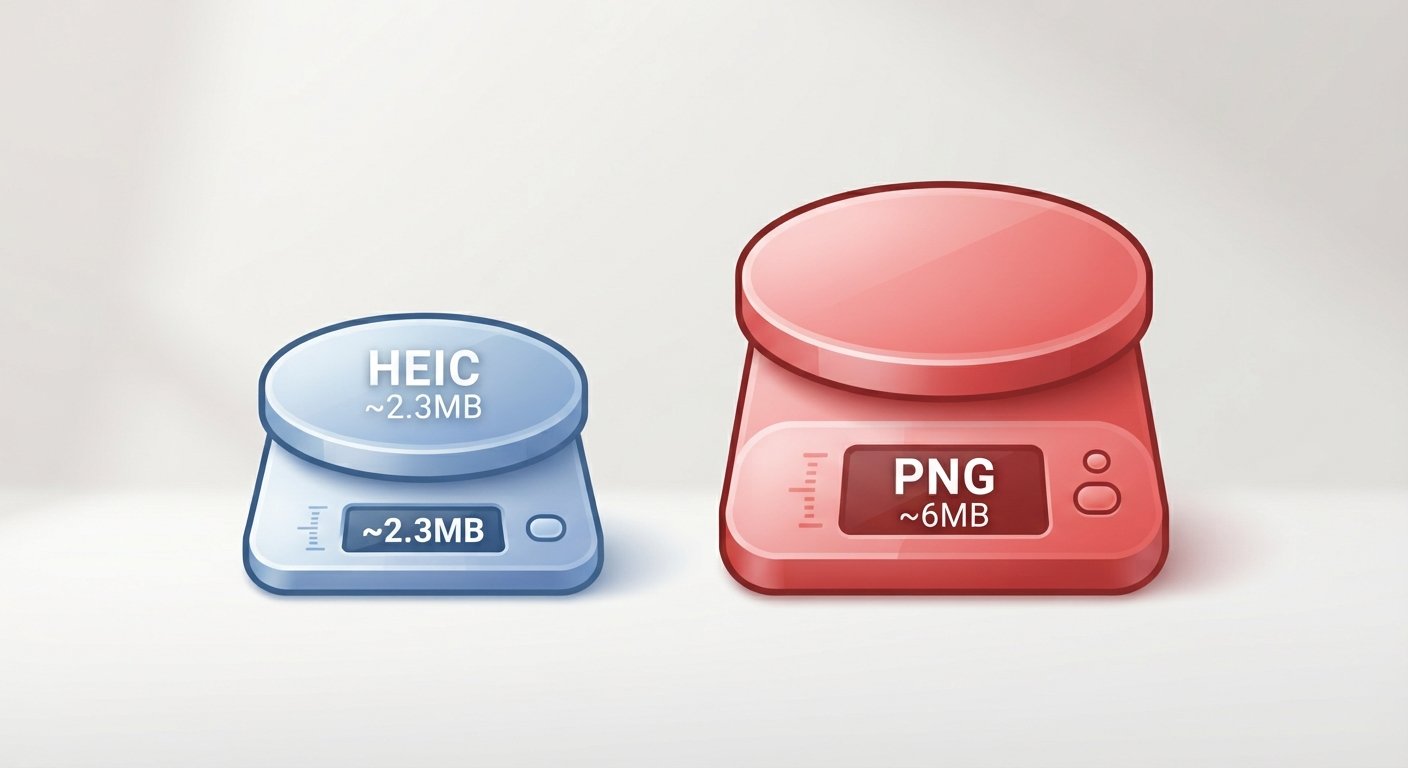
PNG files will always be larger than HEIC files, since HEIC uses more efficient compression. One of my hiking photos, roughly 2.3MB as a HEIC file, grew to about 6MB after conversion to PNG.
The same ratio applied to most images in my batch, making the converted files two to four times larger than the originals. If disk space matters to you, keep this in mind no matter which HEIC to PNG converter you choose.
Privacy and Where Your Files Go
People tend to skip this part and regret it later. Canva is backed by a company with a public privacy policy, account-based access, and a reputation to protect.
That gives its HEIC to PNG converter an edge over lesser-known free online converters that don’t always explain what happens to your uploaded images or how long they sit on a server.
If you’re converting sensitive photos, documents, or anything with personal information visible in the background, checking the privacy policy of whichever HEIC to PNG converter you use takes two minutes and can save you a headache later.
Ease of Use for Non-Designers
If you’ve never used Canva before, there’s a small learning curve, since the interface has so many other features surrounding the converter itself. Standalone converters tend to be simpler because they do only one thing: convert files.
For someone who wants to drag, convert, and leave, a dedicated HEIC to PNG converter can feel more direct than Canva’s fuller design environment.
Which HEIC to PNG Converter Do You Actually Need?
If you’re converting one or two photos and know you’ll use them for a flyer, thumbnail, or social media graphic afterwards, the Canva HEIC to PNG converter is your more convenient option. You skip the extra step of downloading and re-uploading elsewhere.
If you have a whole folder of HEIC images pulled from a phone backup and need plain PNGs quickly with no edits at all, a batch HEIC to PNG converter will get you there faster.
Personally, after this test, I kept both bookmarked. I use the Canva HEIC to PNG converter when a photo is going straight into a design project, and I use a standalone batch converter on the rare weekend when I’m clearing out hundreds of old iPhone photos at once.
You May Also Like: Canva AI Voice Generator Review: I Tested It to See If It’s Worth Using for Content Creators (2026)
What About HEIC to PNG Conversion on a Phone?
Most of my testing happened on a laptop, but plenty of people run into this problem while standing in line, trying to send a picture before the bus arrives. A phone-friendly HEIC to PNG converter matters more than you’d think in those moments.
The Canva HEIC to PNG converter works fine in a mobile browser, though the layout feels a bit squeezed, since the tool was originally built for desktop use. Other converters I tested loaded faster and used less mobile data, mostly because they load fewer elements.
If you’ll mostly be converting files from your phone, that’s worth factoring into which HEIC to PNG converter you pick.
There’s also a simpler fix that a lot of people overlook entirely. On an iPhone, go to Settings > Camera > Formats and switch from High Efficiency to Most Compatible.
This makes future photos save as JPG instead of HEIC, so you won’t need a HEIC to PNG converter going forward. It won’t do anything for photos you’ve already taken, though.
Other HEIC to PNG Converter Options Worth Knowing
Canva wasn’t the only HEIC to PNG converter in my test batch, and it’s worth knowing what else is out there before you settle on one.
CloudConvert is one of the more established names in this space. It lets you upload files from your device or straight from cloud storage, and it supports batch conversion along with resolution and quality controls.
Convertio is another common HEIC to PNG converter option. It works entirely in the browser with nothing to install, and it supports batch uploads of an entire photo album at once.
Both fall into the category of dedicated, single-purpose converters rather than a design tool with a converter attached. That lines up with the tradeoff this review keeps coming back to: if your priority is speed and volume, tools built specifically for conversion tend to handle it better than a general design platform.
Does Canva Convert Any Other Formats Besides HEIC to PNG?
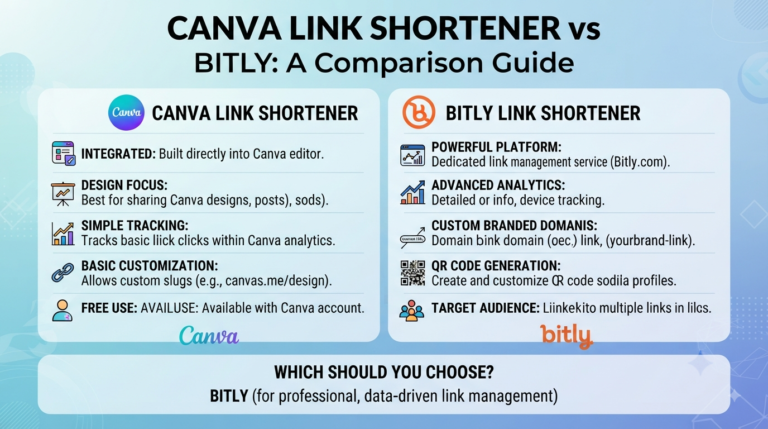
Since Canva builds its conversion tools within a much larger platform, the HEIC to PNG converter is only one of many format combinations it supports.
Uploading a file and downloading the result works basically the same whether you’re converting HEIC to JPG, PNG to JPG, or another popular combination. If you’re juggling multiple conversion types, a single tool that handles all of them can save you time compared to visiting different websites for each format.
A Few Things I Learned the Hard Way
Before wrapping up, here are a few small lessons from actually running this test that I haven’t seen mentioned in other reviews of a HEIC to PNG converter.
First, if your HEIC photo has editing history from the iPhone, like a filter applied in the Photos app, the converted PNG sometimes keeps that edit baked in. Other times it reverts to the raw original, depending on how the file was exported before upload. Check the converted result before using it somewhere important, rather than assuming it matches what you saw on your phone.
Second, screenshots on newer iPhones can also save as HEIC in some settings, not just camera photos. I didn’t expect that going into this test, and it caught me off guard when a receipt screenshot turned out to be a HEIC file too. The conversion worked fine either way, but it’s a good reminder to check your file type before assuming only camera shots need a HEIC to PNG converter.
Third, if you’re converting a photo for something time-sensitive, like a document upload with a deadline, run a quick test conversion on one file before committing an entire folder to a single tool. It takes a minute and can save you from discovering a quality issue after you’ve already submitted something.
You May Also Like: Canva Invoice Templates: 10 Invoice Design Mistakes That Can Cost You Clients (2026)
FAQs
Is the HEIC to PNG conversion tool offered by Canva free of cost?
Canva provides HEIC to PNG conversion through its file converter services, and you don’t need a paid Canva account to use it.
Is there any deterioration in image quality during HEIC to PNG conversion?
There shouldn’t be any reduction in image quality after conversion from HEIC to PNG, though you can expect an increase in file size due to the lossless nature of the PNG format.
Can I convert multiple HEIC files to PNG format in Canva at once?
The Canva HEIC to PNG converter allows one-to-one file conversion only. For multiple conversions, an online batch HEIC to PNG converter would be much more efficient.
Can I upload my personal photos to an online HEIC to PNG converter?
It’s safer not to, unless the converter’s privacy policy guarantees confidentiality while your files are being processed.
Why do my iPhone pictures save as HEIC format instead of JPG?
Apple implemented HEIC as the default format starting with iOS 11 because it compresses pictures better, saving storage space on your device.
What is the best output format when using a HEIC to PNG converter?
PNG and JPG both work well depending on the situation. Use PNG whenever you need transparency and high quality, and use JPG when you want a more compact file.
Is any additional installation needed to use the Canva HEIC to PNG converter?
No. The service works entirely in your browser, so it requires no installation, and you don’t even need a Canva account to convert a file.
Can the Canva HEIC to PNG converter handle several pictures at once?
Not immediately. Since the Canva HEIC to PNG converter processes one file at a time, converting dozens of pictures will take a bit longer than using a batch tool.
Can I convert HEIC to PNG without changing the original photo?
Yes. Converting a file creates a new PNG file and leaves the original HEIC photo untouched, whether you use the Canva HEIC to PNG converter or any other tool.
Does Canva put a watermark on my converted HEIC to PNG file?
No. There are no watermarks on the downloaded picture, since this is a straightforward file conversion process rather than a paid template feature.
Why does my converted PNG photo look different from the original HEIC?
This usually happens because edits like cropping or filters aren’t always saved properly by the Photos app on the phone, so it’s worth reviewing the result after conversion.
Does HEIC to PNG conversion also compress the image?
No, it’s not the same thing. Running a file through a HEIC to PNG converter changes the file format, and it generally increases file size rather than reducing it. If you want a smaller file, you’ll need to compress the image separately.
Conclusion
Having run the same set of twenty images through four different HEIC to PNG converter tools, I landed on something that wasn’t mentioned in any of their spec sheets: the best converter depends on timing rather than feature count.
The HEIC to PNG converter that saves you time is the one that fits what you plan to do with the image next, not the one with the longest list of options.
What surprised me most was how similar the image quality turned out across every tool I tried. I expected a clear winner, but I ended up with a simpler rule instead: open the Canva HEIC to PNG converter when the photo is headed into a design project, and use a standalone converter when all you need is to convert the files and move on.