Canva Invitation Templates Review: Worth It in 2026?
Short answer: Yes, but only if you don’t have special needs. Canva invitation templates will give you a decent-looking, easy-to-share invite within the hour without any design knowledge.
If you require pixel-perfect control, professional-quality print results, or unique designs, you should probably go with professional software such as Illustrator or InDesign. But if you’re hosting a wedding, birthday, baby shower, or party, Canva will be more than sufficient.
Here’s the truth many people are really wondering about. Am I better off designing this invitation myself or should I pay somebody for it? A few years back, the latter usually meant hiring a designer or buying software you would spend hours learning to operate. But now, it mostly comes down to opening Canva.
Still, being “good enough for casual users” and “as good as professional software” are two different statements altogether. This review goes through them both thoroughly.
Key Takeaways
- Overall Winner: Canva is the better choice because it’s faster, more affordable, and easier to use than traditional professional design software.
- Best for Beginners: Canva is ideal for users with little or no design experience.
- Speed & Convenience: You can create invitation designs quickly using ready-made templates and simple editing tools.
- Cost-Effective: Canva offers a budget-friendly solution compared to most professional design applications.
- Professional Software Advantages: Advanced design tools provide greater creative freedom and precise control over print quality.
- Best for Personal Events: Canva is the better option for invitations to birthdays, weddings, parties, and family gatherings.
- Best for Commercial Projects: Professional design software is a better fit for commercial printing, branding, and complex custom designs.
- Final Recommendation: Choose Canva for speed, simplicity, and affordability. Choose professional design software if you need advanced customization and professional print production.
You May Also Like: Canva HEIC to PNG Converter Review: Is It Better Than Online HEIC Converters? (2026)
Canva Invitation Templates Definition
Canva invitation templates are pre-designed templates that come in handy during certain events like wedding parties, birthday parties, baby showers, engagement events, graduation, and corporate events. The font, color palette, and spacing are done for you. You only need to replace the content and add photos.
The collection includes thousands of searchable templates in Canva by event, color, and style. That’s why queries such as “wedding invitation templates Canva” or “free birthday invitation templates” are popular among users. Some are available for free use, while others require a Canva Pro membership, which gives access to premium fonts, stock images, and other design elements.
If you would like to see what’s available, a visit to the official invitation gallery won’t hurt.
How Do Canva Invitation Templates Work
It’s quick enough that new users will likely complete it without having to watch any tutorials.
- Search through templates according to the event type.
- Choose a template that matches your theme or color scheme.
- Customize the text with your own event information.
- Add in your own images where appropriate.
- Modify the font or colors if you don’t want it to look generic.
- Save it in PDF, JPEG, or PNG format, or send it via direct link.
Realistically, it would take somewhere between fifteen minutes and an hour to do this process.
Canva vs Professional Invitation Design Software
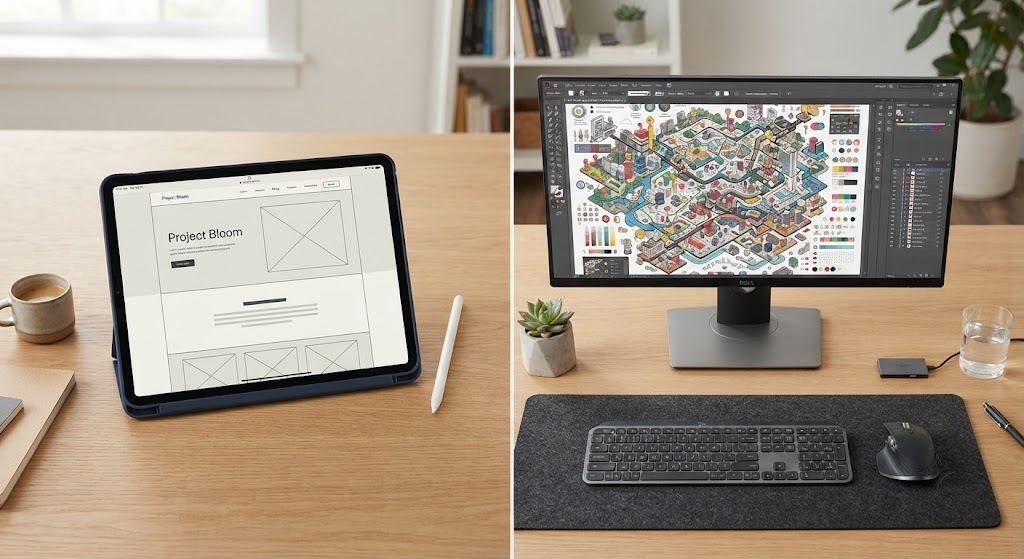
“Professional design software” usually means Adobe Illustrator, InDesign, or Photoshop, tools built for designers who need to construct a layout from a blank canvas rather than edit an existing one.
| Factor | Canva | Professional Design Software |
|---|---|---|
| Learning curve | Easy, no training needed | Steep, real design skills required |
| Speed | Minutes to about an hour | Several hours to a few days |
| Cost | Free tier, or an affordable Pro plan | Ongoing subscription, often costly |
| Customization | Template-based, moderate depth | Fully custom, essentially unlimited |
| Print precision | Solid for home or online print jobs | Excellent, built for commercial printing |
| Best suited for | Individuals, small businesses, quick jobs | Designers, print shops, brand work |
| Export formats | PDF, PNG, JPG | PDF, EPS, AI, print-ready formats |
| Collaboration | Built in, share and comment | Needs separate tools |
Reading that table, it becomes clear these two aren’t really fighting for the same user. Canva optimizes for speed and accessibility. Professional software optimizes for control and precision. Neither is objectively better. It depends on what you’re solving for.
What Canva Actually Gets Right
It doesn’t punish you for not knowing design. The drag-and-drop editor means you never touch anything resembling a vector tool or a layers panel unless you want to.
The template range is genuinely large. Whatever the event, there’s almost always a starting point already built for it, including niche categories like rustic wedding invites or milestone birthday themes.
Pricing is hard to argue with. Canva’s free plan covers a lot of ground, and Canva Pro costs a fraction of most professional subscriptions, which matters if invitations are the only design task you ever need to do.
You can finish it today. Because the structure already exists, you’re editing, not building. That’s the entire speed advantage in one sentence.
Sharing doesn’t require printing anything: a link, a WhatsApp message, an email. Digital invites go out in seconds.
It can be worked on by more than one person simultaneously. If you are working with a colleague or a team, real-time collaboration eliminates the conventional process of sending and receiving emails.
You May Also Like: Canva AI Remove People Review: Can It Beat Photoshop for Faster and Better Photo Fixes? (2026)
Where Canva Falls Short
Deep, unusual customization is harder. Template-based tools have a ceiling. If you want something genuinely unlike anything else, Canva will fight you a little.
Templates can look familiar. Millions of people pull from the same library. Skip the personalization step, and there’s a real chance a guest has seen your layout before, on someone else’s invite.
Print settings aren’t automatic. Bleed, resolution, and color profile all need manual attention if you want commercial-grade prints. Professional software handles this more precisely by default.
There are some missing features altogether. Vector editing, fine control of typography, and precise Pantone colors are not among what Canva offers.
Who Should Actually Use Canva
- You are designing for your own personal use, like a wedding, birthday, or baby shower.
- Hiring a designer isn’t in the budget, or isn’t worth it for one invitation.
- You need this done soon, not next week
- Digital invites or home printing work fine for your guest list
- You’ve never used design software before, and don’t want to start now
Who Should Stick With Professional Software
- You design invitations for clients as part of your work
- The brand needs to be pixel-perfect and fully custom
- A commercial printer is involved and needs specific file formats
- You want total control over every element on the page
- You’re producing invitations at volume for a business or agency
- Canva Templates by Event Type
- Wedding Invitations
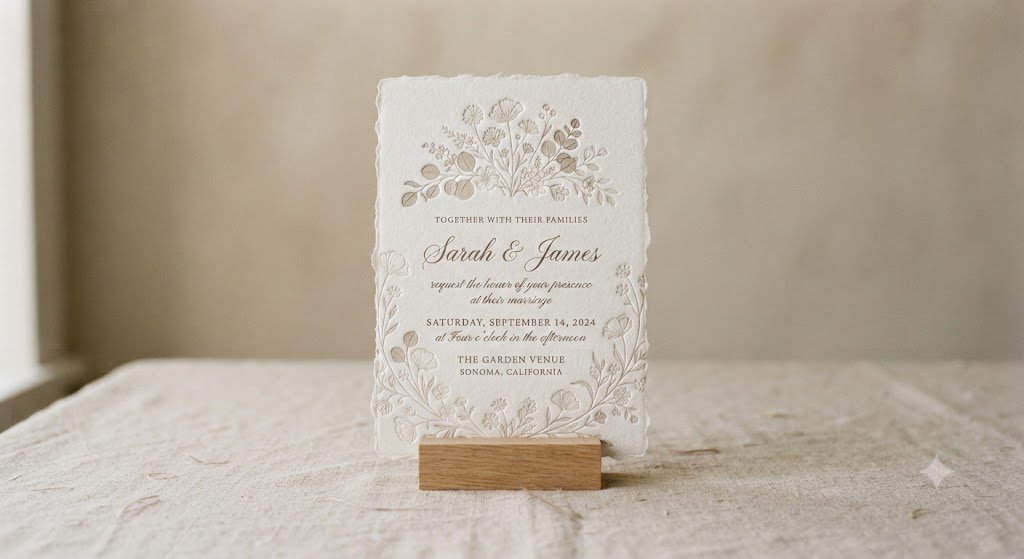
Minimalist, floral, modern, classic. Canva covers most wedding aesthetics, and every element can be swapped for your own photos and wording. For inspiration on pairing your invitation style with the rest of your day, our wedding planning checklist walks through timing and coordination too.
Canva Templates by Event Type
Wedding Invitations
Minimalist, floral, modern, classic. Canva covers most wedding aesthetics, and every element can be swapped for your own photos and wording. For inspiration on pairing your invitation style with the rest of your day, our wedding planning checklist walks through timing and coordination too.
Birthday Invitations
From cartoon-heavy kids’ themes to understated adult party designs, there’s enough range here to cover almost any age group.
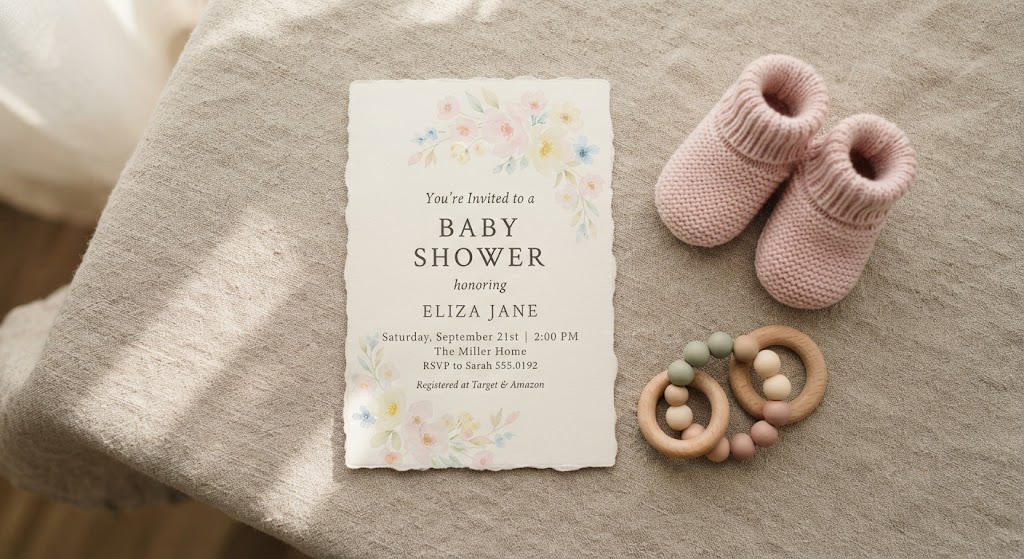
Baby Shower Invitations
Soft palettes, gentle typography, small illustrated icons. This is one of Canva’s stronger categories, honestly.
Corporate and Business Events
Conferences, product launches, networking nights. Canva’s business-leaning templates hold up fine for professional use, not just personal celebrations. If you’re coordinating a larger event beyond the invite, our event planning resource hub covers venue and vendor logistics too.
Print Quality: Does Canva Hold Up
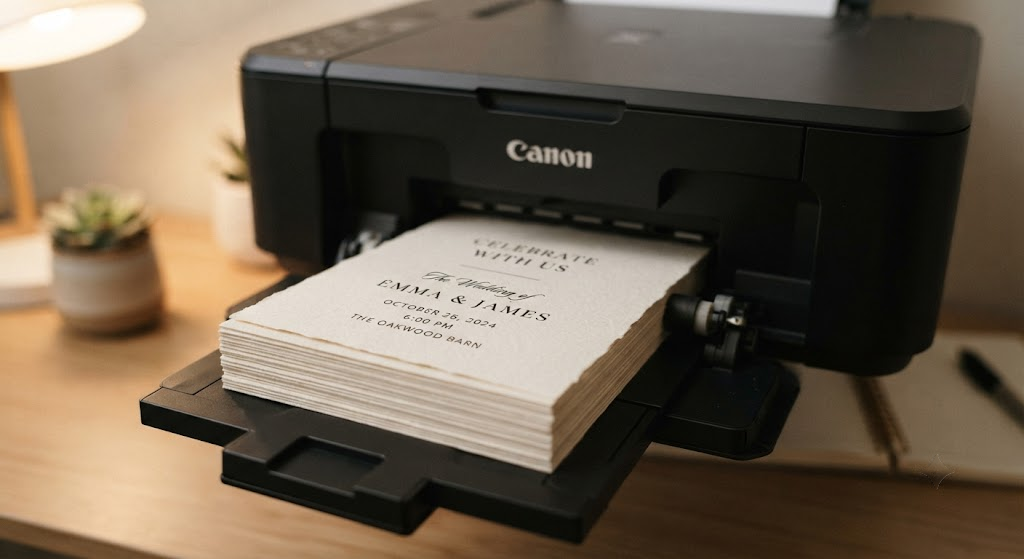
This is probably the most searched question about Canva invitations, and the honest answer is: it depends on your export settings, not just the tool. Export as a print-ready PDF at full resolution and Canva prints cleanly, even at home.
Where professional software pulls ahead is bleed control, color accuracy, and vector-based scaling, all of which matter more once you’re running a large commercial print order. For a standard invitation batch through a local print shop, Canva is more than capable.
Pricing, Side by Side
Canva’s free plan already covers a lot, and Canva Pro is billed as a simple monthly or annual subscription. Adobe’s Creative Cloud, by comparison, tends to bundle multiple apps into one higher-priced subscription, which is a lot to pay for if invitations are genuinely the only thing you need it for. For a full breakdown of what’s included at each tier, check Canva’s pricing page directly, since plans do shift over time.
For the specific task of designing invitations, Canva is simply the better value for most individuals.
You May Also Like: Canva AI Voice Generator Review: I Tested It to See If It’s Worth Using for Content Creators (2026)
Making a Canva Template Look Less Like a Template
Since so many people pull from the same library, a few small changes go a long way.
- Swap the default font pairing for something less common
- Change the color palette instead of keeping the template defaults
- Use your own photos, not the stock images that ship with the design
- Nudge text boxes slightly to break the exact template layout
- Mix elements from two different templates into one
- Pull in custom icons or illustrations from Canva’s element library
Nothing I’ve said here takes much time but will make the difference between what you see on screen — “looks just like mine” — versus a template into which you have typed in your company’s logo.
Mistakes Worth Avoiding
Skip print settings completely — if you don’t check your resolution/bleed, you could get blurry or cropped prints. Always pick the PDF print option when sending stuff to a printer.
Cramming in too much. Extra text, extra photos, extra decorative flourishes. Simpler designs almost always read as more polished.
Never checking the mobile view. A lot of invitations get shared as a link rather than printed. Preview it on a phone before sending.
Using a low-resolution photo. One blurry image can undercut an otherwise clean design. Use the highest resolution version you have.
Digital or Printed: Which Fits Your Event
It’s all about your event!
Digital invites make sense for casual get-togethers, virtual events, and if you have guests in different cities. They’re sent out instantly and cost zero dollars to send.
Printed invites lend themselves well to traditional, formal occasions such as weddings. You can export print-ready files from Canva for use at home or with your local print shop.
Formality, budget, and your timeline will decide this for you.
Canva for Small Businesses Doing Event Work
Even event planners, bakeries, and party decor shops might be using this platform. Imagine you have repeat clients that want their own branded templates. You can use the Brand Kit function of the app to save your logo, colours, and fonts. Every time you create a new project, these elements are already pre-filled.
If you’re doing small-scale commercial projects where fast turnaround is important but full-custom branding isn’t, this could be an amazing little tool – much better (and cheaper) than paying for proper software.
Designing From a Phone
More and more, designers are creating their entire invitation from scratch using just their mobile devices.
Canva’s app contains most of its desktop application functionality – including template edits and uploading photos. So if professional design apps remain primarily a desktop-only activity, this can be very limiting when you’re out and about!
Final Verdict
For someone who wants to create a great-looking invitation they can share with others but doesn’t want to learn how to operate new software, I think that Canva invitation templates would be a better choice than professional design software in 2026.
Although there may still be situations where using professional design software makes sense – such as if you’re a designer who wants complete freedom over their designs or needs things printed commercially – in most cases, it’s probably best to stick with Canva invitations if you’re an individual, family member, or small business owner.
Here are some of the most frequently asked questions about using Canva for invitation creation:
Will my invites look bad if I use Canva?
No, they won’t. You’ll find hundreds of stunning designs available through the app,p which allow complete personalization (make sure to export them correctly).
Can I create invite templates without paying anything?
Of course! Just browse around until you find what works well together visually, then click “Download”.
How many templates does Canva have?
Canva’s free version comes with tons of templates. However, some premium designs will be blocked from use when you don’t upgrade your account to Pro.
Is Canva as good as Adobe Illustrator for invitations?
Canva wins hands down for creating quick invites for personal use. If you require highly customized layouts or want commercial-grade printing, then Illustrator would make more sense.
Do Canva invites look professionally printed?
Yes, if you choose the proper export settings, but it also depends on your paper stock & Printer.
Can you edit a Canva invitation template on your phone?
Canva’s mobile app offers you the ability to do a lot of things on your phone — like edit the invitation by adding text, photos, etc. So you can definitely design an invite with them using their app!
What file format should I use to print Canva invitations?
If you’re planning to print out the invitations for guests, make sure to choose PDF as the print format. It maintains resolution far better than either a JPG or PNG file format.
Important Note
This review comes from actually using Canva to design invitations across different event types- wedding, birthday, baby shower, and corporate- and comparing that experience with working in Adobe Illustrator and InDesign for the same kind of project. Your results might look a little different depending on the template you pick, your Printer, your paper stock, and whatever changes Canva or Adobe roll out after this was written.
Swisspik is an independent, reader-supported website. We are not affiliated with, endorsed by, or sponsored by Canva, Adobe, Adobe Illustrator, Adobe InDesign, or any other brand named in this article. All product names, logos, and trademarks belong to their respective owners, and we mention them only for an honest, independent comparison.