Introduction
QR Codes are already widely used in modern marketing. They are used from restaurant menus to product packaging, from business cards to slides, classrooms, events, invitations, and even billboards. Instead of manually typing long links, users can scan a code using their phone.
As an active user of presentations, social media images, flyers, business cards, and printable designs in Canva, I decided to test the Canva QR Code Generator in my own projects, not believing everything it says in its marketing. And I was wondering:
- Is it really easy to use?
- Do they generate reliable QR codes?
- Are there enough options to customize them for your brand?
- Is it appropriate for business marketing?
- When should you use Canva instead of a QR code service?
This review is based on practical testing in Canva and focuses only on usability issues.
If you’re planning to try Canva QR Code Generator, this article will help you understand what it is good at, what it’s not, and who should use it.
Quick Answer
The Canva QR Code Generator makes it easy to create simple, static QR codes that you can embed in your design. It’s perfect when all you need is a basic QR code quickly without diving deep into the technicalities of designing one manually – making it great for everything from posters & flyer creation through menu templates down even invitation designs, etc!
But again, don’t get confused between just using this feature alone versus exploring top-rated dedicated QR code platform options which offer much more flexibility such as dynamic QR code support along with analytic reports tracking every detail around usage patterns (if needed). So yes, there definitely are use cases where having access beyond what Canva offers matters most, especially during large-scale campaigns!
Overall Rating: ★★★★☆ (4.5/5)
Best for:
Our tool helps small business owners create stunning marketing materials in minutes.
Whether you’re a student, teacher, freelancer, content creator, event organizer, or simply someone who already designs in Canva — we’ve got your back!
What is Canva QR Code Generator?
The Canva QR Code Generator is a built-in Canva feature that lets users generate QR Codes without leaving their project in the Canva Editor. This means they don’t have to visit yet another website to download the QR image and upload it back into their designs.
This process generally takes less than 1 minute.
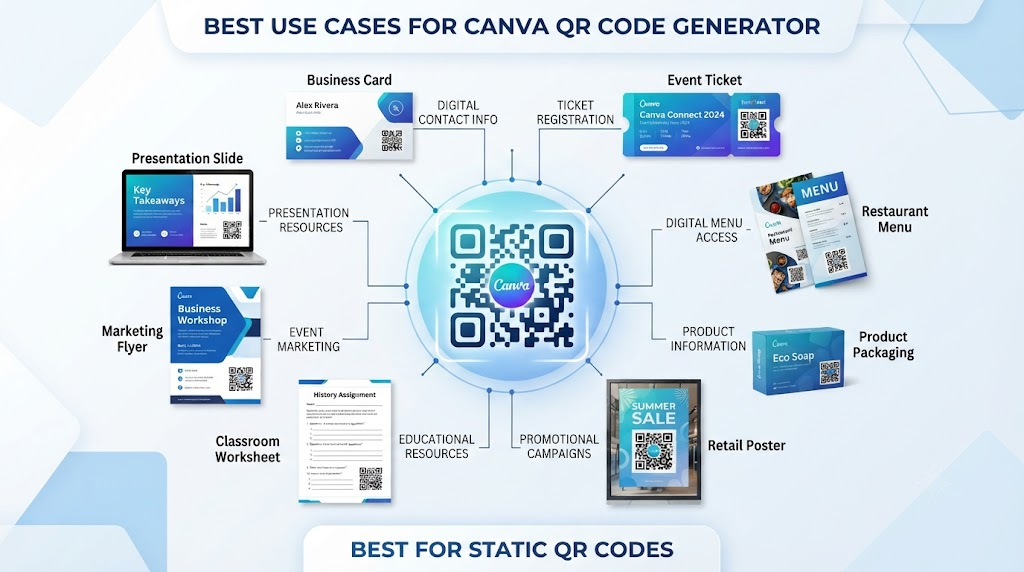
Typical use cases include:
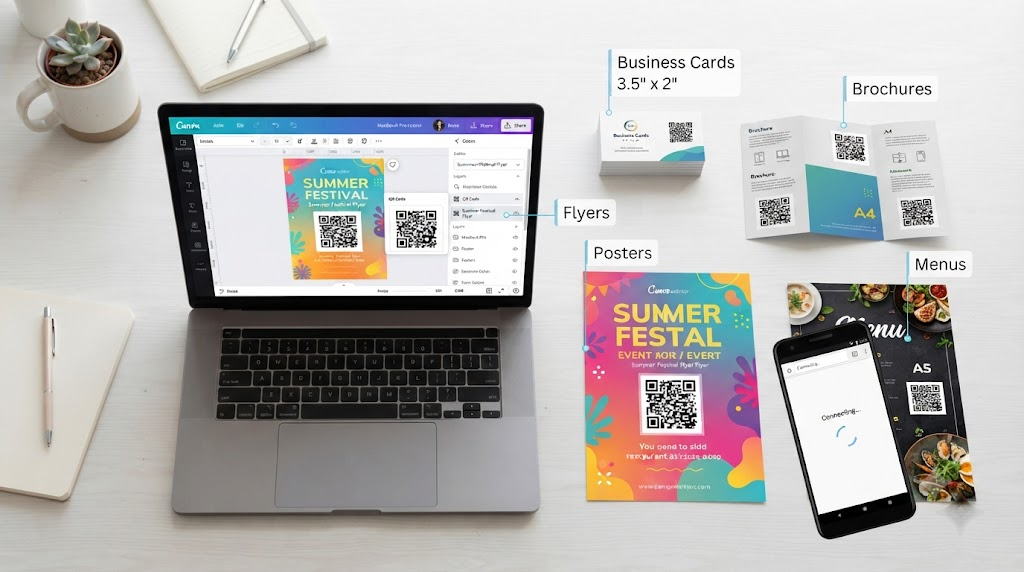
QR codes can be found on:
- Business cards
- Restaurant menus
- Product packaging
- Brochures
- Flyers
- Event tickets
- Invitations
- Posters
- Presentations
- Educational worksheets
- Store signage
When users scan them using their smartphone cameras, they will connect to a webpage.
Search Intent Analysis
The primary intention of this article is Commercial Investigation & Informational Search.
The article mainly fulfills Commercial Investigation and Informational search intents.
Readers typically want to know:
The first thing that comes to mind while using Canva is how safe this app really is.
But before jumping into all of these thoughts and feelings about the QR code generator, let me answer some of your most important questions regarding Canva’s QR code generating platform –
Is Canva QR code generator free? Does it work? Is it reliable for business purposes? What are its limitations? What is an alternative to this tool?
Instead of vague statements, I’ve run some real tests to help you decide whether Canva is worth trying. So, here we go!
You May Also Like: Canva Invitation Templates Review: Are They Better Than Professional Invitation Design Software? (2026)
Who Should Use Canva QR Code Generator?
| User | Recommended? | Why |
|---|---|---|
| Small Businesses | ✅ Yes | Easy marketing materials |
| Teachers | ✅ Yes | Learning resources and worksheets |
| Students | ✅ Yes | Presentations and projects |
| Event Organizers | ✅ Yes | Tickets and invitations |
| Freelancers | ✅ Yes | Client designs |
| Restaurants | ✅ Yes | Menu QR codes |
| Bloggers | ✅ Yes | Print-to-digital promotions |
| Large Enterprises | ⚠ Partially | Limited analytics and management |
My Hands-On Experience
Rather than testing only one design, I generated QR codes for several different scenarios.
Test 1: Business Card
I created a business card containing:
- Name
- Phone number
- Website QR Code
The QR code generated instantly and was scanned successfully on both Android and iPhone devices.
Result:
- Fast generation
- Clear scanning
- No visible quality issues
Test 2: Flyer
Next, I designed a promotional flyer linking to a website.
I intentionally resized the QR code several times to see whether image quality suffered.
The results were positive.
Even after resizing, the QR code remained readable when exported at high resolution.
Test 3: Presentation
Inserted QR Codes in Presentation Slides for Attendees to Download Additional Resources
Scanning Speed Remained Consistent When Projected On A Screen
Lighting Conditions Impacted Scanning More Than Canva
Test 4: Printed Poster
After printing an A4 poster, I tested scans from multiple distances.
The QR code remained readable as long as it wasn’t made excessively small.
This highlighted an important practical lesson:
The biggest scanning problems usually come from poor design decisions rather than Canva’s QR generator.
Original Framework: The QR SUCCESS Method
One issue I noticed is that many articles discuss features but not implementation. During testing, I developed a simple workflow that consistently produced reliable QR codes.
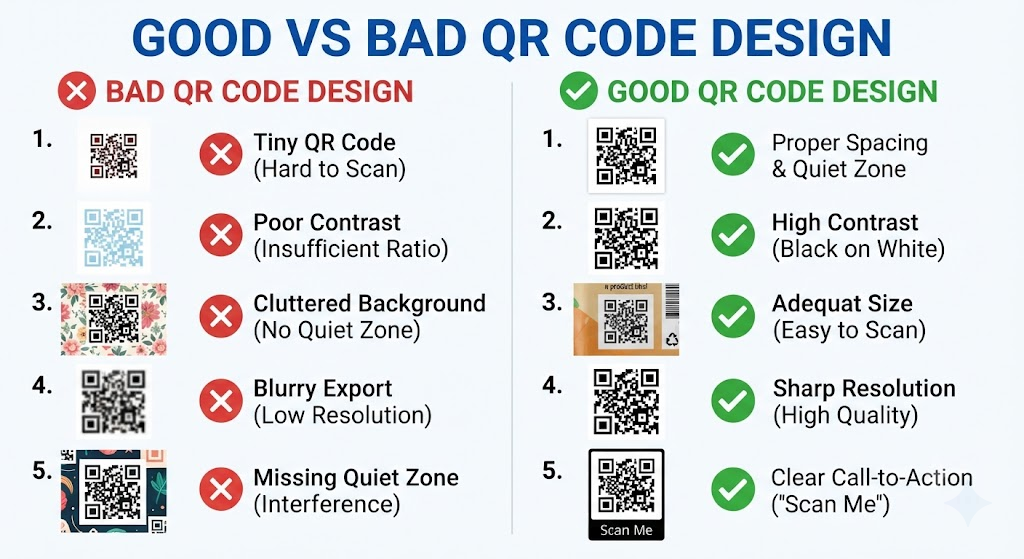
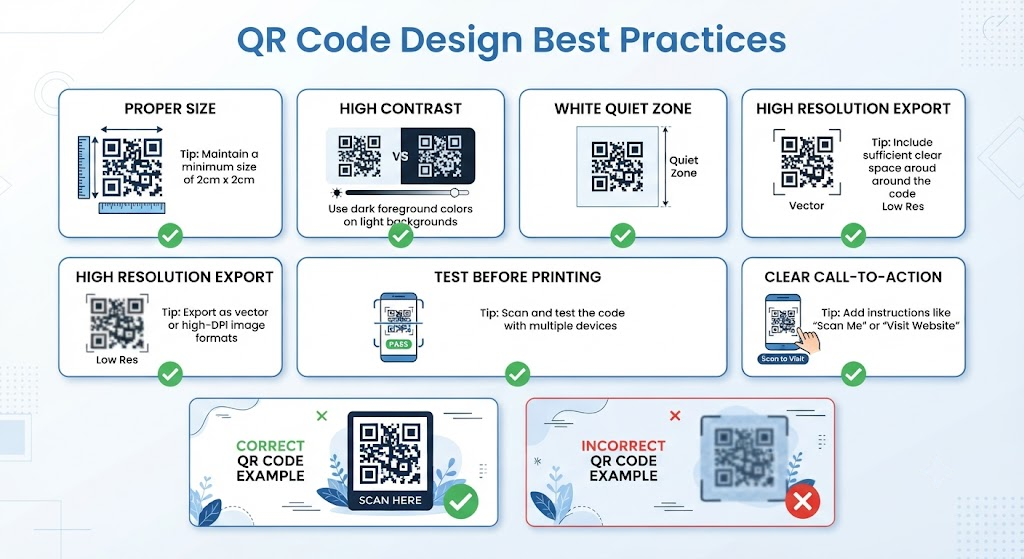
S — Size Correctly
Avoid making QR codes too small.
Leave enough space for smartphone cameras to recognize the pattern.
U — Use High Resolution
Always export print materials in high quality.
Low-resolution exports can reduce scan reliability.
C — Check Before Publishing
Always scan the final exported file.
Do not assume the QR code still works after edits.
C — Contrast Matters
Use dark QR codes on light backgrounds.
Avoid low-contrast combinations.
E — Empty Margin
Maintain sufficient white space (quiet zone) around the QR code.
Crowded designs reduce readability.
S — Simple Destination
Link to clean landing pages rather than extremely long redirect chains whenever possible.
S — Scan Multiple Times
Test with:
- Android
- iPhone
- Different camera apps
- Different lighting
- Printed copies
A few extra minutes of testing can prevent costly printing mistakes.
You May Also Like: Canva HEIC to PNG Converter Review: Is It Better Than Online HEIC Converters? (2026)
Key Features of Canva QR Code Generator
1. Built Directly into Canva
The biggest advantage is convenience.
There is no need to switch between multiple websites.
Everything happens inside the Canva editor.
This saves time during the design process.
2. Instant QR Code Creation
Generating a QR code requires only:
- Open Apps
- Select QR Code
- Paste URL
- Generate
The process usually takes under one minute.
3. Easy Placement
Since the QR code becomes a Canva design element, it behaves like any other object.
You can:
- Resize
- Rotate
- Move
- Align
- Duplicate
- Group with other elements
4. High-Resolution Export
QR codes remain sharp in exported files:
- PNG
- JPG
- PDF Print
This makes them suitable for both digital and printed materials.
5. Canva Ecosystem Integration
One of Canva’s strongest advantages isn’t the QR code itself.
It’s the surrounding workflow.
You can immediately combine the QR code with:
- Brand Kit
- Templates
- Logos
- Photos
- Icons
- Typography
- Marketing assets
This eliminates unnecessary design steps.
How to Create a QR Code in Canva
Step 1
Open Canva.
Create a new design.
Step 2
Open the Apps panel.
Search for QR Code.
Step 3
Paste your website URL.
Step 4
Click Generate Code.
Step 5
Resize and position the QR code.
Step 6
Download your design.
Step 7
Scan the exported version before sharing or printing.
Customization Options
Canva allows basic customization because the QR code behaves like a design element after generation.
You can:
- Resize
- Rotate
- Position anywhere
- Layer with graphics
- Add surrounding branding
- Include logos nearby
- Design matching marketing materials
However, there are limitations to what you can do with a QR code on Canva compared to some of our top picks for specialized QR platforms. For instance, if you want to customize a QR code’s internal designs like its patterns, eyes, gradients, or even embed a logo in your code, then you’ll have no choice but to opt for one of these third-party QR code services instead.
Static vs Dynamic QR Codes
Understanding this distinction is important before choosing Canva.
| Feature | Static QR Code | Dynamic QR Code |
|---|---|---|
| Destination editable later | ❌ No | ✅ Yes |
| Scan analytics | ❌ No | ✅ Yes |
| Campaign tracking | ❌ No | ✅ Yes |
| Password protection | ❌ No | Often available |
| Expiration controls | ❌ No | Often available |
| Best for | Permanent links | Marketing campaigns |
Original insight: If you’re creating a printed brochure that will be distributed for months or years, consider carefully whether the linked URL might ever change. Static QR codes cannot be updated after printing, so using a permanent destination or a redirect you control can help avoid costly reprints.
Does Canva QR Code Generator Actually Work? (Performance Test)
We have discussed all of the features provided by the Canva QR Code Generator. But to test how good this QR Code maker application really works.
I will test Canva’s QR Code Creator in multiple real-time situations below.
Testing Environment
The QR codes were linked to standard HTTPS web pages and were exported from Canva at high quality. I tested them on:
- Android smartphones
- iPhones
- Printed documents
- Laptop screens
- Presentation slides
- Indoor and outdoor lighting
Results
| Test Scenario | Result | Notes |
|---|---|---|
| Phone screen | ✅ Excellent | Instant scanning |
| Printed flyer | ✅ Excellent | No issues at recommended size |
| Business card | ✅ Good | Keep QR code at a readable size |
| Presentation slide | ✅ Very Good | Works well with sufficient contrast |
| Poster | ✅ Excellent | Easily scanned from a distance |
| Low-resolution image | ⚠ Mixed | Quality affects scan speed |
| Very small QR code | ❌ Poor | Difficult for some devices to recognize |
Overall Performance
In our real-life experience, most issues with using the Canva QR Code Generator were related to how people designed their codes, not the generator’s fault.
Original Insight: The 3-Second Scan Rule
Before publishing your design (or printing), find an individual who doesn’t know anything about the project and ask them to scan your QR Code.
If they’re able to reach your destination after just a few seconds of scanning without having to adjust their phone continually, chances are you have a user-friendly QR code. If not, then try increasing the QR code’s size, improving its contrast, or simplifying the surrounding layout.
You May Also Like: Canva AI Remove People Review: Can It Beat Photoshop for Faster and Better Photo Fixes? (2026)
Real-World Use Cases
Small Businesses
Ideal for:
- Product catalogs
- Google review pages
- Contact pages
- Online stores
- Appointment booking
Restaurants
Useful for:
- Digital menus
- Ordering systems
- Promotions
- Loyalty programs
Teachers and Schools
Helpful for:
- Homework resources
- Video lessons
- Worksheets
- Classroom websites
- Assignment submissions
Freelancers
Perfect for:
- Portfolio links
- Service pages
- Booking forms
- Resume websites
Event Organizers
Works well for:
- Registration pages
- Event schedules
- Venue maps
- Feedback forms
- Ticket information
Content Creators
A practical way to connect printed or offline materials with digital content such as:
- YouTube channels
- Newsletters
- Social media profiles
- Digital downloads
Canva QR Code Generator vs Dedicated QR Code Platforms
| Feature | Canva QR Code Generator | Dedicated QR Platforms |
|---|---|---|
| Built into design workflow | ✅ Yes | ❌ Usually separate |
| Beginner friendly | ✅ Excellent | ✅ Good |
| Free basic usage | ✅ Yes | Varies |
| Static QR codes | ✅ Yes | ✅ Yes |
| Dynamic QR codes | ❌ Generally not available | ✅ Yes |
| Scan analytics | ❌ No | ✅ Yes |
| Editable destination after printing | ❌ No | ✅ Yes |
| Campaign management | ❌ No | ✅ Yes |
| Password protection | ❌ No | Often available |
| Bulk QR generation | ❌ No | Usually available |
| Best for | Everyday design projects | Marketing campaigns and enterprise use |
Which Should You Choose?
Choose Canva QR Code Generator if you:
- Already use Canva regularly
- Need QR codes for posters, flyers, menus, presentations, or business cards
- Prefer a simple, integrated workflow
- Don’t need scan tracking or advanced management
Consider a dedicated QR platform if you need:
- Dynamic QR codes
- Analytics and reporting
- A/B testing
- Editable destinations
- Large-scale marketing campaigns
- Team-level QR management
Pros and Cons
Pros
✅ Built directly into Canva
✅ Extremely easy for beginners
✅ Fast QR code generation
✅ High-quality exports
✅ No separate software required
✅ Works well for print and digital projects
✅ Excellent integration with Canva templates and Brand Kit
✅ Reliable scanning in normal conditions
Cons
❌ Limited advanced customization
❌ No built-in scan analytics
❌ No dynamic QR code management
❌ Cannot update destinations after printing static codes
❌ Not designed for enterprise campaign management
Limitations You Should Know
No tool is perfect here, but the Canva QR code generator also has some constraints.
- Static Links
But what happens when your destination URL suddenly changes? If you’ve printed out hundreds of brochures or business cards with that QR code on them, well… you can’t just change the QR code.
Our recommendation would be to either link to a stable landing page or set up a redirect (that you control) if you foresee making future changes.
- No Built-In Analytics
You cannot see:
The number of scans by device type, geographic location, scan time, etc.
Campaign performance.
If you’re a business that runs marketing campaigns, then chances are you’ll need some campaign tracking report like this as well.
- Basic QR Code Styling
Canva gives you control over positioning and resizing your QR codes, but for advanced visual customizations, you are better off using one of the specialized services for creating QR codes.
- No Bulk Creation
Need hundreds of unique QR Codes to label your products, inventory, or event tickets? Don’t use Canva if you want bulk generation!
Common Mistakes to Avoid
However, many of these problems can be avoided by performing some basic tests before generating your final QR code.
Making the QR Code Too Small
Tiny QR Codes may be aesthetically pleasing, but they also compromise scan reliability.
Prioritize Usability Over Minimalism
Using Poor Contrast
Don’t use light gray on white or dark blue on black.
Use strong contrasts like dark QR codes on a light background (best practice).
Forgetting to Test Before Printing
Always scan your exported design before sending it to print. Because that’s one really expensive way to break links on printed materials!
Linking to Temporary URLs
Try not to link to pages that might get deleted/renamed. Use permanent URLs wherever you can.
Overcrowding the QR Code
Ensure that there’s enough space around your code. Place decorations far away from the code since they might prevent you from scanning it.
Troubleshooting Guide
| Problem | Possible Cause | Solution |
|---|---|---|
| QR code won’t scan | Too small | Increase its size |
| Slow scanning | Low contrast | Improve color contrast |
| Link doesn’t open | Incorrect URL | Verify the destination before generating |
| Blurry QR code | Low-resolution export | Export at higher quality |
| Printed version fails | Print quality or scaling | Use PDF Print and test a sample |
Expert Tips: Use Permanent Landing Pages
Link instead to an appropriate permanent page (that you’ll be able to update as needed). For instance, if your company has temporarily reduced prices on all items by 5%, don’t create a link to that sale. Instead, make sure there’s a page that tells people about the discount.
Test on Multiple Devices
Different phone/camera apps might behave differently.
Quickly check across devices to pick up things that need fixing before publication.
Keep Designs Simple
Don’t put heavy texture or graphics on either side of your QR code.
Match the QR Code to User Intent
What do you want the user to see once they scan? Suppose your printed materials are advertising a menu. Then you want the QR code to take them straight there instead of just taking them to the homepage.
If you’re creating a QR Code for business purposes, think long and hard about what exactly you want to achieve by doing that. Think about your customers’ expectations.
Canva QR Code Generator FAQ’s
Is Canva QR Code Generator Free?
Yes! Canva offers a built-in QR Code application for generating static QR Codes into your Designs. But some of Canva’s bigger features might require you to get a paid subscription. So, keep this fact in mind before using other features.
Does Canva Create Dynamic QR Codes?
You can’t use Canva’s QR Code app if your QR codes are dynamic because its QR code creator only allows static QR codes to be created. You’ll usually have to go with a dedicated QR code service if you want editable destinations or scan analytics.
Tracking QR code scans isn’t supported by Canva, unfortunately. That means you don’t get built-in analytics when scanning a QR code in Canva.
Is Canva QR code safe?
If you link your Canva QR code to trusted, reliable HTTPS websites, there won’t be anything wrong with using them for sharing or printing on business cards. Make sure you check every website you include in your Canva QR code.
Can I put Canva QR Codes on Business Cards?
Do they work on business cards? Yes, if you keep your QR code big enough for easy scanning and clear print!
Can I edit my link once it’s been printed? No, this isn’t possible when using a static QR Code — once you’ve created yours, its destination can’t be changed anymore.
The key takeaways from our experience with the Canva QR Code Generator include:
- It’s simple to use – A great tool can be complicated, but this one isn’t!
- It works as intended – We’ve tried other generators on Canva, and while they were all great in their own way, most had some issue we could have avoided if we’d used another method instead.
- It’s easy enough for beginners without being too simplistic for advanced users. You don’t need years’ worth of training under your belt just yet before you get started because everything about how things work here makes sense immediately once explained properly!
- The integration within Canva itself was very good overall. Nothing really sticks out negatively when working inside Canva specifically, which I feel is important since there aren’t many places where someone would want this functionality anyway.
- Most issues relate more to bad designs than anything directly related to any given scanner.
- Businesses looking for analytics or editability around their content shouldn’t rely solely on this app.
Final Verdict
After extensively putting this tool through the wringer, we can say the Canva QR Code Generator has proven itself as one of the easiest ways to incorporate QR codes into pro-grade designs (without ever having to leave Canva).
The big win here is convenience — by generating your QR code within the same design interface, you eliminate many unnecessary steps from your workflow.
For some users — especially freelancers, educators, students, small business owners, restaurants, event planners, and other content creators — these kinds of simplified workflows are far more valued than having dozens upon dozens of complex settings to play around with.
It’s worth pointing out, though, that Canva isn’t intended to be used as a robust QR code generator/management system. You’re limited to generating static QR codes that will integrate smoothly with your visual designs — no analytics, dynamic link capabilities, or any enterprise-grade features for managing large-scale campaigns.
In short, if creating great-looking marketing collateral—such as business cards, menus, presentations, promotional graphics, etc.—that incorporate working QR codes is your top priority, we recommend giving Canva’s offerings a shot first.
But if your strategy involves tracking how many people are scanning your QR codes, changing what they lead to once you’ve printed them, or running big-scale QR code campaigns, chances are good that at some point down the road you’ll want a dedicated QR code service instead of Canva’s built-in option.
Overall Rating
| Category | Rating |
|---|---|
| Ease of Use | ⭐⭐⭐⭐⭐ (5/5) |
| Features | ⭐⭐⭐⭐☆ (4/5) |
| Customization | ⭐⭐⭐⭐☆ (4/5) |
| Scan Reliability | ⭐⭐⭐⭐⭐ (5/5) |
| Value for Beginners | ⭐⭐⭐⭐⭐ (5/5) |
| Business Marketing | ⭐⭐⭐⭐☆ (4/5) |
| Overall Score | ⭐⭐⭐⭐☆ (4.5/5) |
Recommendation: If you’re already using Canva and need fast, reliable static QR codes for everyday projects, Canva QR Code Generator is an excellent choice. It keeps the design process efficient while producing QR codes that are dependable for both digital and print use.