Introduction
Brainstorming is always exciting at the start! But what do you do once those initial ideas die down? Are you left scrambling through your collection of sticky notes on the walls, buried in hundreds of messages, and staring at a sea of unfinished thoughts strewn across different apps?
I used to feel exactly like that during my brainstorms—whether I was thinking about blog content, how to structure a new website, building out a project for a client, or creating a whole new marketing campaign. Switching back and forth between documents, notes, and design software… wasted too much time compared to what I could actually produce.
Everything changed the day I discovered Canva Whiteboard.
Now, instead of viewing the service as just another digital canvas to sketch on, I treat it as an all-in-one visual workspace where ideas can evolve from messy scribbles into finished products. Whether I’m planning SEO content, organising our websites, or working together as a team, Canva Whiteboard has become one of my most-used tools.
Most people probably use less than 1% of what this tool offers…
I’m going to change that with my new tutorial on using Canva’s Whiteboard. In this post, I’ll walk you through everything you need to know about working with Canva Whiteboard – including hidden tricks, tips for its strengths, and personal workflows that have worked well for me.
You don’t have to be an artist or designer to get great results with Canva’s whiteboards either… Whether you’re a student, teacher, freelancer, marketer, business owner, or content creator, this post can give you insights into getting much more out of this tool than just putting some sticky notes on a page. Let’s dive in!
Quick Answer
What Is Canva Whiteboard?
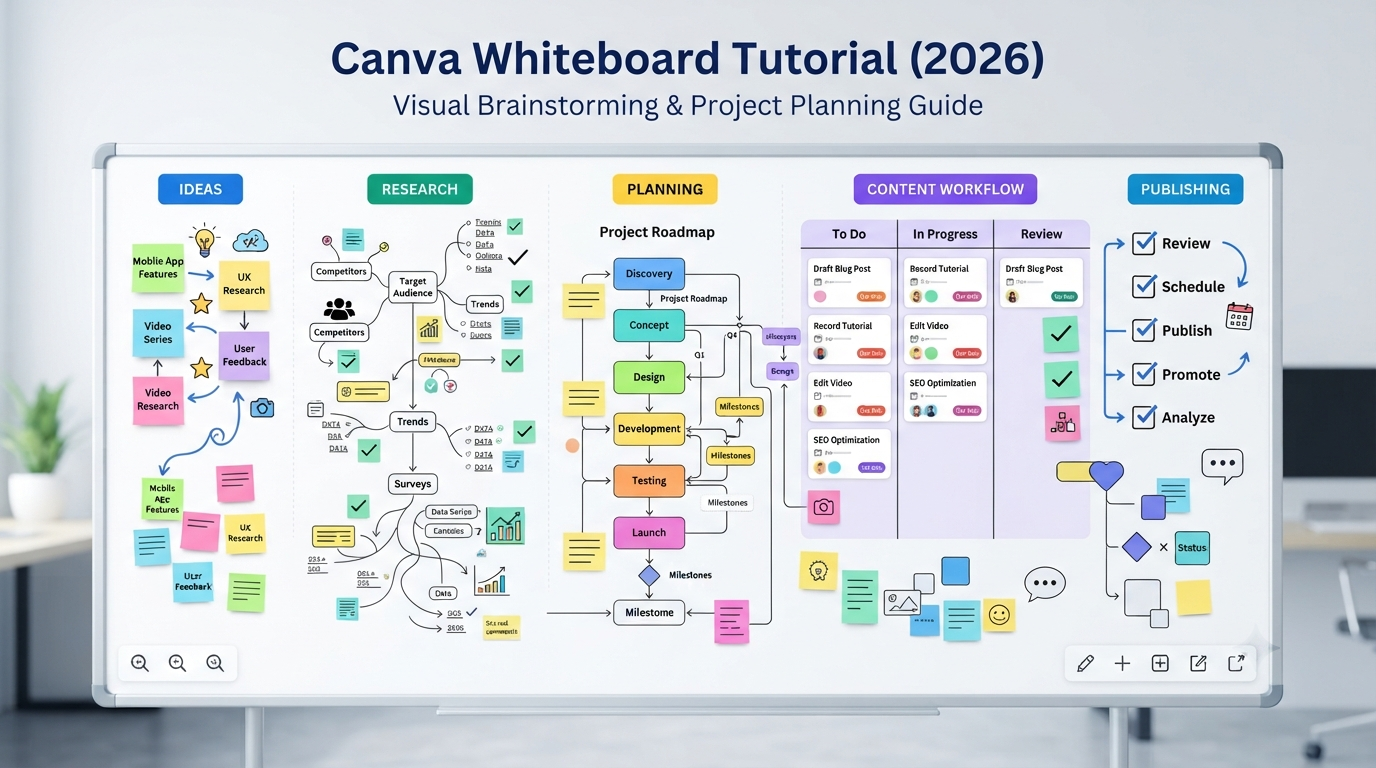
Canva Whiteboard is a collaborative brainstorming space where you can organise thoughts, sticky notes, drawings, connectors, images, documents, videos, shapes, templates, and more.
With Canva’s whiteboard tool, you can use this as a space for project planning, classroom teaching, mind mapping, workshops, content planning, business strategy, and much more while collaborating in real time.
Unlike traditional whiteboard software that focuses only on drawing, Canva integrates design assets, AI-powered tools, templates, media libraries, and collaboration into the same workspace.
Think of it as combining:
- Brainstorming
- Mind mapping
- Flowchart creation
- Project planning
- Design collaboration
- Visual thinking
inside a single interface.
What is Canva Whiteboard used for?
Based on my experience, Canva Whiteboard is useful for much more than brainstorming.
| Use Case | Example |
|---|---|
| Content Planning | Blog outlines, YouTube ideas, SEO clusters |
| Marketing | Campaign planning, funnels, customer journey |
| Business | Meetings, strategy sessions, product roadmaps |
| Education | Classroom lessons, student collaboration |
| Freelancing | Client presentations and workflows |
| UX Design | Wireframes and user journeys |
| Team Planning | Sprint planning and brainstorming |
| Personal Productivity | Goal planning and habit mapping |
One of the biggest advantages is that your brainstorming doesn’t stop at the whiteboard—you can transform ideas into finished Canva projects immediately.
Why Canva Whiteboard Has Become So Popular
As digital collaboration tools have evolved over the last few years, instead of bouncing several documents and/or screenshots back and forth, teams can now collaborate on projects within shared visual workspaces.
A tool like Canva Whiteboard makes all the difference by enabling you to brainstorm while working directly with an editor that most people are familiar with thanks to its presentation, social media graphic, video, and document creation capabilities.
Some reasons creators prefer it include:
- Beginner-friendly interface
- Fast collaboration
- Huge template library
- AI-powered design assistance
- Easy sharing
- Cloud-based access
- Works across desktop and mobile devices
- Integration with existing Canva projects
For existing Canva users, there is almost no learning curve.
Who Should Use Canva Whiteboard?
Canva Whiteboard is suitable for almost every creative profession.
Students
- Study planning
- Group assignments
- Revision maps
- Research organization
Teachers
- Active lessons
- Classroom collaboration
- Visual learning
- Project-based education
Content Creators
I personally use it for:
- Article planning
- Keyword clustering
- Internal linking maps
- Website structures
- Video planning
Instead of dozens of notes, everything stays connected visually.
Marketing Teams
Perfect for:
- Campaign planning
- Brand strategy
- Customer journey mapping
- Product launches
Businesses
Useful for:
- Workshops
- Meeting notes
- Team planning
- Process mapping
How does Canva Whiteboard work?
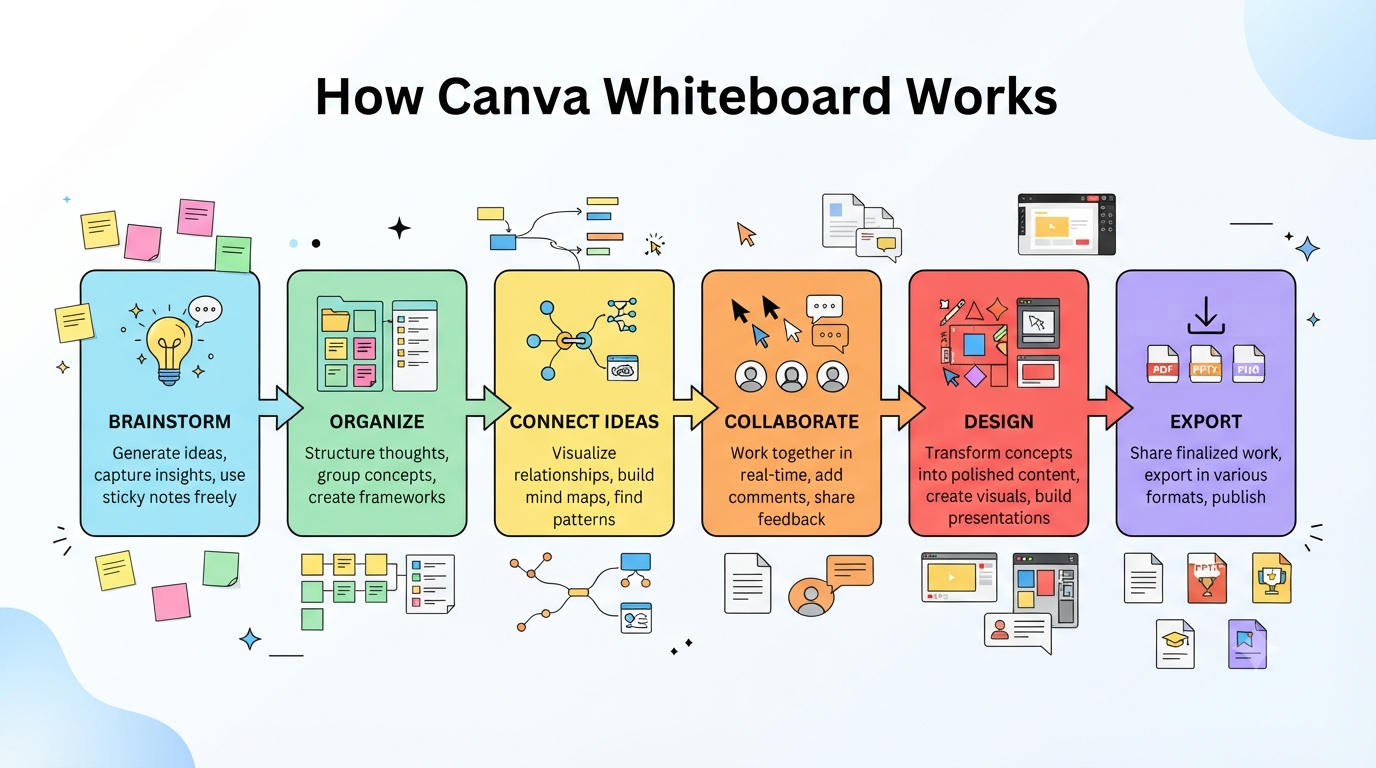
• Open Canva.
• Create a new Whiteboard.
• Start with a blank canvas or select from templates.
• Add sticky notes, text, drawings, connectors, images, videos, or docs to organise your thoughts
• Invite collaborators.
• Convert your board into finished Canva designs when you’re ready.
Unlike many of your brainstorming apps, Canva lets you continue designing your ideas without exporting to an app outside of Canva.
You May Also Like: Canva Letterhead Templates Review: The Professional Branding Upgrade I Wish I’d Made Earlier (2026)
Canva Whiteboard Tutorial: Step-by-Step Guide
Step 1: Open Canva Whiteboard
Sign in to Canva.
Search for Whiteboard from the homepage.
Choose:
- Blank Whiteboard
- Canva Whiteboard Templates
Beginners usually benefit from starting with a template.
Step 2: Understand the Workspace
You’ll notice several important areas:
- Toolbar
- Canvas
- Zoom controls
- Elements
- Text tools
- Sticky notes
- Drawing tools
- Collaboration options
Spend a few minutes exploring these before creating your first project.
Step 3: Add Your First Ideas
Instead of writing everything in one place:
Create separate sticky notes for:
- Goals
- Tasks
- Questions
- Problems
- Solutions
This makes later organisation much easier.
Step 4: Connect Related Ideas
One feature many beginners ignore is connectors.
Instead of randomly placing notes:
Connect them using arrows and lines.
For example:
Research

↓

Outline

↓

Writing

↓

Editing

↓

Publishing
Your workflow becomes much easier to understand.
Step 5: Organise with SeOrganise
Create visual groups like:
- Research
- Planning
- Design
- Approval
- Publishing
Colour coding also helps when projects become larger.
Original Framework: The C.L.E.A.R. Whiteboard Method
One workflow I’ve developed for content and project planning is the C.L.E.A.R. Method.
| Step | Meaning |
|---|---|
| C | Collect every idea without judging it |
| L | Link related concepts |
| E | Eliminate duplicate or weak ideas |
| A | Arrange into logical workflows |
| R | Refine into actionable tasks |
Most tutorials jump straight into designing. Starting with this framework produces cleaner, more organised boards that are easier to turn into real projects.
There are some hidden features on Canva that I bet most creators don’t know about. These whiteboard hacks can help you become more efficient, too.
Let me share these 12 hidden Canva Whiteboard features!
Hidden Feature #1 – Infinite canvas navigation
One question many users ask is:
Is Canva Whiteboard Infinite?
In short, yes! One thing that you can love about the whiteboard is its Whiteboardness because, unlike the normal pages, here, your thinking space won’t be constrained by page boundaries. Hence, this tool works best if you want to plan a complicated project, brainstorm, or create a mind map.
Instead of making several pages for different concepts, all you have to do is zoom out & create various sections for different themes.
Pro Tip
Set aside specific areas of your workspace that are exclusively reserved for certain types of work – e.g., Research, Planning, Completed Tasks.
Hidden Feature #2 — Smart Sticky Notes
Most people type text.
Instead:
- Colour-code priorities
- Group related notes
- Duplicate recurring ideas
- Rearrange with drag-and-drop
This creates much cleaner brainstorming sessions.
Hidden Feature #3 — Magic Design Integration
One of Canva’s strengths is turning ideas into polished designs.
After brainstorming:
- Generate presentations
- Create social posts
- Build documents
- Design infographics
without rebuilding everything from scratch.
This significantly speeds up creative workflows.
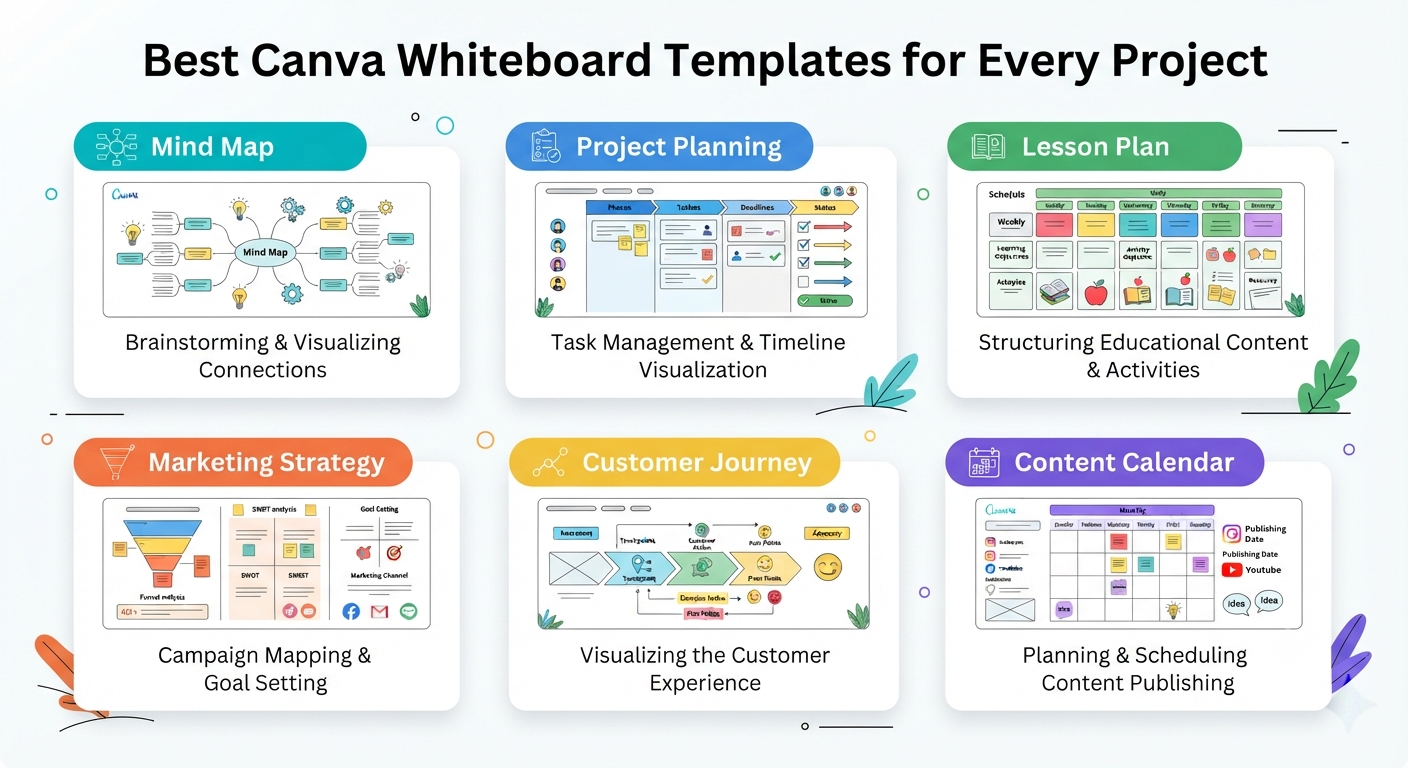
Hidden Feature #4 — Canva Whiteboard Templates
Many beginners overlook the growing collection of Canva Whiteboard templates.
Templates are especially useful for:
- Mind maps
- Lesson plans
- Agile workflows
- SWOT analysis
- Customer journeys
- Brainstorming sessions
- Business strategy
- Project planning
Instead of creating from scratch, start with this template and customise based on your project — you’ll save tons of time!
Expert tip: Set up your own branded template that works best for recurring meetings!
Hidden Feature #5 — Real-Time Collaboration
Collaboration is one of our big strengths!
Invite your team-mates/classmates/clients to work on the same board simultaneously!
Each participant can:
- Add ideas
- Move elements
- Leave comments
- Suggest edits
- Contribute visually
This makes things a lot more fluid compared to emails with documents attached.
Hidden Feature #6 — Intelligent Connectors
Most users only draw straight lines.
Instead, use connectors to build logical relationships between ideas.
Examples include:
- Decision trees
- Marketing funnels
- User journeys
- Website architecture
- Editorial workflows
- Product roadmaps
A well-connected board is easier to understand at a glance than dozens of isolated notes.
Hidden Feature #7 — Built-in Drawing Tools
Does Canva Whiteboard have drawing tools?
Yes. Canva Whiteboard includes freehand drawing tools that let you sketch ideas, annotate diagrams, highlight important sections, or quickly explain concepts during meetings.
You can typically choose different pen styles, colours, and stroke widths to match your workflow.
Best uses:
- Wireframing website layouts
- Explaining ideas during meetings
- Annotating screenshots
- Classroom teaching
- Brainstorming diagrams
Pro Tip: Use drawing only for rough concepts. Convert finalised ideas, connectors, and text for a cleaner, more professional board.
Hidden Feature #8 — Turn Brainstorms into Finished Designs
This is one capability many competing whiteboard tools don’t emphasise.
Once ideas are organised, you don’t need to recreate everything elsewhere.
You don’t use your whiteboard as the sWhiteboardint for:
- PreWhiteboard
- Documents
- Infographics
- Social media posts
- Marketing assets
- Project plans
This significantly reduces duplicate work.
Hidden Feature #9 — Presentation Mode
Instead of taking screenshots of your brainstorming session, present directly from Canva.
Presentation mode is useful for:
- Client meetings
- Workshops
- Team reviews
- Classrooms
- Strategy sessions
Organise sections before presenting so viewers can follow your thought process naturally.
Hidden Feature #10 — Smart Visual Organisation
One mistake beginners make is creating giant walls of sticky notes.
Instead, divide your board into visual zones.
Example:
| Section | Purpose |
|---|---|
| Ideas | Brain dump |
| Research | References |
| Planning | Action items |
| Production | Current work |
| Completed | Finished tasks |
This simple structure keeps even large whiteboards easy to navigate.
Hidden Feature #11 — Team Comments and Feedback
You’ll be able to leave comments and suggestions for your collaborators instead of editing their work straight away.
This is especially useful for:
- Marketing approvals
- Teacher feedback
- Client reviews
- Team brainstorming
- Design revisions
By connecting all discussions to their relevant elements, you eliminate the need to scatter them across your email inbox or chat apps.
Hidden Feature #12 — Your Own Whiteboard Templates
Now that you’ve created an effective workflow, let’s save it as our own reusable template.
Examples include:
- A weekly content calendar.
- An SEO planning board.
- Website planning.
- A lesson planner.
- Your product roadmap.
- A marketing campaign planner.
By creating a template for these things, you save tons of time down the road!
You May Also Like: Canva QR Code Generator Review: Features, Limitations & Honest Verdict (2026)
Canva Whiteboard vs Traditional Whiteboards
| Feature | Canva Whiteboard | Traditional Whiteboard |
|---|---|---|
| Collaboration | Yes | In-person only |
| Templates | Yes | No |
| AI Tools | Yes | No |
| Cloud Saving | Yes | No |
| Images & Videos | Yes | No |
| Team Comments | Yes | No |
| Export Options | Yes | Limited |
| Reusable Boards | Yes | No |
Expert Tips for Better Whiteboards
✔ Begin with a template instead of a blank canvas.
✔ Keep one main idea in each sticky note.
✔ Use colour consistently for categories.
✔ Connect related ideas instead of scattering them.
✔ Leave space between sections so the board remains easy to scan.
✔ Turn completed brainstorming sessions into presentations or documents rather than starting over.
How to use Canva Whiteboard with students?
You could use this tool to promote interactive learning instead of passive note-taking.
Some practical classroom ideas include:
- Group brainstorming
- Science concept maps
- History timelines
- Vocabulary boards
- Story planning
- Problem-solving activities
- Debate preparation
- Collaborative research
Students can put their thoughts on paper simultaneously, resulting in an extremely engaging lesson!
How to Use Canva Whiteboard in the Classroom
For educators, a simple workflow is:
- Create a lesson board.
- Divide it into learning sections.
- Share access with students.
- Assign each group a section.
- Review contributions together.
- Export or save the finished board for revision later.
How To Change Canva Whiteboard Background?
Open your Whiteboard. Select the part of the board that you want to set as the new background (you can also find different background options inside your editor). Select what kind of colour or style you would love to have as a background – You will find all these options inside Canva’s background controls. Also, keep in mind that depending on Canva updates, this list may change.
How to make Canva Whiteboard black?
Try picking out some dark colours for your background if you have this feature on your version of Canva. You should be okay trying different options as long as they’re light for text & connectors.
How to print Canva Whiteboard?
Because whiteboards can be much larger than a standard page, printing usually works best after:
- Organising the cOrganisingo sections
- Adjusting the layout for paper size
- Exporting as a PDF or image
- Printing the exported file
Very large whiteboards may need to be split across multiple pages for readability.
Can you print Canva Whiteboard?
Yes. Exporting before printing generally produces the best results.
Canva Whiteboard vs Other Visual Collaboration Tools
| Feature | Canva Whiteboard | Traditional Whiteboard Apps |
|---|---|---|
| Templates | ✅ | Usually limited |
| Design assets | ✅ | Limited |
| Presentations | ✅ | Usually separate |
| Brand Kit integration | ✅ | Varies |
| Collaboration | ✅ | Yes |
| AI features | Available in Canva ecosystem | Varies |
| Export to designs | ✅ | Often limited |
Common Mistakes Beginners Make
Avoid these common issues:
❌ Putting every idea in one crowded area
❌ Using inconsistent colours
❌ Skipping connectors
❌ Starting with a blank board for every project
❌ Ignoring templates
❌ Adding too much text to each sticky note
❌ Forgetting to organise ideas iorganiseions
You May Also Like: Canva Invitation Templates Review: Are They Better Than Professional Invitation Design Software? (2026)
Troubleshooting Guide
| Problem | Solution |
|---|---|
| Whiteboard feels cluttered | Group related items into sections |
| Hard to follow ideas | Use connectors and headings |
| Difficult collaboration | Assign clear areas to team members |
| Printing looks messy | Export to PDF and simplify the layout |
| Large projects become confusing | Break work into visual zones |
Expert Workflow: The B.R.A.I.N. Framework
Here’s how we tackle this at my agency using our framework called B.R.A.I.N., which stands for:
B – Brains: Capture everything you have to say without worrying about editing.
R – Relate – Link related ideas together using arrows and groupings.
A – Arrange –Organise your content into sections.
I – Improve – Eliminate duplicates and prioritise what to do next.
N – Next Steps – Translate your brainboarding board into actual tasks or Canva designs!
Frequently Asked Questions
What is Canva Whiteboard?
Canva Whiteboard is a collaborative visual workspace in Canva for brainstorming, planning, mind mapping, teaching, and organizing ideasorganising, shapes, media, and connectors.
What is Canva Whiteboard used for?
It is used for brainstorming, project planning, education, marketing campaigns, workshops, content planning, and team collaboration.
What does Canva Whiteboard do?
It provides a flexible visual canvas where users can create, organise, and refine ideas before turning them into finished Canva designs.
Where is Canva Whiteboard?
You can access it from the Canva dashboard by searching for Whiteboard or selecting it from the available design types, depending on the current Canva in Whiteboard.
How does Canva Whiteboard work?
You create a whiteboard, add content such as sticky notes, text, drawings, shapes, and media, collaborate with others, then refine or export your work.
How to use Canva Whiteboard?
Open Canva, choose a Whiteboard, add your ideas, organise them, and collaborate if needed, and export or continue designing.
How to use Canva Whiteboard?
Start with a template or blank board, add your ideas, connect related concepts, and organise and collaborate in real time.
How to use Canva Whiteboard with students?
Create shared activities, assign sections to groups, and encourage collaborative brainstorming, problem-solving, or lesson planning.
How to use Canva Whiteboard in the classroom?
Use it for interactive lessons, concept mapping, group discussions, and collaborative learning exercises.
How to change Canva Whiteboard background?
Use the available background controls in the editor to select another colour or style. Options may change as Canva updates its interface.
How to change Canva Whiteboard background colour?
Choose a different background colour from the editor’s background settings for better readability or presentation.
How to make Canva Whiteboard black?
If supported, apply a dark background colour and switch to light-colored text and elements for contrast.
How to print Canva Whiteboard?
Export it as a PDF or image, then print. Large boards may need to be divided across multiple pages.
Can you print Canva Whiteboard?
Yes. Exporting first usually gives the best print quality.
Does Canva Whiteboard have drawing tools?
Yes. It includes freehand drawing tools for sketches, annotations, and brainstorming.
Does Canva Whiteboard have a limit?
Canva is designed to support large whiteboards, but practical performance can depend on device resources and project complexity.
Does Canva Whiteboard have layers?
Whiteboards support arranging elements visually, but they are not intended to replace the advanced layer management found in dedicated design pages.
Can Canva do whiteboard animation?
You can animate elements within Canva projects, although whiteboard-style animation capabilities differ from specialised animation software.
Does Canva do whiteboard animation?
Yes, basic animation effects are available within Canva’s broader design tools, but they are different from dedicated hand-drawn whiteboard animation platforms.
Can you draw on Canva Whiteboard?
Yes. Drawing tools are available for sketches, annotations, and diagrams.
What is the difference between Canva and Canvas?
Canva is a graphic design platform. Canvas usually refers to the learning management system used by many schools and universities. They are different products.
Is Canva Whiteboard free?
A free Canva account includes access to whiteboard, while some templates, assets, and advanced features require Canva Pro.
Is Canva Whiteboard infinite?
It offers a very large, expandable workspace intended for extensive brainstorming rather than a fixed document page.
Is Canva Whiteboard animation free?
Basic animation options may be available on free plans, while some advanced features require Canva Pro.
Is Canva Whiteboard good?
Yes. It is especially useful for creators, educators, marketers, students, and teams that want brainstorming and design in one platform.
Is Canva Whiteboard anonymous?
Collaboration generally identifies participants according to their Canva accounts and sharing permissions.
Is Canva Whiteboard collaborative?
Yes. Multiple users can collaborate, comment, and edit in real time.
Are Canva Whiteboards infinite?
They are designed to provide an expansive workspace that can grow with your project, making them suitable for large brainstorming sessions.
What are Canva Whiteboards?
They are digital collaborative workspaces inside Canva used to organise ideas
What are Canva Whiteboards used for?
They support brainstorming, planning, teaching, workshops, project management, and creative collaboration.
How do Canva Whiteboards enhance the brainstorming process?
They make it easy to capture ideas, organise them, connect related concepts, collaborate in real time, and convert brainstorming into finished designs.
How do Canva Whiteboards work?
Users create a board, add visual elements, collaborate with others, reorganise ideas or continue working within Canva.
Does Canva have a whiteboard?
Yes. Whiteboard is one of Canva’s built-in design formats.
How to do Canva Whiteboard
Open Canva, select Whiteboard, choose Whiteboard canvas or template, build your ideas with notes and visuals, and share your board.
Conclusion
Canva Whiteboard goes beyond being a basic digital brainstorming tool. As someone who uses Canva as both a creative professional (for my own projects) and collaboratively with others (my team of writers, editors, and designers), I find that this one workspace allows me to plan, collaborate, organise visually, and even design all at once.
From outlining youblog’s’s strategy to teaching a class, planning a product launch, or mapping a customer journey—the ability to seamlessly move from ideation to polished designs without switching platforms saves us massive amounts of time.
Key Takeaways
- Perfect for brainstorming, planning & collaboration
- Use templates to get going fast & maintain consistency
- Connectors, sections & colour coding improve clarity
- With drawing tools, you can easily sketch out your thoughts and ideas quickly.
- Our custom templates help with repeating processes.
- We also have collaboration features for classrooms and remote teams
- Use export options to share or print your work.
- Structured frameworks such as C.L.E.A.R. or B.R.A.I.N. will make brainstorming more productive.
If you’re using Canva, Whiteboard is definitely one of those cool features you can integrate into your work. Whiteboard, you eliminate much of the friction between ideation (brainstorming) and execution while allowing for seamless real-time collaboration.
Additionally, since Canva has built out its entire design ecosystem over time, integrating tools like Whiteboards makes perfect sense, as they allow people to take their brainstorms from just thoughts to actual, organised projects.